
BecomingLab — Personal Development Mastery
BecomingLab is the approved personal development variant built on AtlasForm — Functional Fitness System 7.1.5. Preserve the supplied BecomingLab logo, course thumbnail, spacing, and responsive proportions.
Approved BecomingLab brand palette
| Role | Color |
| Foundation | #292B45 |
| Primary | #636FD6 |
| Accent | #4DBA8A |
| Soft background | #F1F3FF |
Use the primary logo on white/soft backgrounds, the reversed logo on Foundation or Primary, and the brand mark only for compact square placements.
Complete installation and feature guide
AtlasForm — Functional Fitness System 7.1.5 is demonstrated on BecomingLab — Personal Development Mastery. Despite the template's product name, the verified Kajabi implementation supports a calm, structured personal-development journey. The current supplied logo and thumbnails are correct; preserve their proportions and visual treatment.
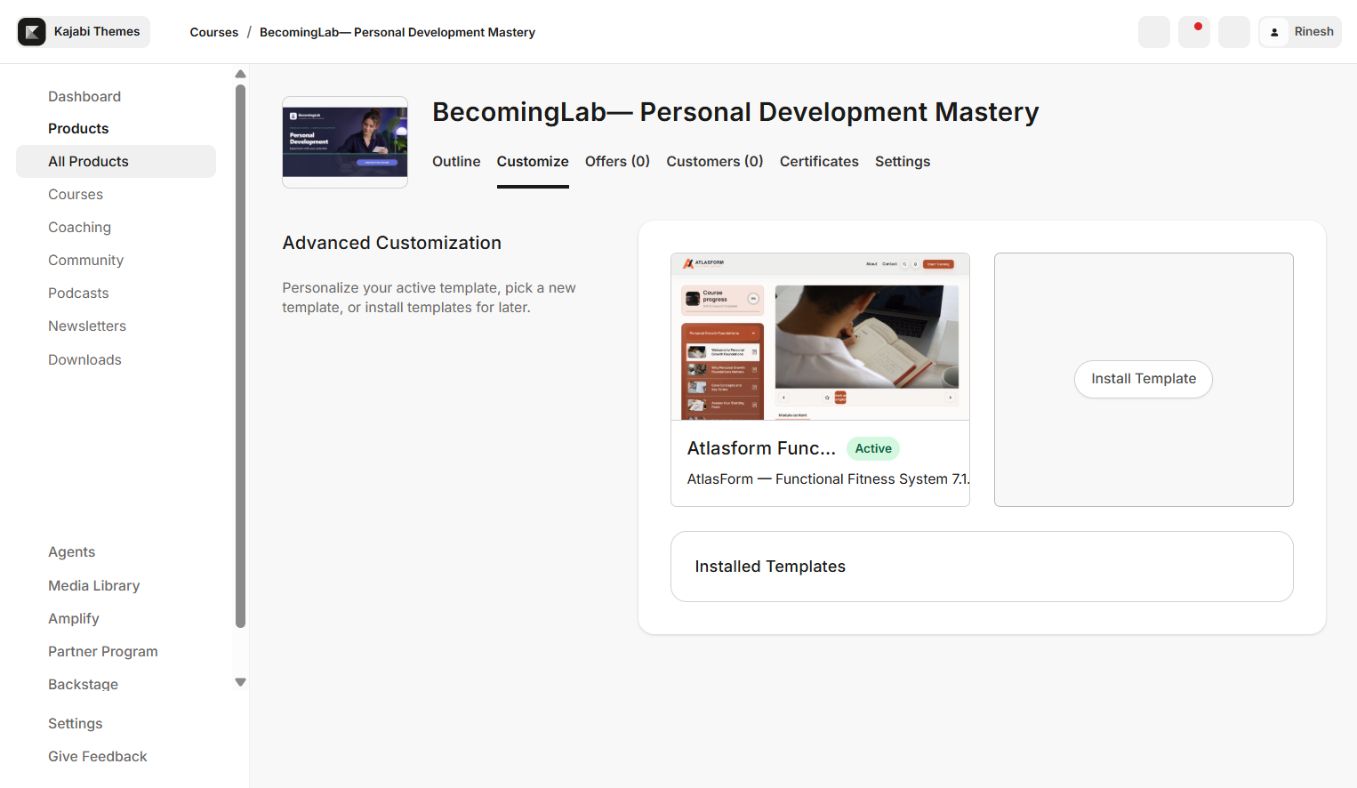
Safe installation
- 1Download the AtlasForm ZIP and leave it compressed.
- 2Open Products → Courses → your Course → Customize.
- 3Select Install Template → Upload Template and upload the ZIP.
- 4Confirm version 7.1.5 in Installed Templates.
- 5Customize the new copy while keeping the previous active template.
- 6Apply branding and content settings, preview desktop/mobile, and test with a non-admin member.
- 7Activate only after all page types pass.
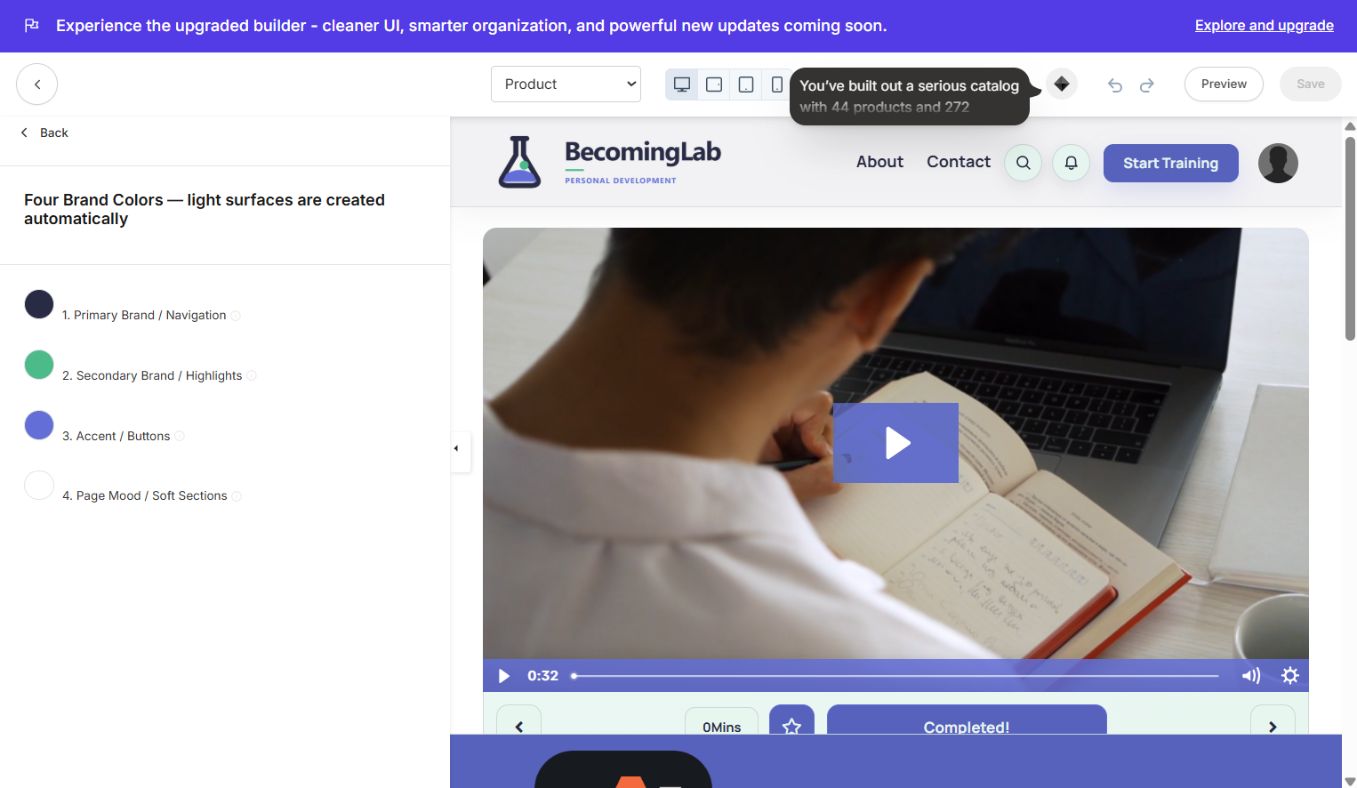
Color scheme and style guide
AtlasForm uses Primary Brand / Navigation, Secondary Brand / Highlights, Accent / Buttons, and Page Mood / Soft Sections. Keep Primary stable for navigation, use Secondary sparingly for highlights, reserve Accent for actions, and use Page Mood for calm section separation. The Style Guide coordinates type, spacing, cards, buttons, and supporting interface choices.
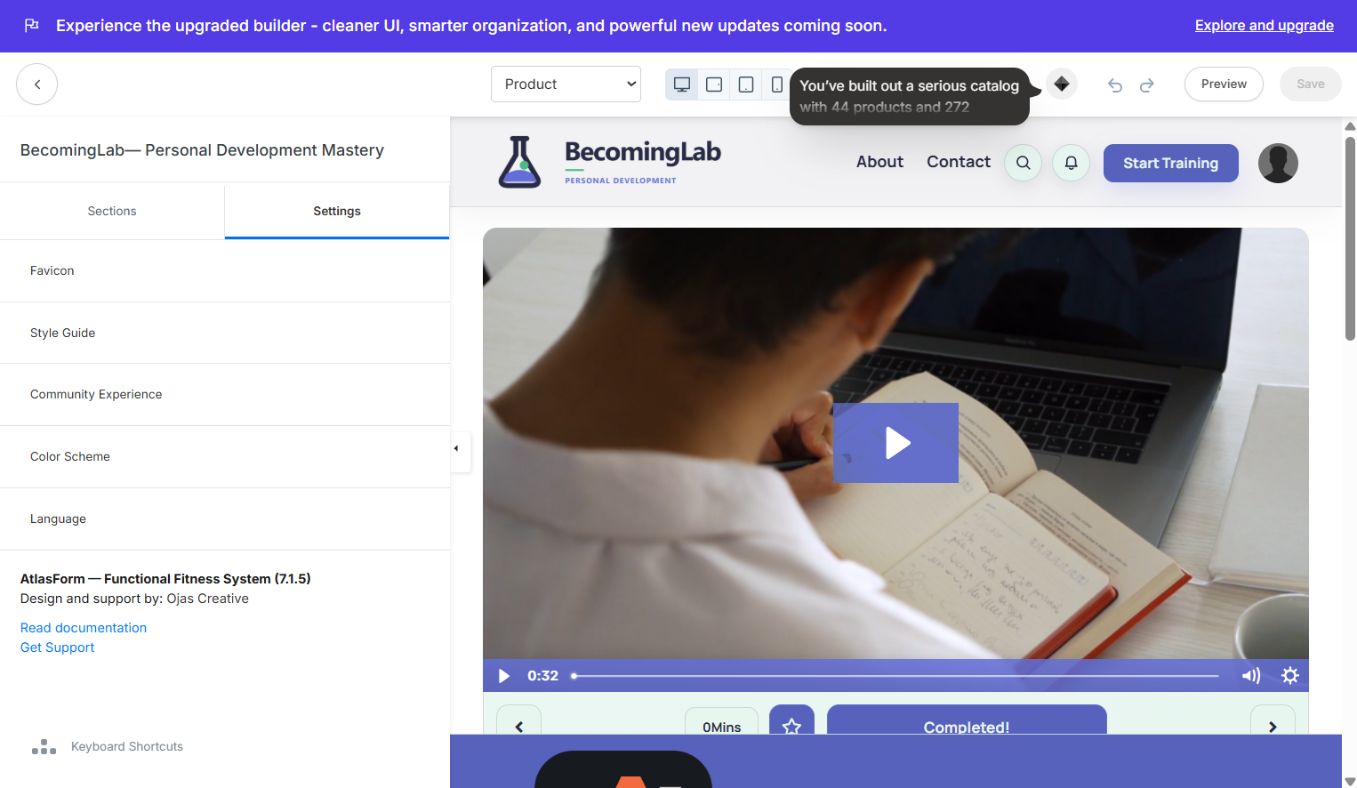
Sections and global settings
The real editor exposes Header, Search, Welcome Body, Community Widget, Side Bar, Footer, and Mobile Bottom Navigation. Global settings include Favicon, Style Guide, Community Experience, Color Scheme, and Language.
- Welcome Body presents the course introduction, featured media, progress, and learning path.
- Side Bar provides structured module access and progress context.
- Search helps members return to available lessons.
- Community Widget connects eligible learners to the configured Kajabi Community.
- Mobile Bottom Navigation keeps core destinations reachable without covering page content.
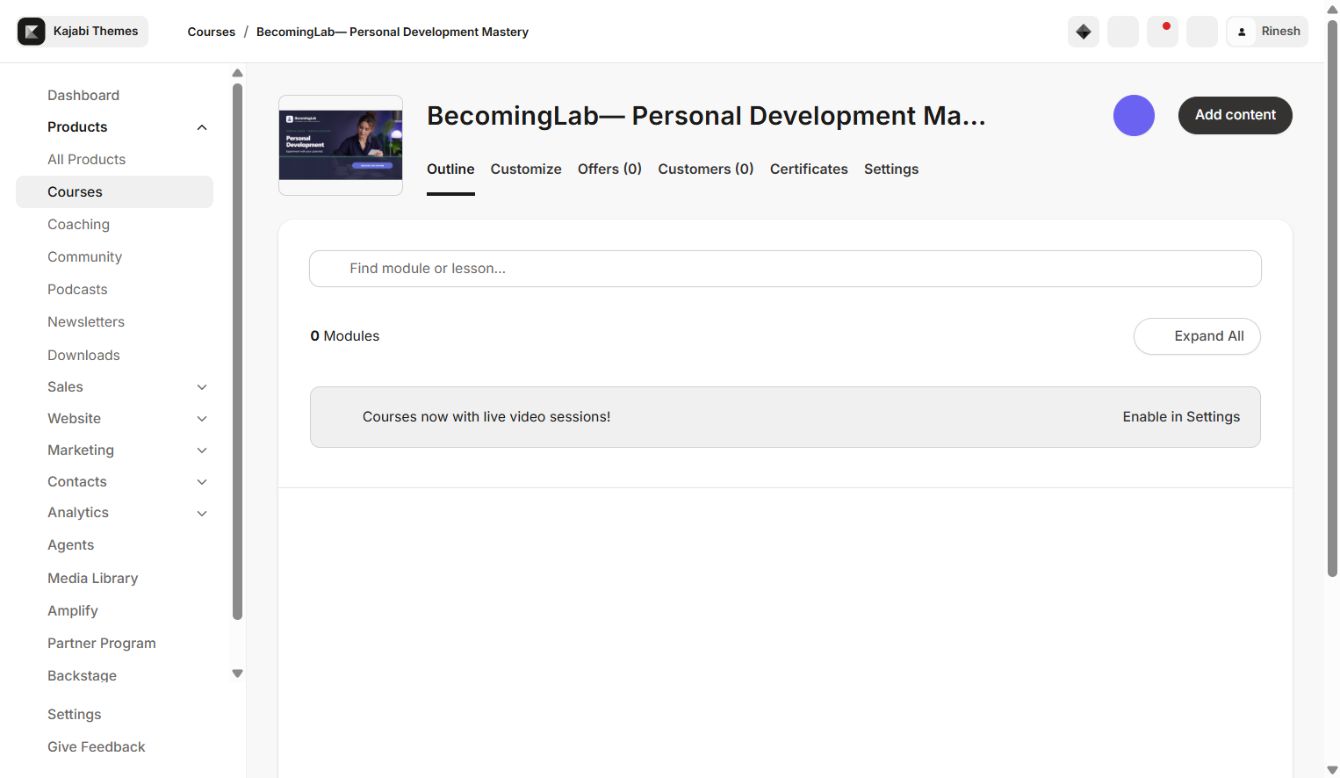
Demo course structure
BecomingLab includes Personal Growth Foundations, Self-Awareness & Life Vision, Goal Setting & Priorities, Habits & Daily Routines, Focus/Productivity/Time, a locked Seven-Day Growth Challenge, and draft Communication and Purpose modules. Use Kajabi's native access controls for these states.
Logo, thumbnails, and media
Keep the supplied logo and thumbnail assets intact. When intentionally rebranding a duplicate, use a transparent logo, preserve its aspect ratio, use consistent category thumbnail dimensions, and check hero/poster crops on phone widths. Add lesson video, audio, downloads, and posters through Kajabi so progress and permissions remain native.
Community and member testing
Choose the intended circle or Community experience, give the test member access, and verify the full journey outside admin preview. Test login, Course Home, Search, Community, lesson completion, locked modules, footer, and bottom navigation.
Launch checklist
- AtlasForm version 7.1.5 installed in the intended Course
- Supplied logo and thumbnails preserved
- Color Scheme and Style Guide checked
- Header, Welcome Body, Sidebar, Search, Community, Footer, and Mobile Nav checked
- Media, progress, locked, drip, and completion states checked
- Non-admin desktop and real-phone test passed
- Previous working template retained
Updating
Install new releases beside the active version. Configure and test the new copy before activation. If any issue appears after launch, reactivate the previous installed template while you correct the update.
Continue learning
Ready to build your CineFlow site?
Keep this guide open while you customize, and contact support if you get stuck.