CapitalHarbor — Finance & Investing Library
CapitalHarbor is the approved finance and investing variant built on Ojas Stream 7.1.4. Preserve the supplied CapitalHarbor logo, course thumbnail, spacing, and responsive proportions.
Approved CapitalHarbor brand palette
| Role | Color |
| Foundation | #12382D |
| Primary | #218565 |
| Accent | #D5A93D |
| Soft background | #F5F1E7 |
Use the primary logo on white/soft backgrounds, the reversed logo on Foundation or Primary, and the brand mark only for compact square placements.
Complete installation and feature guide
Ojas Stream 7.1.4 is demonstrated on CapitalHarbor — Finance & Investing Library. This guide is based on the real active Kajabi installation, course outline, editor settings, supplied logo, and thumbnail treatment. The current logo and thumbnails are correct and should not be replaced during installation.
Install without risk
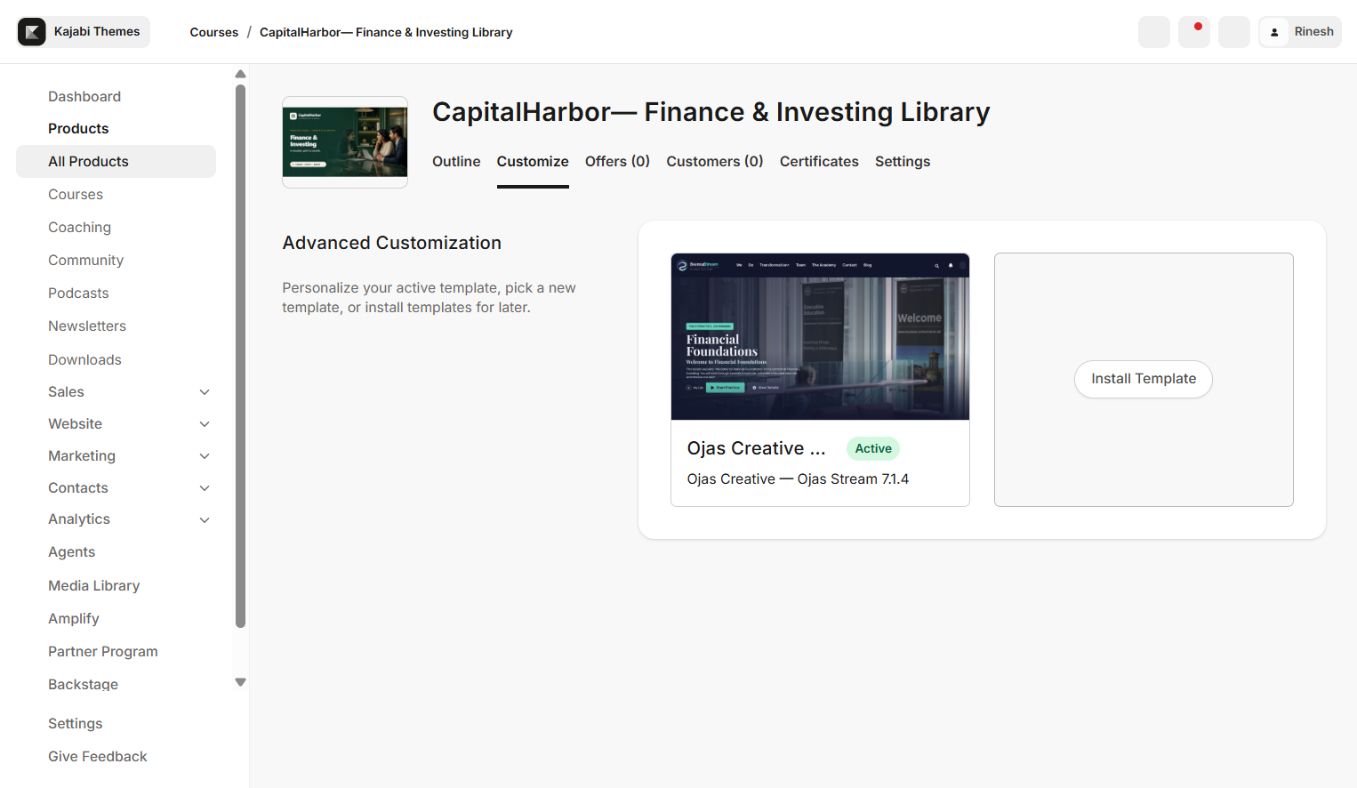
- 1Download the Ojas Stream ZIP and keep it compressed.
- 2Open the correct Kajabi Course and choose Customize.
- 3Select Install Template → Upload Template.
- 4Upload the untouched ZIP and confirm Ojas Stream 7.1.4 appears.
- 5Customize the installed copy without deleting the current active template.
- 6Keep the supplied logo and thumbnails, then configure colors, type, sections, and Community.
- 7Preview all pages and test with a non-admin member before activation.
Global color pattern
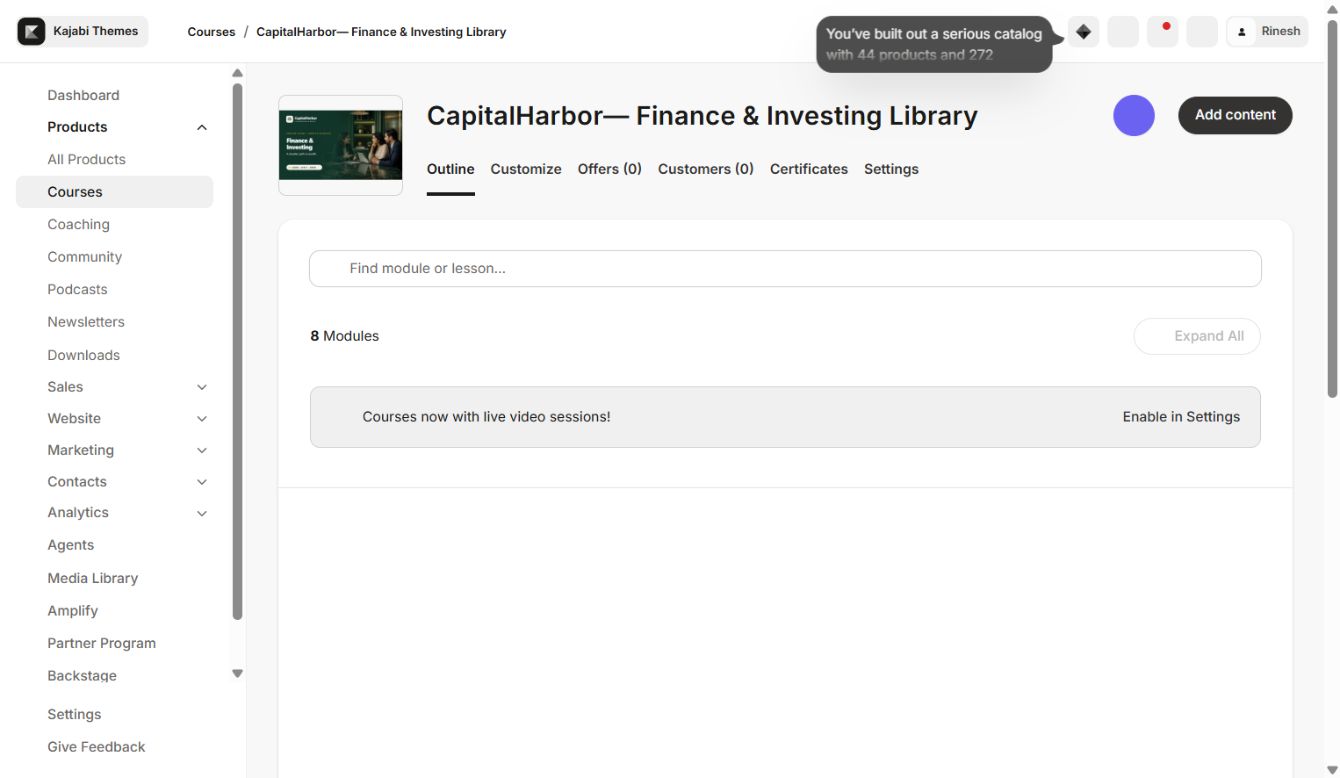
Open Settings → OJAS Theme Colors. The four roles are Accent / Buttons (Light), Brand Tone (Dark), Surface / Cards (Darker), and Theme Background (Deepest). This creates the premium deep-background library style while keeping calls to action clear. Check contrast on navigation, cards, player controls, progress, locked states, links, and Community overlays.
Complete settings reference
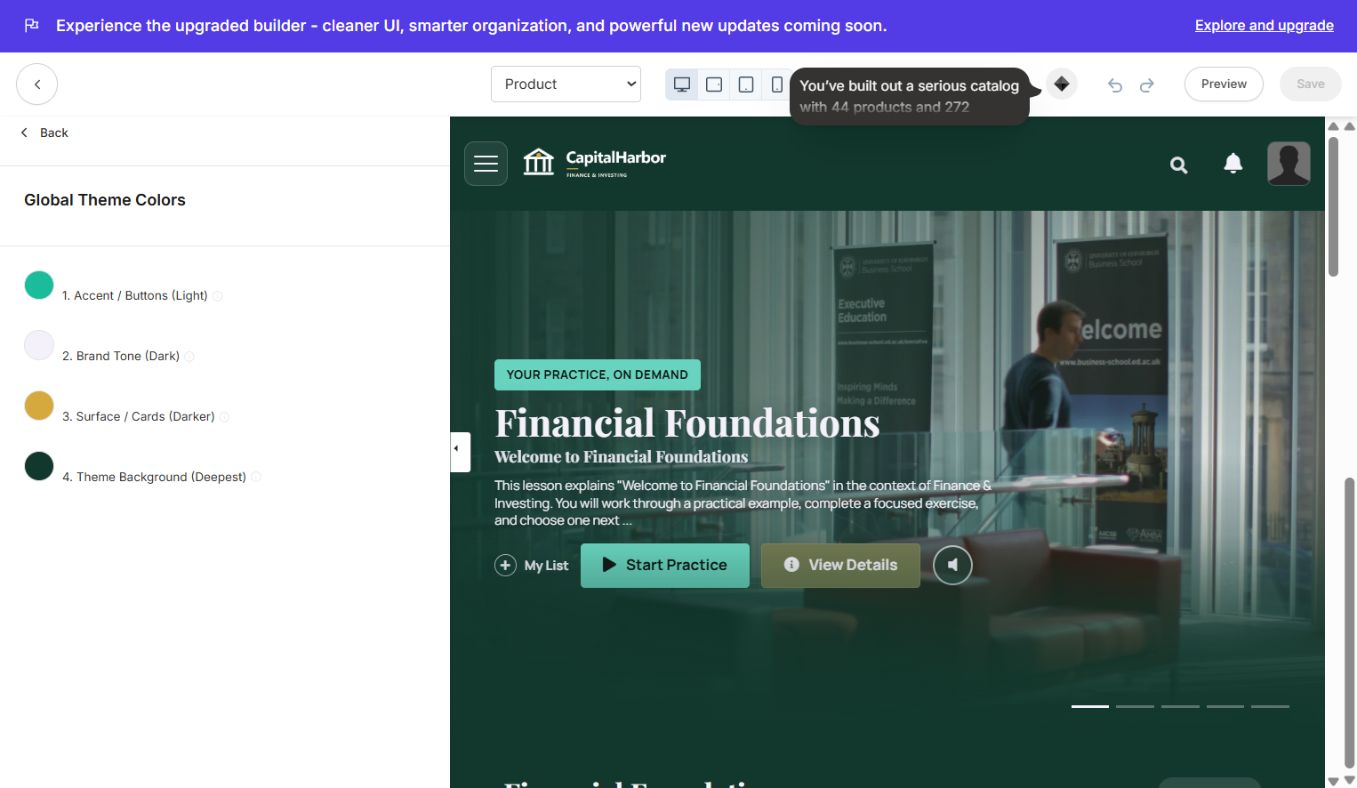
Global controls include Brand, OJAS Theme Colors, Typography, Header, Menu & Search, Homepage Category Text, Course Display, Post Page Text, Advanced, and Community Experience. Use Brand for the supplied responsive logo, Typography for the visual hierarchy, Course Display for member-library presentation, and Post Page Text for lesson wording.
The main sections are Header, Topbanner, Product Custom Body, Community Widget, and Footer.
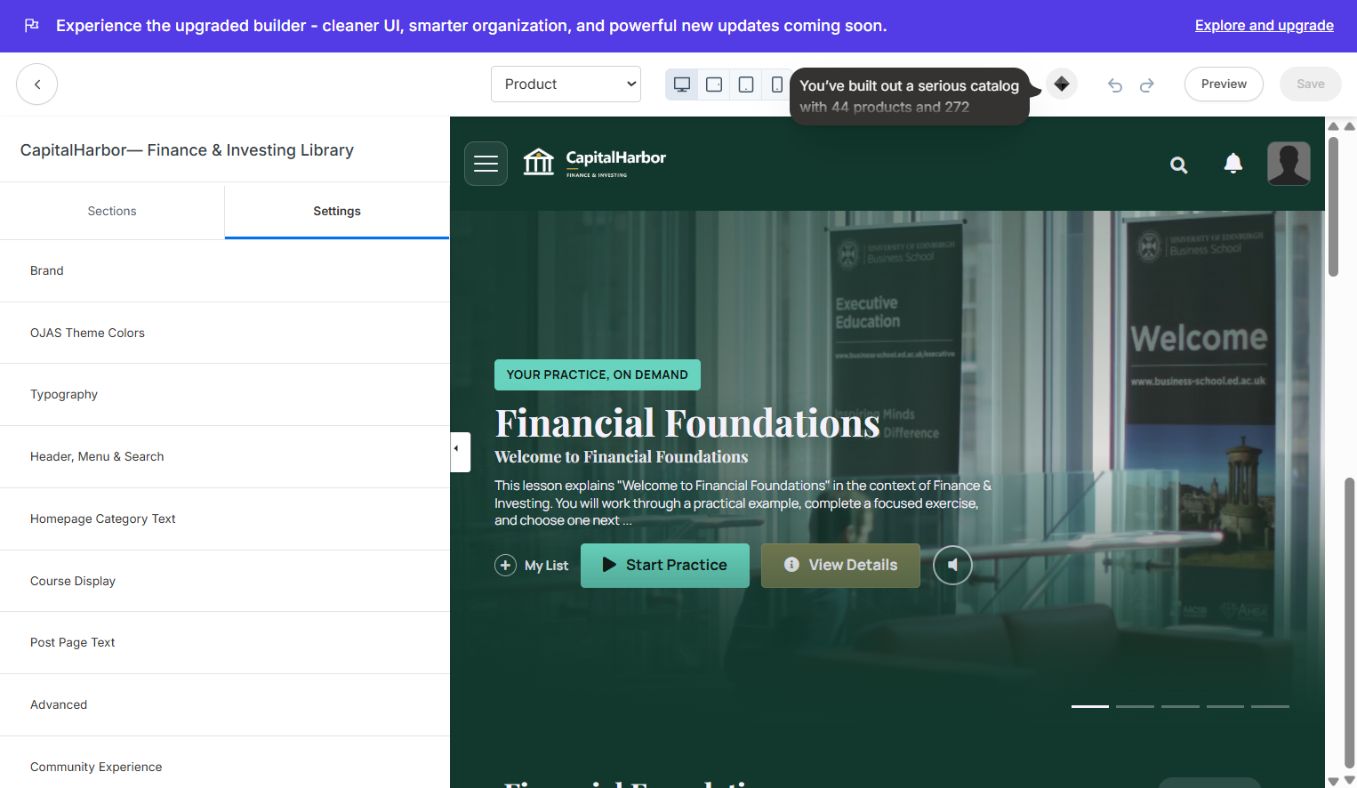
Member experience features
- Cinematic Course Home with featured content and category discovery
- Responsive category, lesson, and post layouts
- Video and audio lesson support with posters and downloads
- Search, favorites/My List, announcements, and account controls
- Course progress, completion, locked, and dripped states
- Native Kajabi Community access for eligible members
- Desktop, tablet, and mobile-safe navigation
CapitalHarbor demo structure
The verified course includes Financial Foundations, Money Mindset & Financial Goals, Budgeting & Cash Flow, Saving & Emergency Funds, Investing Foundations, a locked Seven-Day Money Reset, and draft Stocks/Bonds/Funds and Long-Term Wealth modules. Kajabi controls whether each item is Published, Draft, Locked, or Dripped.
Logo, thumbnails, video, and audio
Retain the approved CapitalHarbor/Ojas Stream logo and thumbnail pattern. Use Kajabi lesson media fields for video and audio, add accessible titles and poster images, attach downloads at the lesson level, and check player cropping at both desktop and mobile sizes.
Community setup
Select the correct Community or circle, grant the test member access to it, and verify the Community Widget outside admin preview. Confirm the overlay does not sit behind the mobile navigation and that closing it returns focus to the page.
Pre-launch QA
- Ojas Stream 7.1.4 installed in the intended Course
- Supplied logo and thumbnails preserved
- Four global color roles and typography verified
- Course Home, Categories, Category, Post, Search, and Announcements checked
- Video, audio, downloads, progress, completion, locked, and drip states checked
- Search, favorites, Community, footer, and mobile navigation checked
- Non-admin desktop and real-phone testing passed
- Previous active template retained for rollback
Updates and rollback
Upload each update as a separate installed template. Configure and test before activation, then retain the previous working version until production verification is complete. Rollback is simply reactivating the previous template; Course content, customers, purchases, and progress remain in Kajabi.
Ready to build your CineFlow site?
Keep this guide open while you customize, and contact support if you get stuck.