
ConvertWave — Marketing & Sales Accelerator
ConvertWave is the approved marketing and sales variant built on PulseCore — Dynamic Flow 7.1.4. Preserve the supplied ConvertWave logo, course thumbnail, spacing, and responsive proportions.
Approved ConvertWave brand palette
| Role | Color |
| Foundation | #22243A |
| Primary | #2D78E8 |
| Accent | #F0477A |
| Soft background | #EDF3FF |
Use the primary logo on white/soft backgrounds, the reversed logo on Foundation or Primary, and the brand mark only for compact square placements.
Complete installation and feature guide
PulseCore — Dynamic Flow 7.1.4 is demonstrated on ConvertWave — Marketing & Sales Accelerator. The documentation below is based on the real Kajabi installation, correct supplied logo and thumbnail, active editor structure, and the current course outline.
Install safely
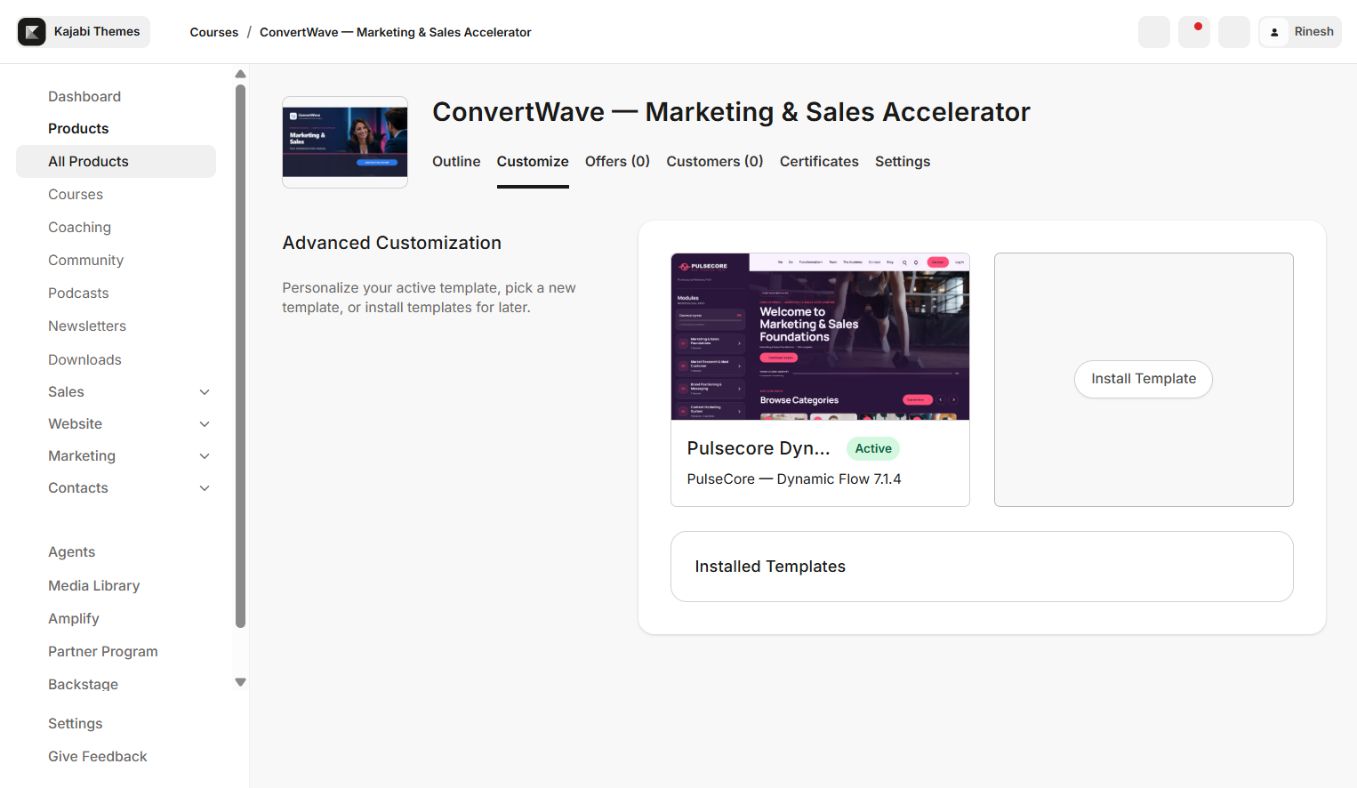
- 1Download the template ZIP and do not unzip or rename its internal files.
- 2Open Products → Courses → Customize → Install Template → Upload Template.
- 3Upload the ZIP and confirm PulseCore — Dynamic Flow 7.1.4 is installed.
- 4Customize the new copy without deleting or activating over the current working template.
- 5Preserve the supplied logo and thumbnail placement; they are the approved visual reference.
- 6Preview every page type, test with a non-admin member, then activate.
Four-color pattern
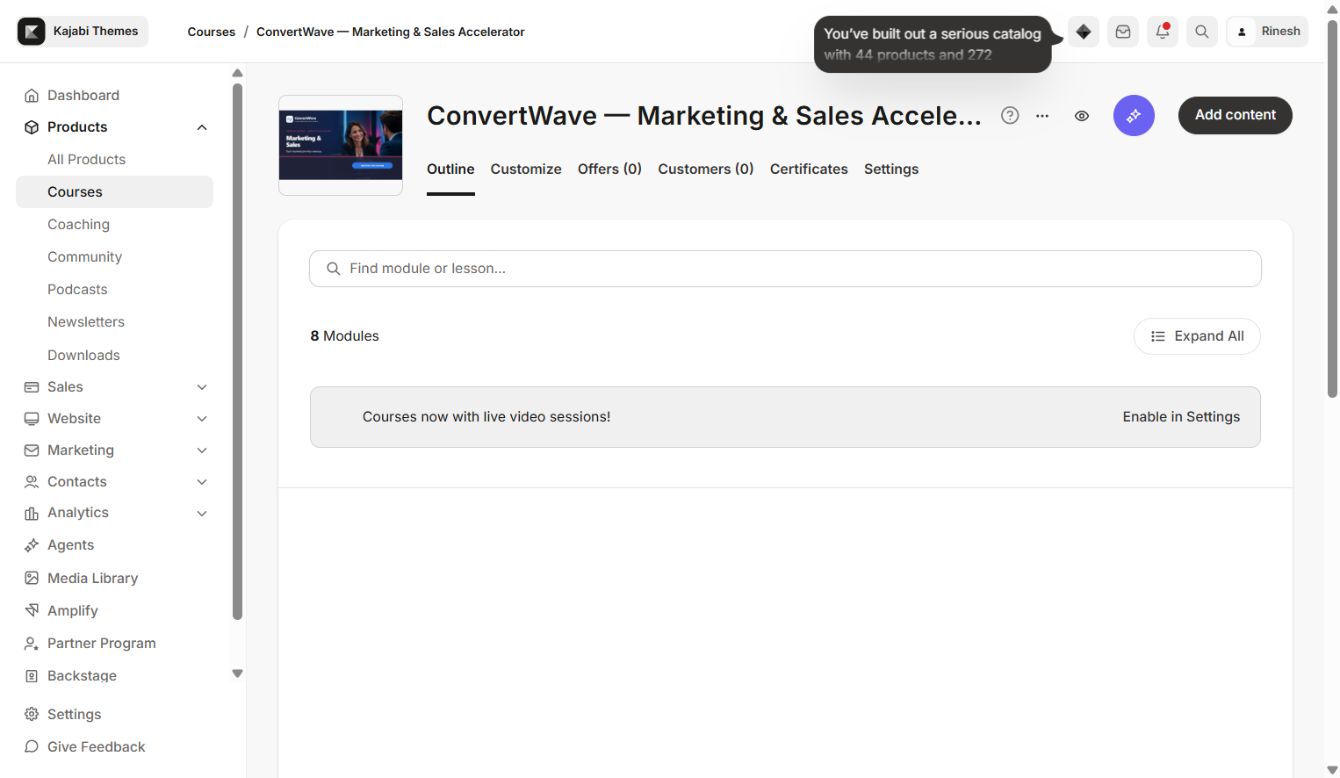
Open Settings → Four-Color Theme. Use Surface / Cards for content panels, Accent / Buttons for primary actions, Theme Background for the page base, and Secondary Brand / Navigation for navigation and supporting emphasis. Keep enough contrast between cards and the background; verify buttons, progress bars, text links, focus states, and locked labels.
Editor structure
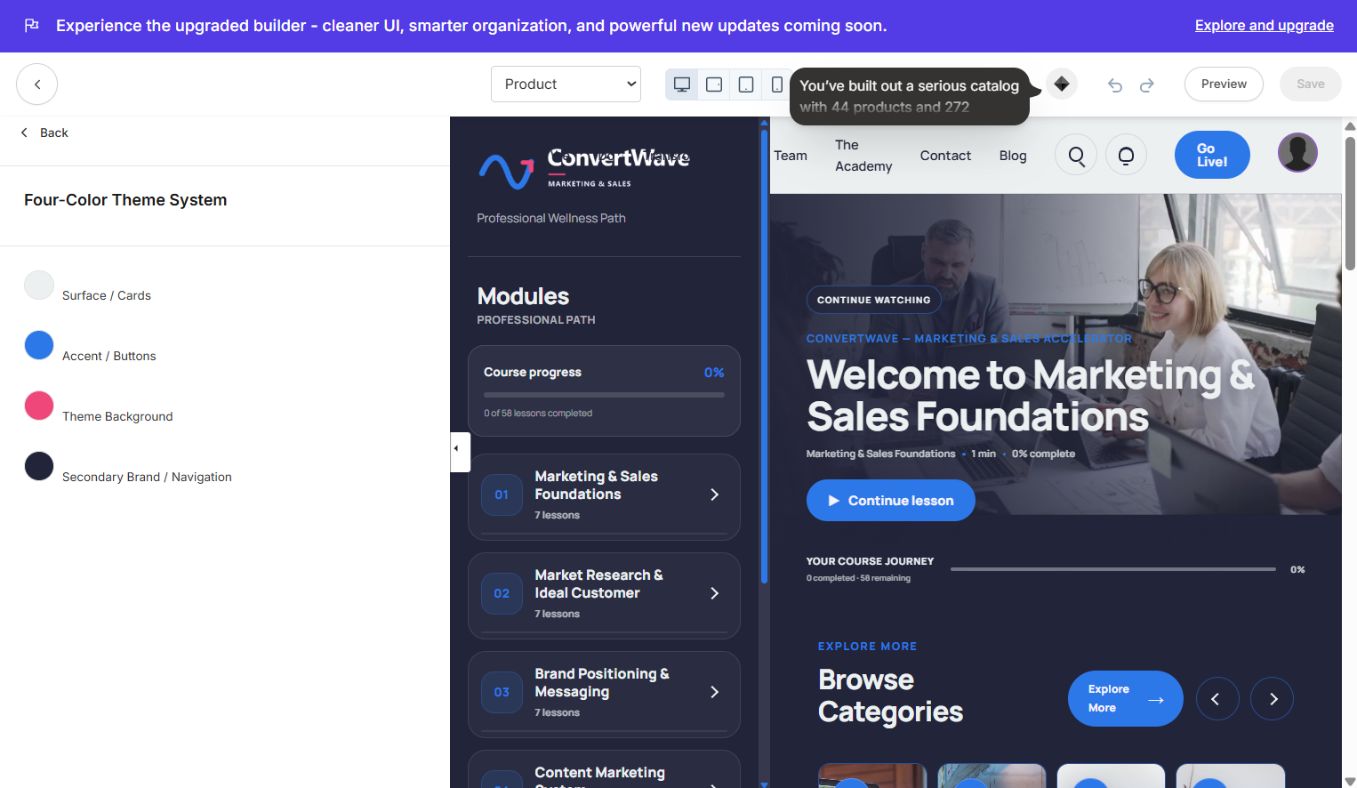
PulseCore provides Search, Course Sidebar, Header, Product Home, Product Content Blocks, Community Widget, Product Favorites, Footer, and Mobile Navigation sections. Global settings include Four-Color Theme, Typography, Language, Community Experience, and Favicon.
- Product Home controls the featured lesson, progress summary, Browse Categories, Continue Learning, and highlight blocks.
- Course Sidebar shows the module sequence, lesson counts, progress, and locked modules.
- Search and Product Favorites provide fast return paths to content.
- Header and Mobile Navigation maintain member access on desktop and phone.
- Community Widget connects eligible learners to the selected Kajabi Community.
Real demo structure
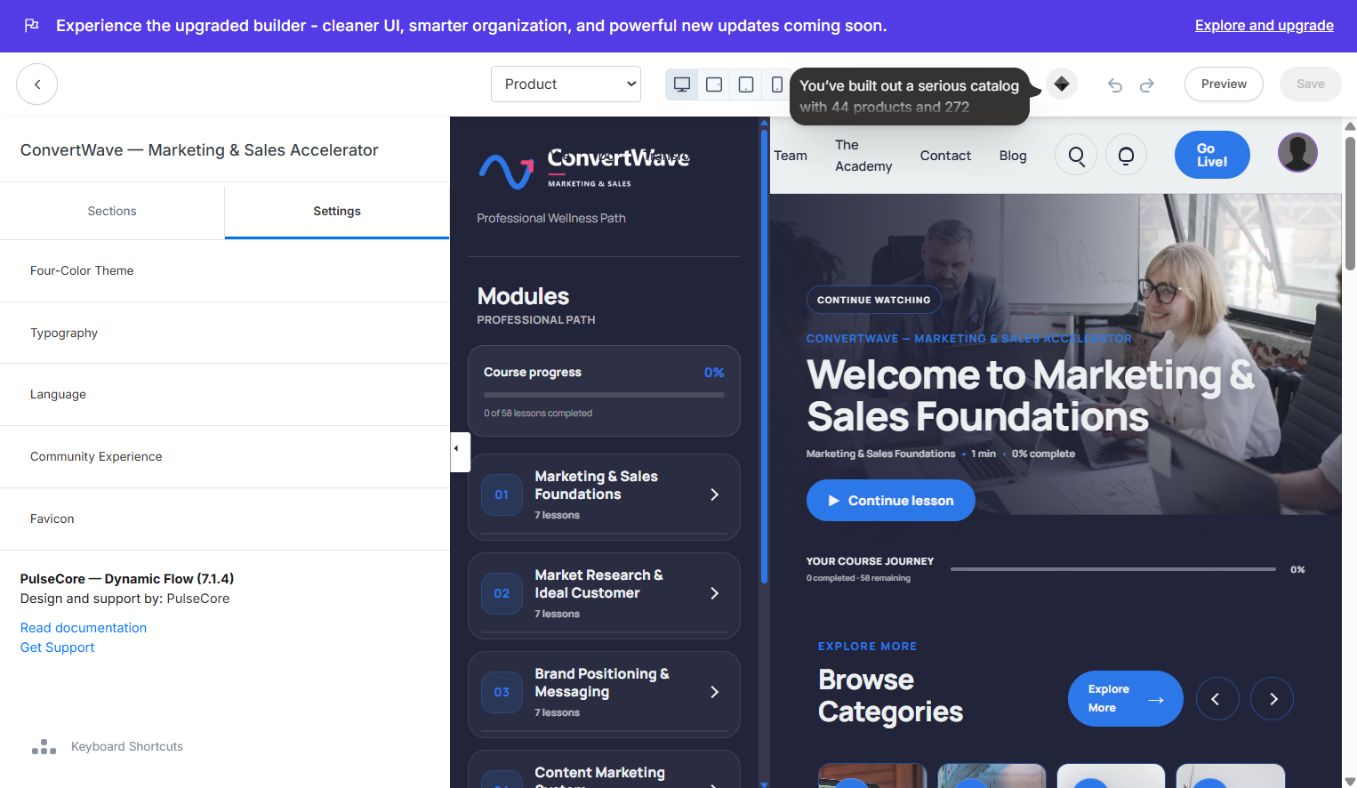
ConvertWave includes Marketing & Sales Foundations, Market Research & Ideal Customer, Brand Positioning & Messaging, Content Marketing System, Lead Generation & Funnels, a locked Seven-Day Campaign Sprint, and draft Sales Conversations and Revenue Growth modules. Configure access in Kajabi, not through visual hiding.
Media, progress, and locked content
Add video or audio at the Kajabi lesson level, configure poster images and downloads, and review player sizing on mobile. Progress reflects Kajabi completion data. Locked and dripped modules must be tested using a member whose access dates match the intended release plan.
Community and mobile QA
Choose the correct Community/circle, grant the test member access, and test the popup or link outside admin preview. On a real phone verify the logo, mobile nav labels, search, favorites, sidebar, media player, completion button, Community overlay, and footer safe area.
Launch checklist
- Correct Course and PulseCore 7.1.4 selected
- Supplied logo/thumbnail retained and responsive
- Four color roles and typography verified
- Product Home, Categories, Category, Post, Search, and Announcements checked
- Published, locked, draft, drip, and progress states checked
- Community verified as a non-admin member
- Desktop, tablet, and phone QA complete
- Previous template retained for rollback
Updates
Install a new version beside the current version, copy settings intentionally, and test before activation. Never overwrite or delete the only working copy. If an update fails, reactivate the previous installed template.
Ready to build your CineFlow site?
Keep this guide open while you customize, and contact support if you get stuck.