
Follow each section in order for the smoothest setup.
All documentationElevateAxis Kajabi Installation and Feature Guide
Install and activate
- 1Keep the Kajabi theme ZIP intact.
- 2Open Products > Courses and select the destination course.
- 3Open Themes, upload the ElevateAxis ZIP, and wait for processing.
- 4Activate the theme and open Customize.
- 5Confirm the ElevateAxis logo, colors and responsive type scales.
- 6Preview desktop and mobile before publishing.
Duplicate the current live theme before replacement. The customer uploads the final ZIP.
Four-color system
| Role | Default color |
| Foundation | #1F2A44 |
| Primary | #3973C6 |
| Accent | #D94F70 |
| Soft surface | #EFF4FA |
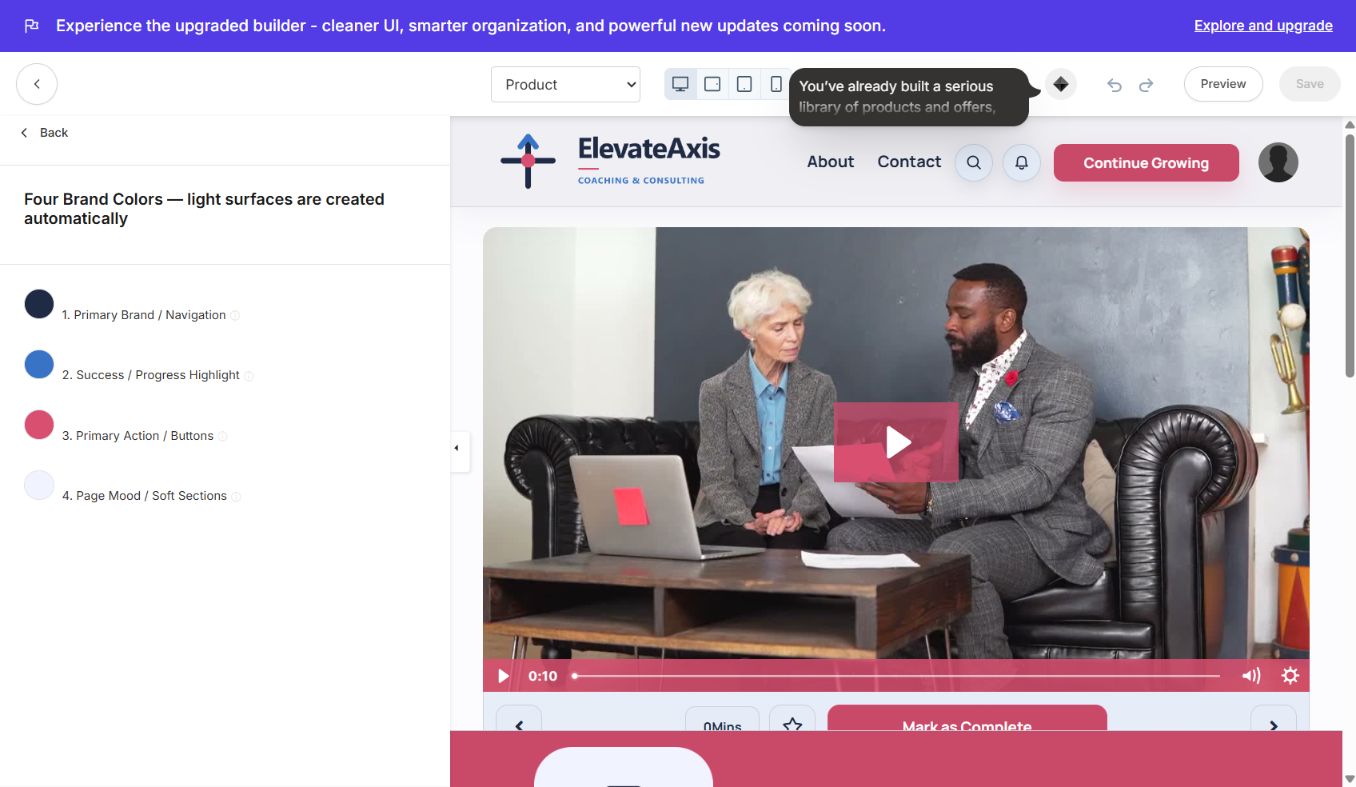
Test navigation, buttons, progress, text contrast, card surfaces, locked states and focus states after every palette change.
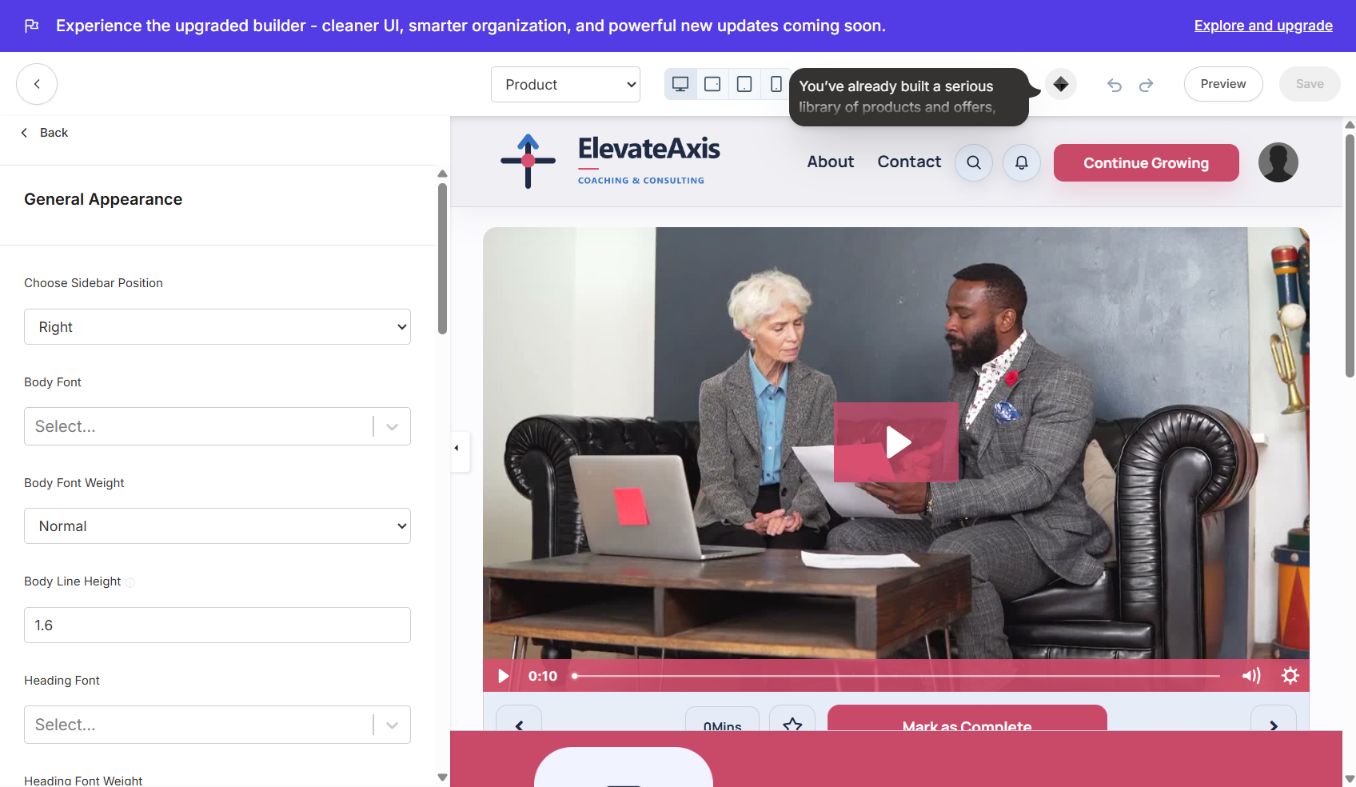
Typography controls
- Separate body and heading font families and weights
- Independent body and heading line heights
- Editable desktop H1-H6 and body sizes; 18 px body is shown
- Independent mobile H1-H6 and body sizes; 16 px body is shown
- Left or right course-outline sidebar position
Learner experience
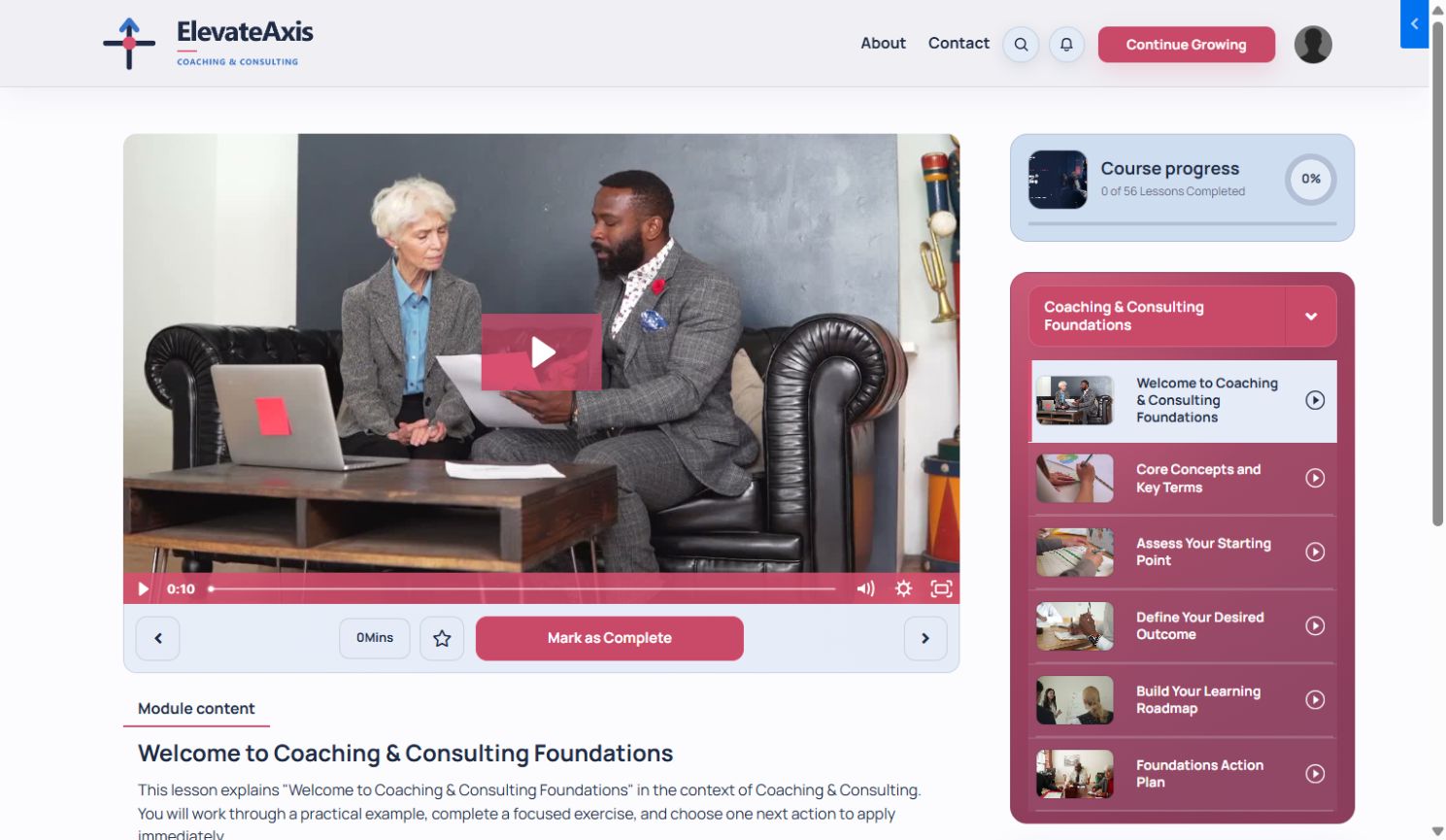
- Focused lesson player with previous and next navigation
- Favorites, lesson completion and comments
- Course outline with module and lesson context
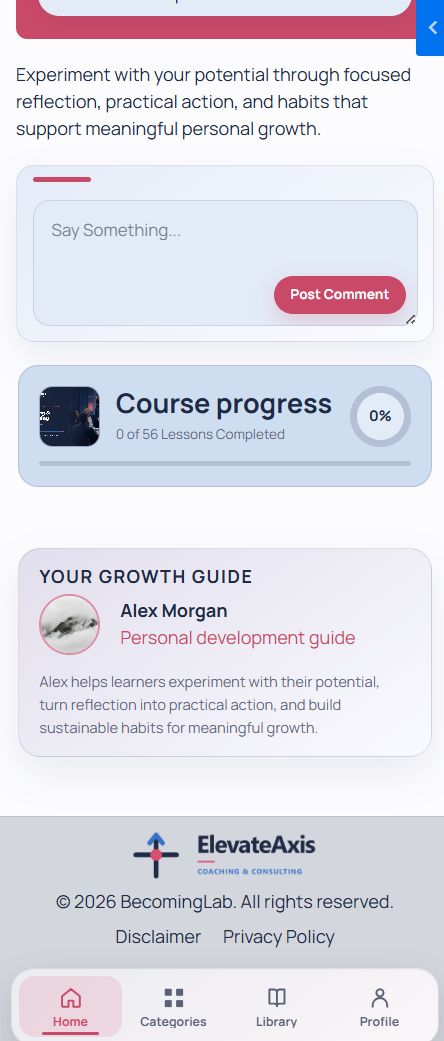
- Instructor profile and visible course-progress card
- Dedicated mobile bottom navigation
Progress and instructor details
Editable sections
Header, Search, Welcome Body, Community Widget, Side Bar, Footer and Mobile Bottom Navigation.
Launch checklist
- Correct logo, favicon, thumbnail and four colors are visible.
- Desktop and mobile type scales are readable without crowding.
- Lesson navigation, completion, favorites and comments work.
- Course outline, instructor profile and progress card display correctly.
- Every course and community destination is valid.
Design and support by Ojas Creative.
Continue learning
Ready to build your CineFlow site?
Keep this guide open while you customize, and contact support if you get stuck.