
Ojas Creative — Ojas Aura
Single-Page Kajabi Course Template
Ojas Aura brings the member's lesson, course navigation, progress, media, downloads, and supporting content together in one focused responsive Course experience.
Ojas Aura is a Kajabi Course/Product template. Install it from the selected Course's Customize tab—not from Website Design.
Download the complete Word guide
Quick start
- 1Download the original Ojas Aura ZIP and keep it compressed.
- 2Open Products → Courses and select the Course you want to style.
- 3Confirm its Outline, then open Customize.
- 4Choose Install Template → Upload Template and upload the original ZIP.
- 5Leave the existing template active while you customize and test Ojas Aura.
- 6Preview desktop and mobile, test with a non-admin member, then activate.
Installing the template does not make it visible to customers. Kajabi requires a separate Activate action.
Before you begin
- Confirm you have admin access to the correct Kajabi site and Course.
- Retain the currently active Course template as a rollback option.
- Prepare transparent desktop and mobile logos, brand colors, fonts, thumbnails, and lesson media.
- Organize and publish the modules and lessons members should see.
- Replace placeholder copy and media before launch.
1. Confirm the correct Course
Open Products → Courses, select the intended Course, and verify the expected modules and lessons.
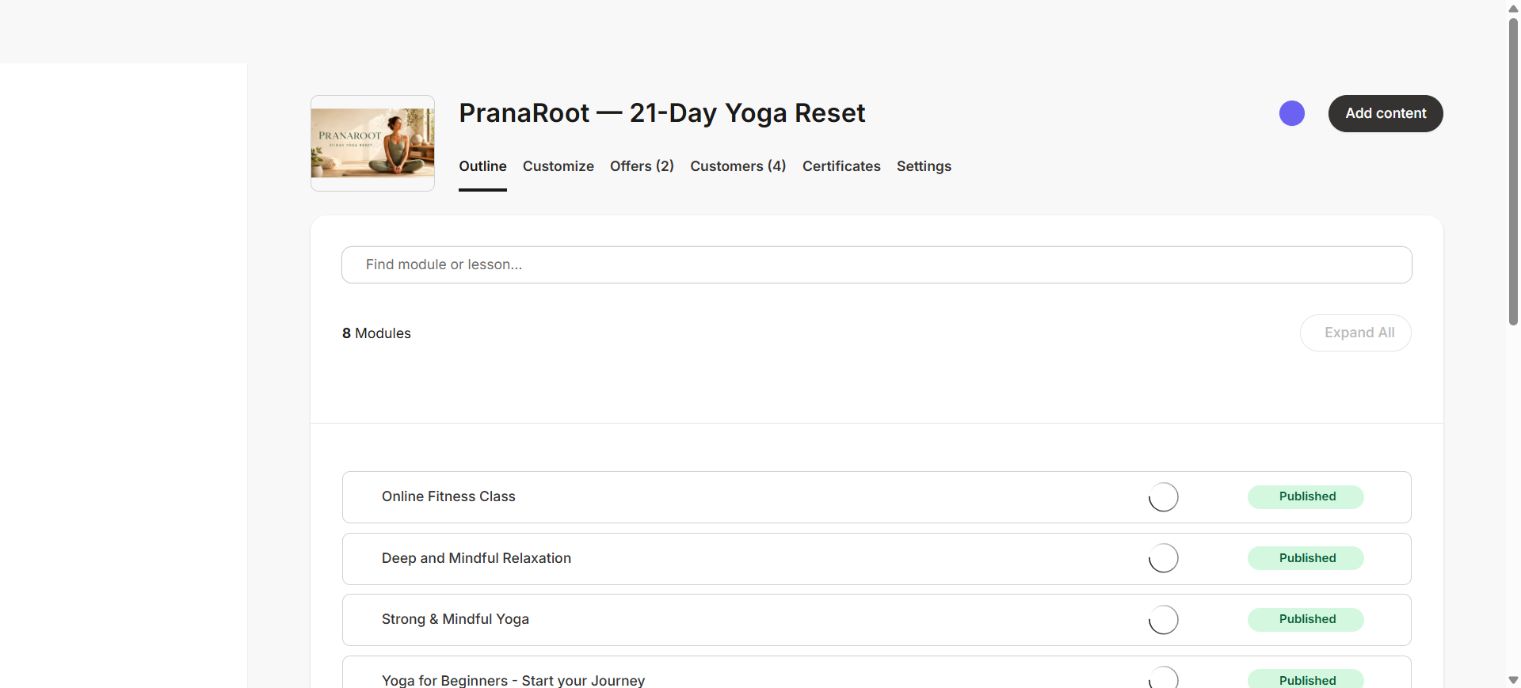
Each Kajabi Course has its own Course template. Installing Ojas Aura in one Course does not change another Course.
2. Install Ojas Aura
- 1Open the Course's Customize tab.
- 2Choose Install Template, then Upload Template.
- 3Select the untouched Ojas Aura ZIP. Do not extract or re-zip it.
- 4Wait for Kajabi to finish processing the package.
- 5Keep the current live template active while you configure Ojas Aura.
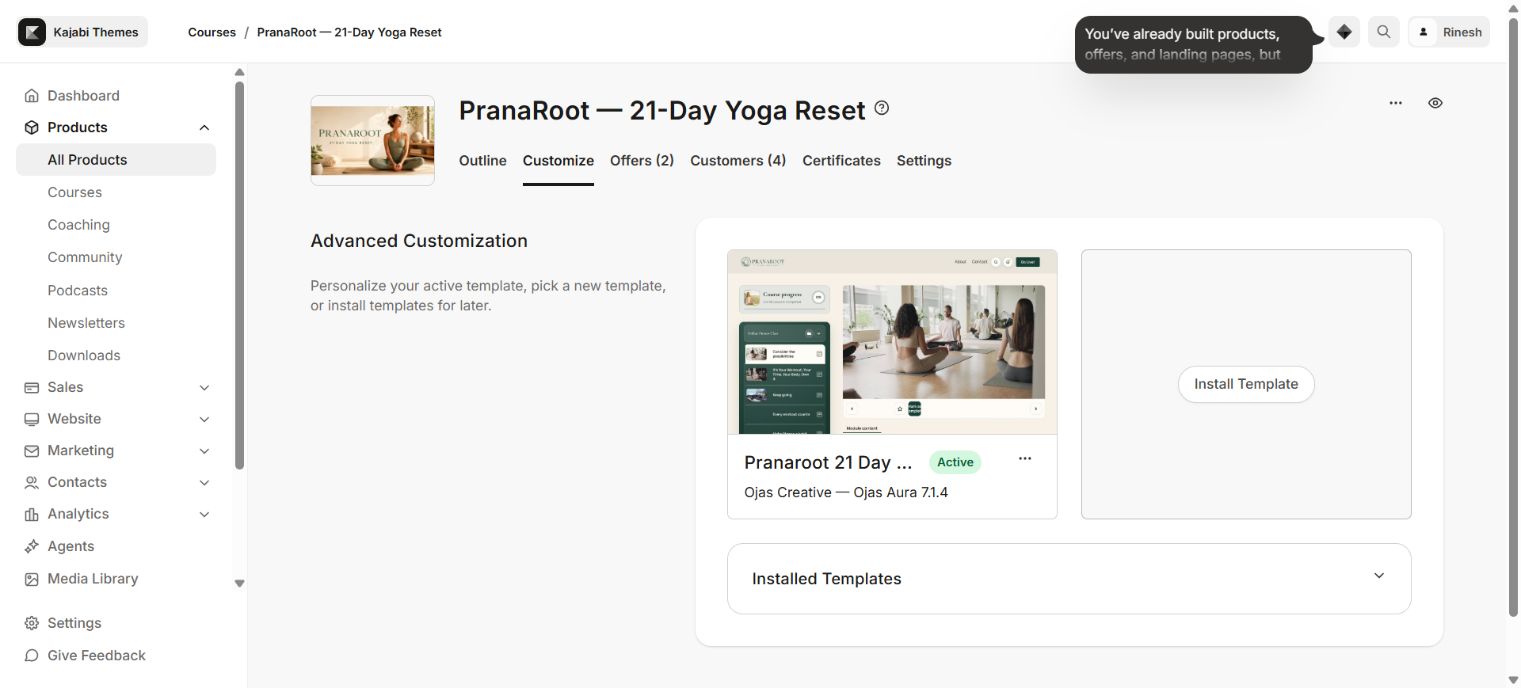
The installed template metadata should read Ojas Creative — Ojas Aura. “PranaRoot” in these screenshots is the demonstration Course brand, not the template name.
3. Customize the single-page experience
Open the Ojas Aura template menu and choose Customize.
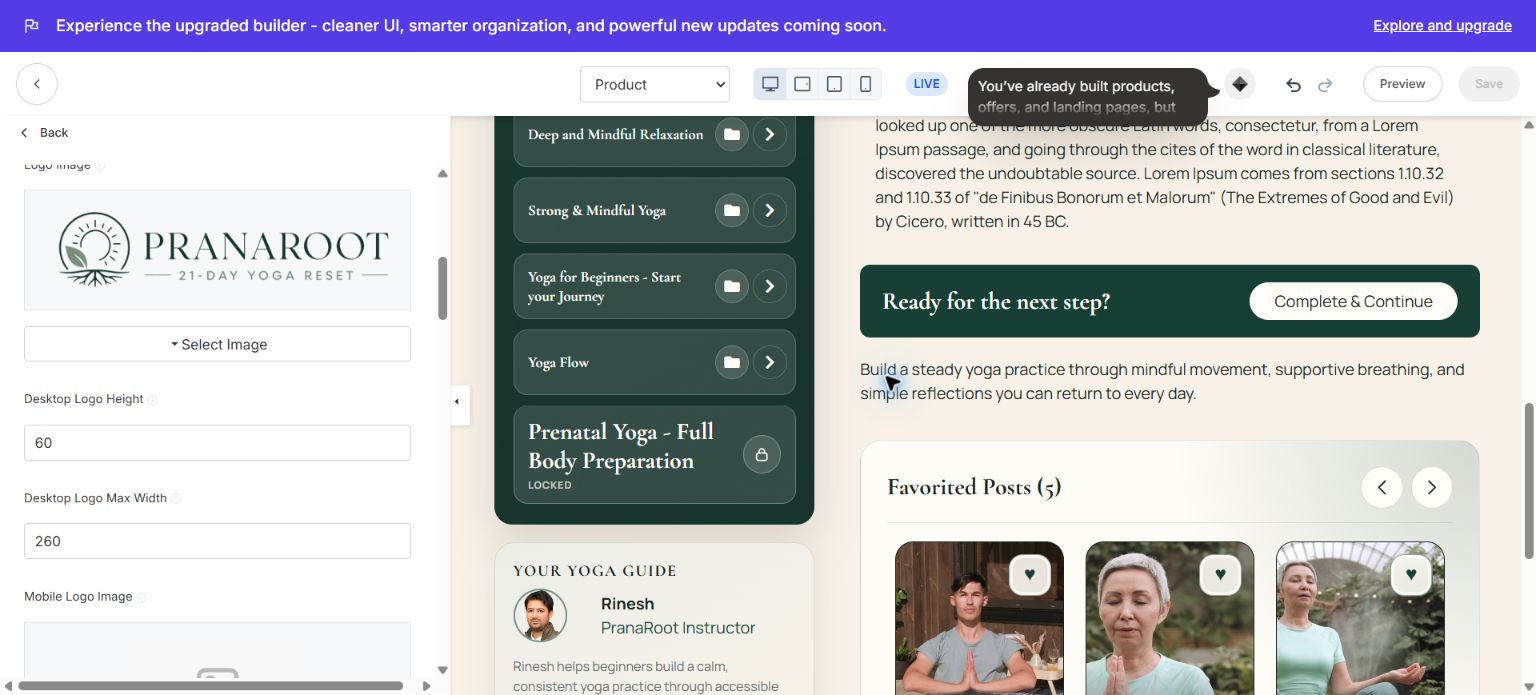
Configure the theme in this order:
- 1Logo and identity: upload transparent desktop and mobile logos and set sensible maximum dimensions.
- 2Colors: use readable backgrounds, high-contrast text, restrained borders, and one clear action color.
- 3Typography: use a readable body font and a distinctive but legible heading font.
- 4Header and navigation: test search, announcements, account actions, and logout.
- 5Course structure: keep module and lesson titles concise and use consistent thumbnails.
- 6Lesson experience: review video, audio, downloads, completion controls, favorites, comments, and next/previous navigation.
4. Prepare the Course content
| Kajabi item | Ojas Aura presentation |
| Course | The complete single-page member experience styled by Ojas Aura. |
| Module | A grouped category in the Course outline. |
| Lesson | A playable item with progress, media, downloads, and description. |
| Locked content | Clearly labelled and unavailable until Kajabi grants access. |
| Progress | Calculated by Kajabi and displayed by the template. |
| Community | Uses Kajabi access and permissions. |
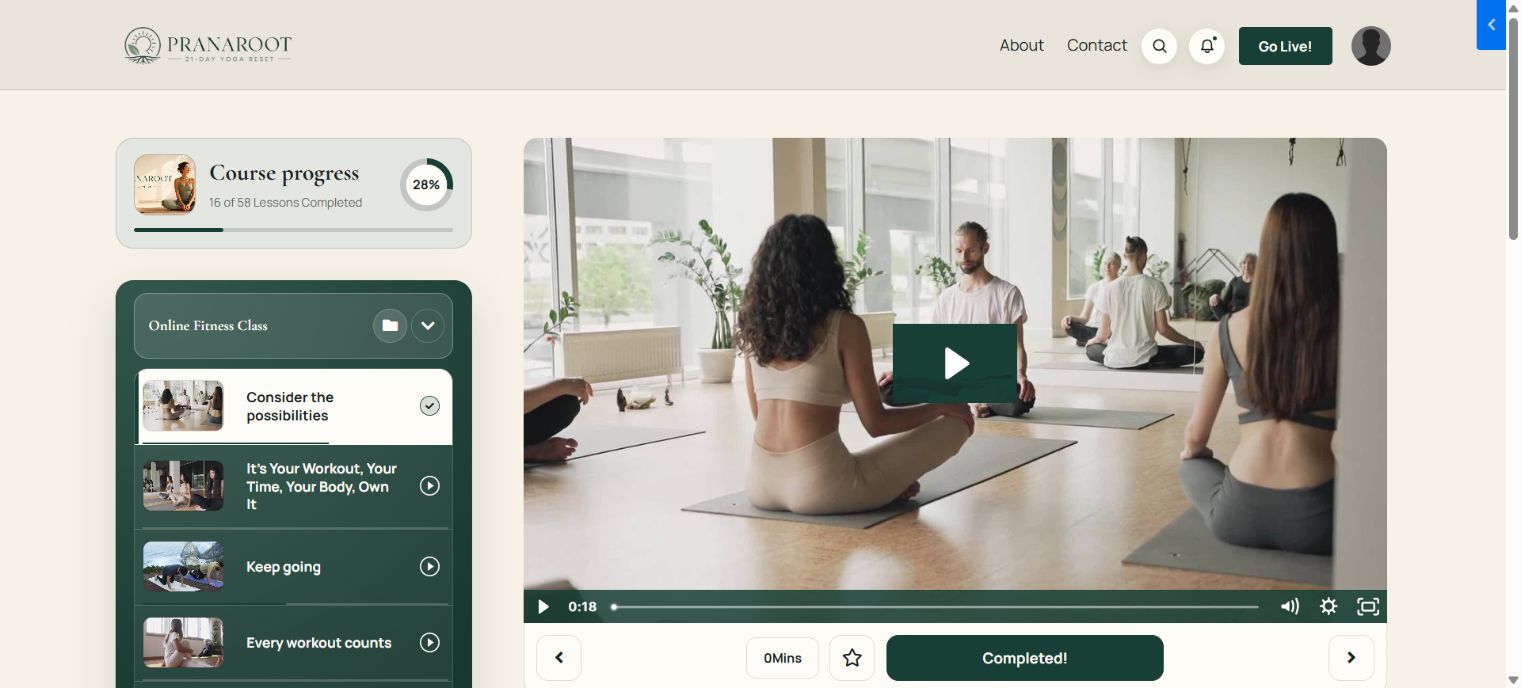
- Use short, meaningful module and lesson names.
- Upload consistent thumbnails with a clear focal point.
- Add captions, downloads, summaries, and next-step guidance where useful.
- Test locked, drip, completed, empty, and unpublished states.
- When Course comments are disabled, confirm the entire comments section is hidden.
5. Test before activation
- Desktop: header, sidebar, video, content, cards, footer, and long pages align correctly.
- Mobile: outline, progress card, bottom navigation, modals, footer, and text have safe spacing.
- Media: video controls, audio icons, progress bar, downloads, and links work.
- Member tools: search, announcements, comments, favorites, and community respect Kajabi permissions.
- Access states: locked and drip content remain unavailable to restricted members.
- Real member: a non-admin test member can open the Course from the Library and complete a lesson.
Do not rely only on editor Preview. Admin sessions can bypass access restrictions. Test with a non-admin member in a separate or private browser window.
6. Activate safely
- 1Return to Course → Customize.
- 2Confirm the tested template is Ojas Creative — Ojas Aura.
- 3Retain the previous active template as a rollback option.
- 4Open the Ojas Aura menu and choose Activate.
- 5Repeat the member test after activation.
Activating Ojas Aura changes presentation only. Course content, Offers, customers, purchases, progress, and access rules remain managed by Kajabi.
Updating Ojas Aura
- 1Download the latest ZIP and read its release notes.
- 2Retain or export the customized live template as a backup.
- 3Install the new version beside the live version unless the release explicitly supports an in-place update.
- 4Compare or reapply settings and repeat desktop, mobile, and real-member QA.
- 5Activate only after verification.
Troubleshooting
| Issue | What to check |
| ZIP will not upload | Use the original Course/Product template ZIP from the customer dashboard. |
| Installed but not visible | Preview it, then use the separate Activate action. |
| Logo is missing | Re-select the image, save, check transparency and contrast, then refresh. |
| Cards are empty | Publish the relevant modules/lessons and add thumbnails. |
| Locked card looks wrong | Verify Kajabi access settings and test with a restricted member. |
| Comments shell remains | Disable Course comments, save, and confirm the full section disappears. |
| Community does not load | Verify Community access and test Kajabi's default Course template too. |
| Mobile elements overlap | Check labels, image ratios, modal safe area, and bottom navigation spacing. |
| Changes appear stale | Save, refresh, and confirm the intended template is active. |
Final launch checklist
- Correct Course selected and original ZIP installed.
- Template name displays as Ojas Creative — Ojas Aura.
- Single-page Course experience, branding, navigation, modules, and lesson pages configured.
- Placeholder copy and media removed.
- Desktop, mobile, restricted-state, accessibility, and real-member tests passed.
- Previous template retained as a rollback option.
Need support?
Include the Ojas Aura version, affected Course page, browser/device, a cropped screenshot, and exact reproduction steps. Never share Kajabi passwords, customer data, payment credentials, or API keys.
Guide resources
Downloadable attachments
Continue learning
Ready to build your CineFlow site?
Keep this guide open while you customize, and contact support if you get stuck.