
Ojas Creative — Ojas Flow
Complete Features & Customization Manual
Ojas Flow is a premium Kajabi Course template for structured, high-value member experiences. This manual explains every major template page, feature, editor section, global setting, content source, and launch check.
Important: Kajabi remains the source of truth for courses, offers, customers, access, progress, payments, comments, Community permissions, drip schedules, locked content, video, audio, downloads, and lesson data. Ojas Flow presents those systems; it does not replace their security or delivery rules.
1. Open the correct theme editor
- 1In Kajabi, open Products → Courses.
- 2Select the course using Ojas Flow.
- 3Open Customize.
- 4Confirm Ojas Creative — Ojas Flow 7.1.4 is marked Active.
- 5Select Customize on that theme.
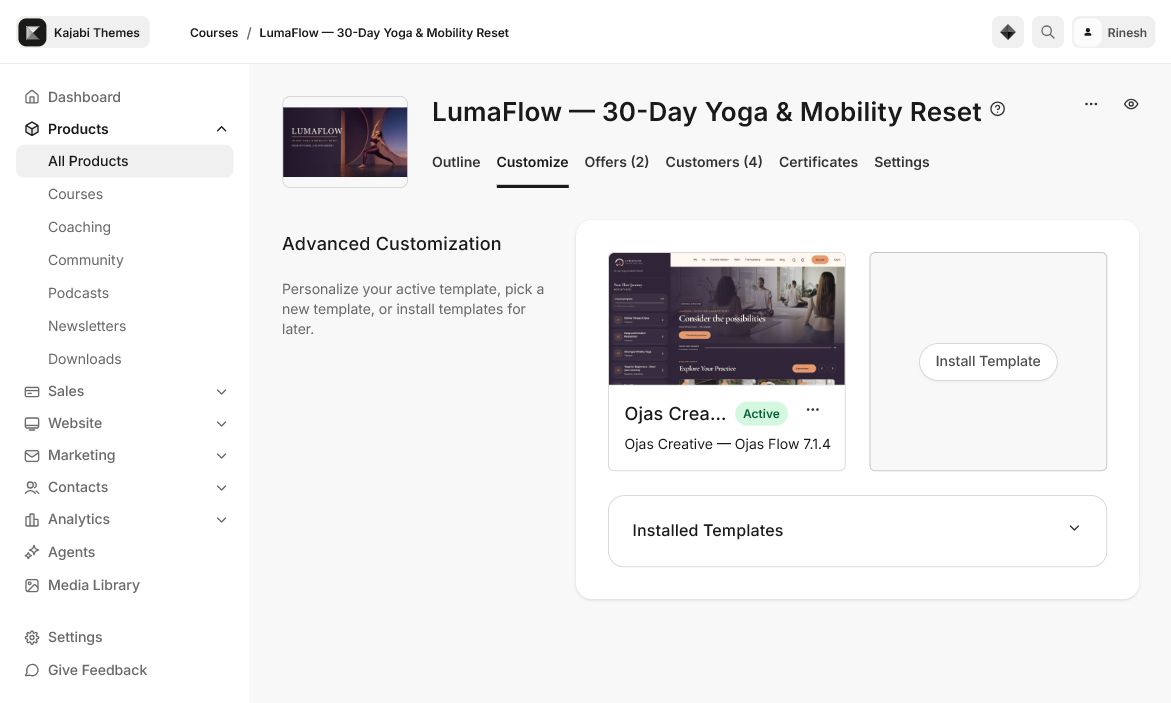
The page selector at the top of the editor lets you customize these template views:
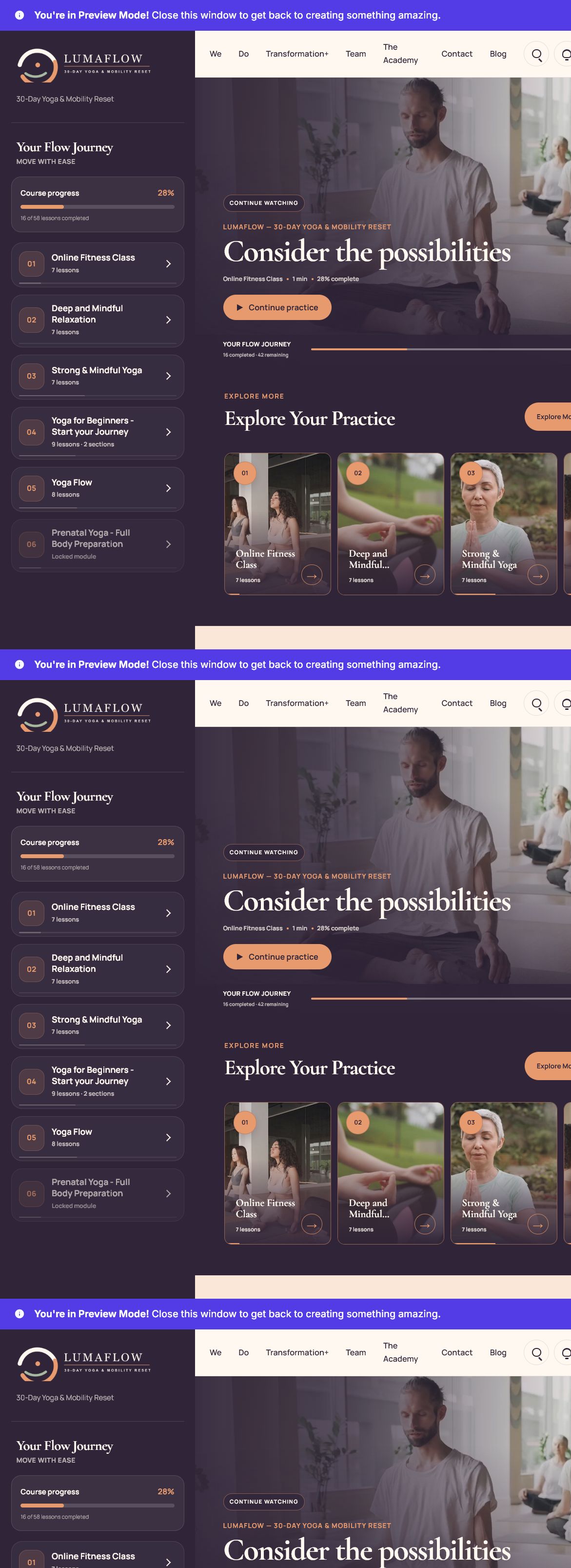
- Product — course home/dashboard
- Categories — all categories index
- Category — one category and its lessons
- Post — individual lesson workspace
- Comment — Kajabi comment view
- Search — lesson search experience
- Announcements — announcements view
Before editing a live course, export a backup of the current theme and test changes with a non-admin member.
2. Where to change the desktop logo and sidebar brand
Open Product → Sections → Course Sidebar.
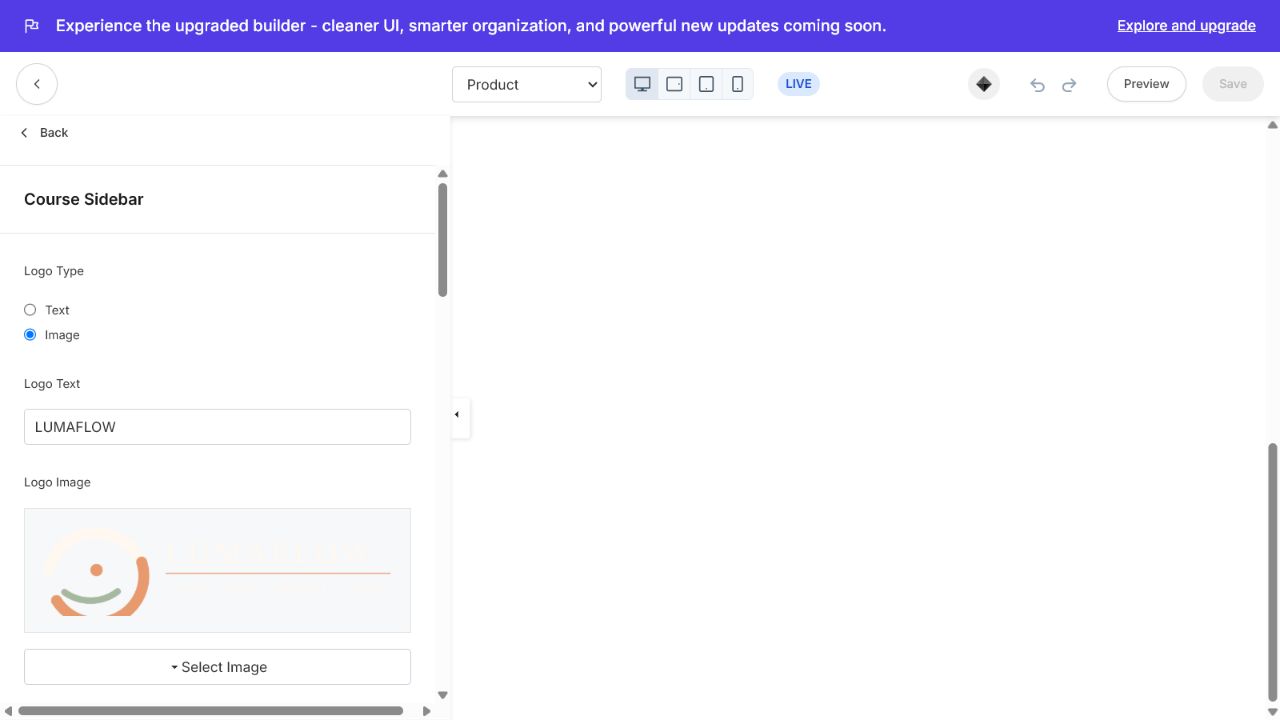
Use these exact controls:
- Logo Type — choose Text or Image.
- Logo Text — used when Text is selected.
- Logo Image — upload/select the desktop sidebar logo.
- Logo Image Width (px) — controls the displayed width.
- Brand Tagline — short line below the logo.
- Heading — sidebar journey heading.
- Eyebrow — supporting line near the journey heading.
- Course Progress Label — label above overall progress.
- Progress Of Label / Lessons Completed Label — progress sentence wording.
- Lessons Label / Sections Label — item-count wording.
- Completed / Video Lesson / Assessment / Live Session / Reading labels — content-state labels.
- Coming Soon / Locked Module / Locked Section labels — protected-content wording.
- Course Menu — controls optional sidebar menu content.
### Desktop logo recommendation
Use a transparent PNG or SVG with good contrast against the sidebar. Start around 180–220 px width, then check long logos at laptop and tablet widths.
3. Where to change the mobile logo and header
Open Product → Sections → Header.
The mobile/header identity is separate from the desktop sidebar logo. Use:
- Show Header — enables or hides the header.
- Mobile Brand Text — text fallback for small screens.
- Mobile Logo Type — Text or Image.
- Mobile Logo Image — mobile/header logo asset.
- Mobile Logo Width (px) — mobile logo size.
- Show Menu and Menu — Kajabi link-list navigation.
- Search Label — accessible search control label.
- Notification Label — announcements control label.
- Mobile Menu Button Label — mobile menu accessibility text.
- Navigation Accessibility Label — header navigation label.
- Announcement Eyebrow / Heading — announcement panel headings.
- Empty Announcement Heading / Message — empty announcement state.
- Library / Settings / Logout / Login text — account menu wording.
- Account Menu Label — account control accessibility label.
- Call To Action block — optional header CTA.
To edit the actual navigation links, follow Edit your link lists and update the connected Kajabi link list.
4. Where to change all theme colors
Open Settings → Four-Color Theme.
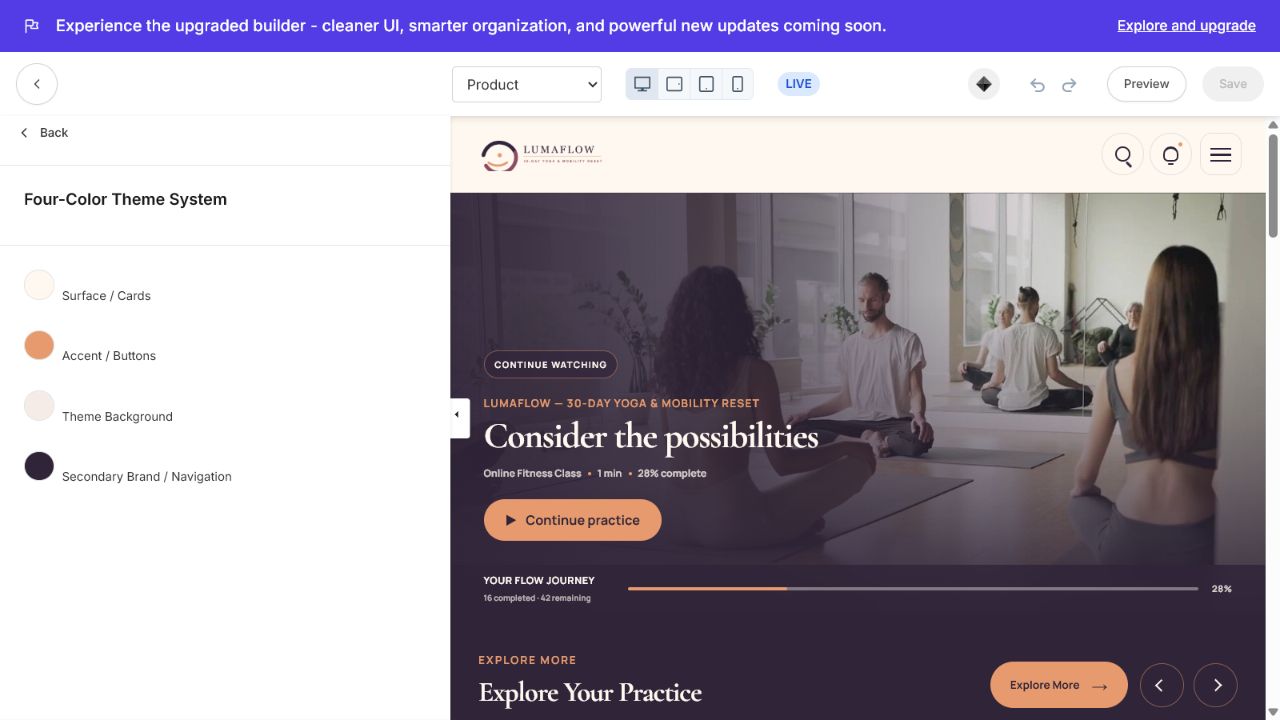
Ojas Flow uses a four-color system:
| Setting | Main use |
| Surface / Cards | Cards, panels and raised content surfaces |
| Accent / Buttons | Primary buttons, active states and progress accents |
| Theme Background | Main page background and large canvas areas |
| Secondary Brand / Navigation | Sidebar, navigation and secondary brand surfaces |
### Safe color workflow
- 1Set Theme Background first.
- 2Choose Surface / Cards with visible separation from the background.
- 3Set Secondary Brand / Navigation for the sidebar/header contrast.
- 4Set Accent / Buttons last and verify button text contrast.
- 5Test active, hover, completed, disabled, locked and focus states.
- 6Check desktop and a real phone before publishing.
Do not use four colours with nearly identical brightness; the template depends on visible hierarchy between the canvas, cards, navigation, and actions.
5. Typography, language, Community and favicon
### Typography
Open Settings → Typography.
- Heading Font controls large headings and editorial display type.
- Body Font controls paragraphs, labels, buttons and interface copy.
Use a readable body font, avoid very thin weights, and check long lesson names on mobile.
### Language
Open Settings → Language.
This area controls shared interface wording, including pagination, previous/next page labels, search results heading, comment field and button labels, loading text, announcements heading, and no-lessons messages. Update these fields if the course language is not English or if your brand uses different terminology.
### Community Experience
Open Settings → Community Experience.
Display Community As supports:
- Hide Community
- Bottom Section Only
- Header Popup Only
- Bottom Section + Header Popup
Also set the Community Icon Accessibility Label. Community visibility does not grant access; the member still needs the correct Kajabi Community product/access group and an authenticated session.
### Favicon
Open Settings → Favicon and select the square brand icon. Use a clear high-contrast asset that remains recognizable at browser-tab size.
6. Product Home — complete feature map
Select Product, then open Sections → Product Home.
The Product Home is the member’s course dashboard. It supports:
- Resume/continue-watching hero
- Overall course progress
- Journey/module navigation
- Category cards and lesson previews
- Locked, drip and scheduled category states
- Up-next lesson guidance
- Course-complete state
- Accessible sliders and navigation labels
Exact controls include:
- Hero Eyebrow / Hero Button
- Journey Heading
- Completed / Remaining / Complete Progress labels
- Minute / Lessons labels
- Category Eyebrow / Category Heading / Main Category Button
- Locked Category / Drip Category / Scheduled Category labels
- Up Next Eyebrow / Heading / Description
- Lesson Card Button
- Course Complete Heading / Message
- Category Slider / Previous Categories / Next Categories accessibility labels
- Lesson Slider / Previous Lessons / Next Lessons accessibility labels
- Open Category Accessibility Label
### Product Content Blocks
Open Product → Sections → Product Content Blocks.
Available block types include:
- Text
- Image
- Image With Text
- Instructor Info
Use Add Content to add blocks and drag handles to control their order. Product Content Blocks are best for instructor introductions, course promises, support notes and supplementary visual content.
7. Community Widget
Open Product → Sections → Community Widget.
Controls include:
- Accessibility Label
- Section Eyebrow / Section Heading / Section Description
- Popup Button Text / Popup Close Label
- Community Channel
- Link to Community channel settings
- Image / Title
- Heading Font Family / Body Font Family
- Setup and empty-state copy for missing Community configuration
The selected Community channel must belong to an access group included in the same offer as the course. If a member sees Unauthorized or endless loading, first test the same Community outside the theme with Kajabi’s default interface.
8. Product Favorites
Open Product → Sections → Product Favorites.
This section presents member-specific saved lessons. Controls include:
- Eyebrow / Heading
- Card Button
- Saved Lesson Label
- Remove Favorite Button / Removing Favorite Status
- Editor Empty Message
- Previous / Next Favorite labels
- Open Favorite Accessibility Label
Favorites are stored by Kajabi for the authenticated member. They are not global course content.
9. Categories index page
Select Categories → Sections → Categories Index.
This page shows the whole course library and category preview popups. Controls include:
- Resume hero: Hero Eyebrow / Hero Button
- Journey progress: Journey Heading, Completed, Remaining, Complete Progress
- Library headings: Category Eyebrow / Category Heading / Category Description
- Access states: Locked / Drip / Scheduled Category labels
- Card action: Category Details Button Label
- Popup content: Popup Eyebrow / Category Button / Posts Eyebrow / Posts Heading
- Popup states: Subcategory / Completed / Open labels
- Accessibility: Open Category / Close Popup labels
This page reads category titles, thumbnails, lesson counts, subcategories and access states from the Kajabi course outline.
10. Individual category page
Select Category → Sections → Category Page.
Features and controls:
- Back Link to the all-categories page
- Featured lesson hero: Hero Eyebrow / Hero Button
- Progress Label
- Lesson list: Posts Eyebrow / Posts Heading
- Subcategory list: Subcategories Eyebrow / Subcategories Heading
- Subcategory Label
- Post Card Button
- Lesson Count / Subcategory Count labels
- Completed / In Progress / Up Next labels
- Complete Progress / Minute labels
- Locked / Drip labels
Use clear category thumbnails and short category descriptions in Kajabi. The theme controls presentation; Kajabi controls which categories and lessons exist and who may open them.
11. Lesson/Post workspace — all included blocks
Select Post → Sections → Lesson Workspace.
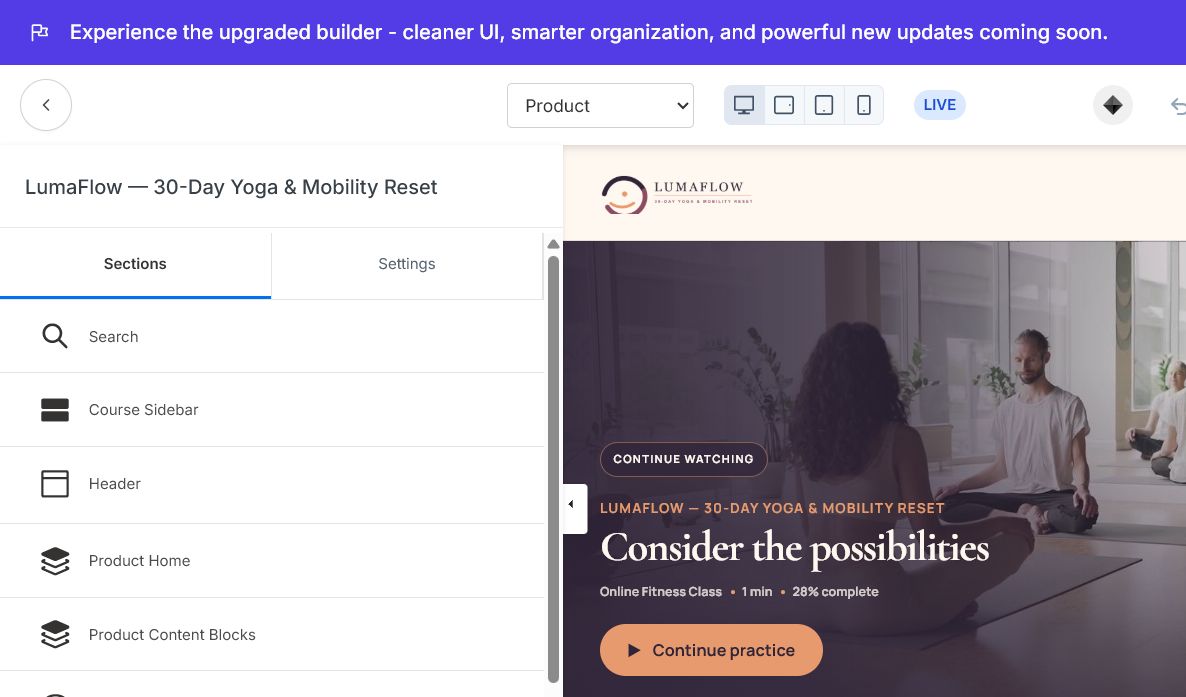
The lesson workspace contains reorderable blocks:
### Lesson Information
- Show Product Title
- Show Lesson Title
- Show Product Description
- Lesson Badge
- Back Link
- Assessment Label
- Video Duration Suffix
### Lesson Video
- Complete / Completed button text
- Previous / Next Lesson labels
- Up Next label
- Save Lesson / Remove Saved Lesson labels
- Progress label
- In Progress / Completed status
- Current Lesson label
- Lesson controls and navigation accessibility labels
- Minute / Video / Assessment / Lesson labels
The media itself is uploaded to the Kajabi lesson. This block controls presentation and labels.
### Companion Audio
- Label
- Play Audio Label
- Pause Audio Label
- Editor Empty Message
Companion Audio appears when an MP3 is attached to the Kajabi lesson.
### Lesson Content
- Overview Tab
- Resources Tab
- Download Button
The lesson body and downloadable files come from the Kajabi lesson editor.
### Milestone
- Heading
- Button Text
- Eyebrow
- Progress Copy
Use this block for progress reinforcement and a clear next-step action.
### Saved Lessons
- Eyebrow / Heading
- Card Button
- Saved Lesson Label
- Remove / Removing labels
- Empty message
- Previous / Next labels
- Open accessibility label
### Comments
- Heading
Kajabi controls whether comments are enabled at course/lesson level. When comments are disabled, the theme should not be used to force a comment form to appear.
### Add Content
Use Add Content to add supported blocks. Drag blocks to change lesson layout order. Do not delete a working block until you have tested the result on desktop and mobile.
12. Search experience
Open Sections → Search on Product, Categories, Category, Post, Search or Announcements views.
Controls include:
- Eyebrow
- Heading
- Placeholder
- No Results Message
- Close Search Label
Search returns lessons available to the authenticated member. It must not unlock protected content.
13. Announcements
The Announcements view uses the shared Header, Footer, Search, Mobile Navigation, and global Language settings.
Announcement interface copy is controlled through:
- Header → Announcement Eyebrow / Heading
- Header → Empty Announcement Heading / Message
- Header → Close Announcement Label
- Settings → Language → Announcements Page Heading
Actual announcements and their audience are managed by Kajabi, not by the theme editor.
14. Comments view
The Comment view uses shared Search and Mobile Navigation controls. Actual comment availability, moderation and permissions remain Kajabi-controlled. Test:
- Comments enabled
- Comments disabled
- Empty state
- Long comment text
- Reply/edit controls
- Mobile keyboard and safe-area spacing
Shared comment wording is under Settings → Language.
15. Footer
Open Product → Sections → Footer.
Controls include:
- Show Footer
- Footer Logo Type
- Footer Logo Image / Width
- Tagline
- Show Menu / Menu
- Show Social Media Icons
- Facebook, Instagram, YouTube, LinkedIn and X/Twitter URLs
- Copyright
- Show Powered by Kajabi
- Footer navigation and social accessibility labels
Use Edit your link lists to change footer menu links. Confirm the footer clears the fixed mobile navigation.
16. Mobile Navigation
Open Product → Sections → Mobile Navigation.
This system controls the fixed mobile bar and course/category drawers. Exact fields include:
- Mobile Navigation Label
- Home / Categories / Library / Profile labels
- Lesson Page Lessons / More Categories labels
- Category Panel Eyebrow / Heading
- Lesson Panel Eyebrow / Heading
- Close Lessons / Close Categories labels
- Current Lesson label
- Completed / Video Lesson / Course Lesson labels
- Lessons Count / Complete labels
- Open Category label
Always test drawers, long titles, scrolling, footer clearance and safe-area spacing on a real phone.
17. What comes from Kajabi vs what comes from Ojas Flow
| Content or behaviour | Configure in |
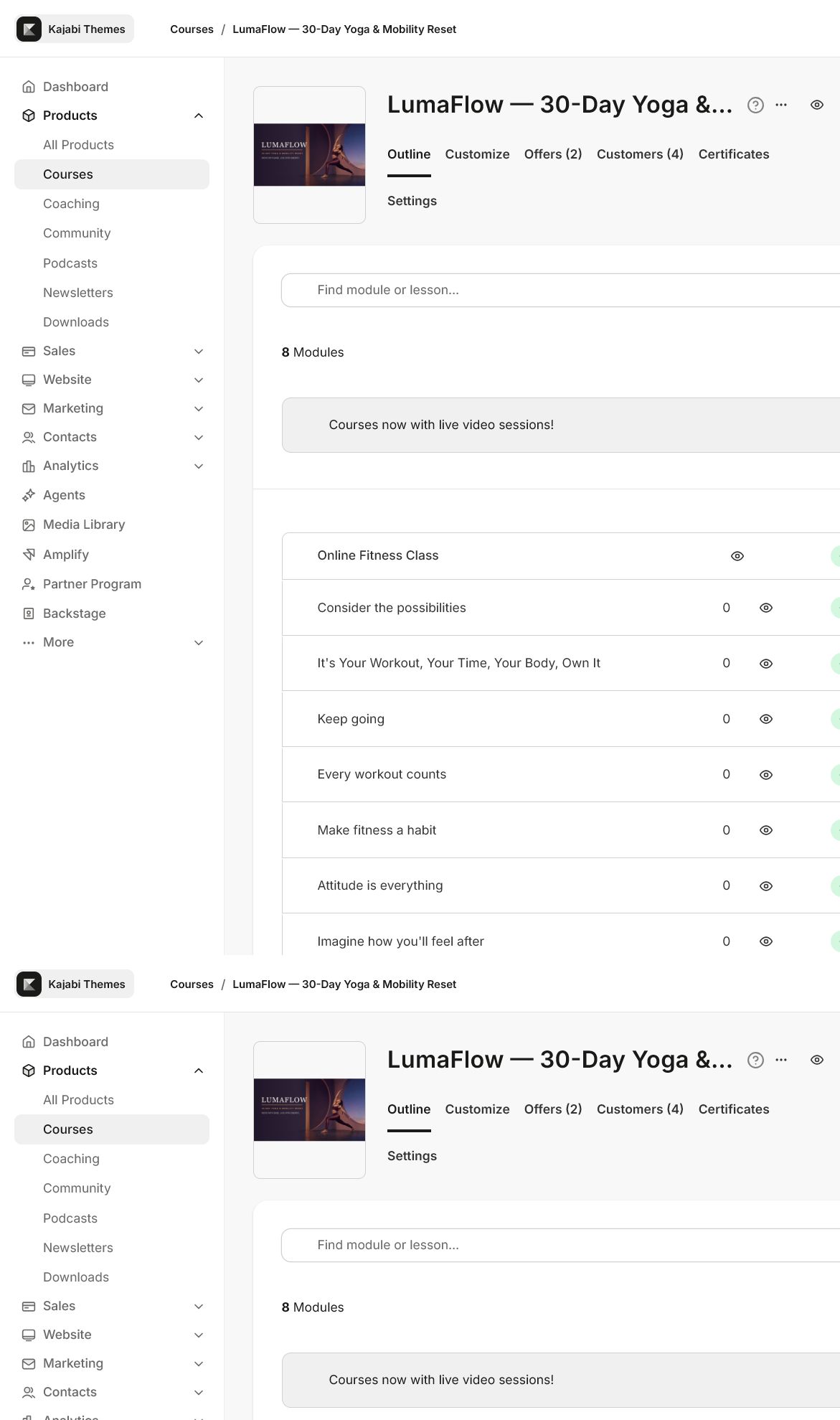
| Course/module/lesson titles and order | Kajabi Course Outline |
| Lesson video, MP3, body and downloads | Kajabi lesson editor |
| Thumbnails and descriptions | Kajabi course/lesson content |
| Drip, lock, publish and prerequisite rules | Kajabi access settings |
| Offers and member access | Kajabi Offers / Customers |
| Community access | Kajabi Community + access group |
| Comments enabled/disabled | Kajabi course/lesson settings |
| Progress and completion | Kajabi member progress |
| Logos, four-color system, fonts and favicon | Ojas Flow theme editor |
| Product Home, category and lesson labels | Ojas Flow Sections |
| Mobile nav, footer and popup wording | Ojas Flow Sections / Language |
18. Safe customization order
- 1Export a backup.
- 2Confirm Ojas Flow is Active.
- 3Replace desktop sidebar logo.
- 4Replace mobile/header logo.
- 5Configure the four-color system.
- 6Set heading and body fonts.
- 7Update header, footer, favicon and link lists.
- 8Customize Product Home labels.
- 9Review Categories and Category page labels.
- 10Configure Lesson Workspace blocks.
- 11Configure Search, Announcements, Favorites and Community.
- 12Review Mobile Navigation.
- 13Save and preview after each major section.
- 14Test with a real non-admin member.
19. Full launch QA
### Branding
- Desktop, mobile and footer logos are correct
- Favicon is correct
- Four theme colours have accessible contrast
- Heading and body fonts load correctly
- Demo brand names and placeholder copy are removed
### Course data
- Course title, description and cover are final
- Category and lesson order is correct
- Every visible lesson has a useful title and thumbnail
- Video, audio and downloads open correctly
- Locked, drip and unpublished content follows Kajabi rules
### Product Home and categories
- Resume hero opens the correct lesson
- Progress values are accurate
- Category cards, popups and sliders work
- Locked and scheduled labels are accurate
- Favorites show only the signed-in member’s saved lessons
### Lesson workspace
- Previous/next lesson actions are correct
- Complete and saved states persist after refresh
- Companion audio appears only when an MP3 exists
- Resources/downloads use customer-friendly filenames
- Comments match Kajabi’s enabled/disabled setting
### Community and account tools
- Member owns the required Community access group
- Community opens for an authorized member
- Unauthorized members do not receive access
- Search does not expose locked content
- Announcements show the correct empty and populated states
### Mobile
- Logo and header fit without clipping
- Mobile outline drawers open, scroll and close
- Long titles wrap without being cut off
- Footer does not overlap fixed navigation
- Search, announcement and Community panels fit the viewport
- Video works in portrait and landscape
- Buttons have comfortable touch targets
20. Troubleshooting
### Logo changed on desktop but not mobile
Desktop and mobile logos are separate. Update Sections → Course Sidebar for desktop and Sections → Header for mobile/header.
### Colours did not change everywhere
Confirm all four fields under Settings → Four-Color Theme were saved. Some images and lesson thumbnails contain their own colours and will not be recoloured by the theme.
### Changes do not appear
Save the editor, confirm Ojas Flow is Active, refresh the member page and test in a private window. Verify you edited the correct page type in the top page selector.
### Community is unauthorized or keeps loading
Confirm the member has Community access and can open the same Community outside the theme. Re-authenticate and test another browser. The theme cannot bypass Kajabi access or browser/session restrictions.
### Mobile drawer or popup is clipped
Use the latest Ojas Flow version, remove old custom CSS overrides and test with the real mobile browser. Confirm fixed navigation and safe-area spacing are not being overridden.
### Locked content looks wrong
Check the Kajabi course outline, offer access, drip schedule and prerequisites. Do not solve an access problem by hiding only the lock icon.
Support information to include
When contacting Ojas Creative, provide:
- Ojas Flow version
- Kajabi course name
- Page type: Product, Categories, Category, Post, Search, Comment or Announcements
- Desktop/mobile device and browser
- Screenshot or short screen recording
- Whether the issue also appears in Kajabi’s default theme
- Exact steps to reproduce
This information separates a theme presentation issue from Kajabi content, access, session or configuration behaviour.
Continue learning
Ready to build your CineFlow site?
Keep this guide open while you customize, and contact support if you get stuck.