
LumaFlow Kajabi Landing Page — Installation & Feature Guide
This standalone product installs as a single Kajabi Landing Page. It includes the same LumaFlow typography, palette, header and social footer as the site theme, but it does not replace the buyer's website theme or global website pages.
Package contents
- Product file:
LumaFlow-Kajabi-Landing-Page.zip - One complete long-form campaign page
- 18 editable sections
- Header with logo, CTA and member dropdown
- Full navigation/social footer
- Global fonts, colors, button and custom-code settings
- Responsive, animated hero and proof sections
- Native Kajabi form, block and section editing
Install the landing page
- 1Download
LumaFlow-Kajabi-Landing-Page.zip. Do not unzip it. - 2In Kajabi, open Website → Landing Pages.
- 3Choose New Landing Page.
- 4Choose the option to upload/import a landing-page template and upload the ZIP.
- 5Name the page, create it and wait for the editor to finish loading.
- 6Confirm the page appears in the Landing Pages list as LumaFlow-Kajabi-Landing-Page.
- 7Choose Customize and complete the setup checklist before promoting the URL.
Do not upload this ZIP under Website → Design. That location is only for the full LumaFlow Site Theme package.
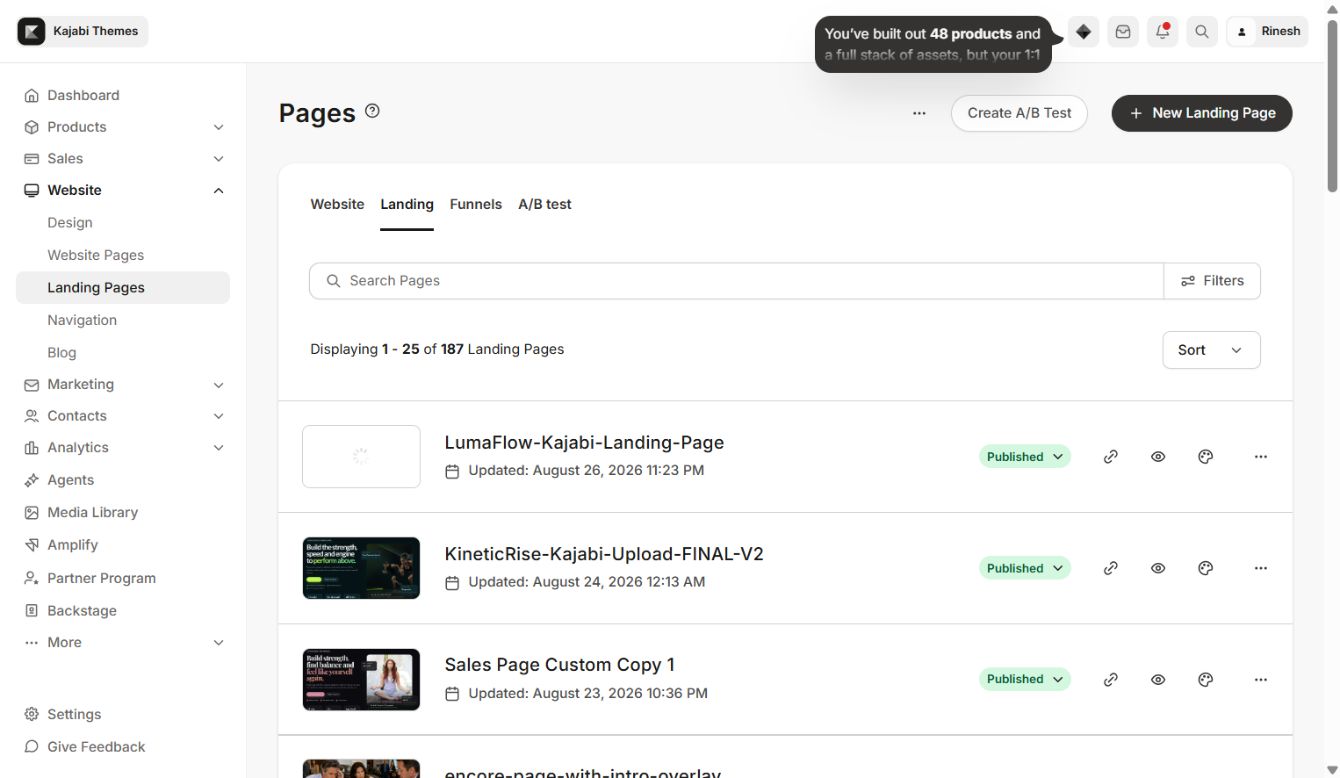
The 18-section page
All 18 content sections are visible in the Kajabi Sections panel. They are independent of the full site theme's Home page, so buyers can change copy, images, order and settings specifically for one campaign.
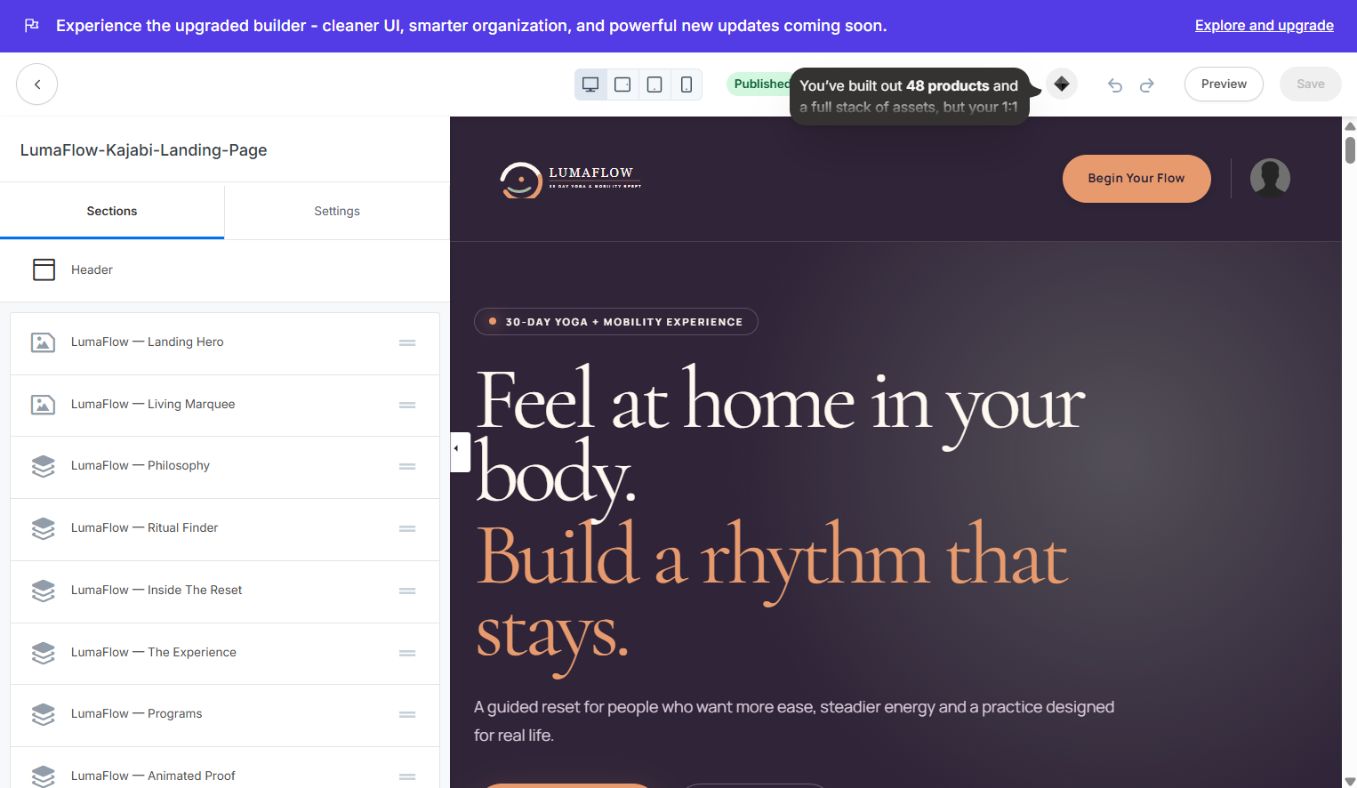
Recommended setup order
- 1Open Settings → Style Guide and apply the campaign's colors and typography.
- 2Edit Header: logo, CTA destination, menu visibility and member dropdown.
- 3Work from the top of the Sections list to the bottom, replacing copy and images.
- 4Connect plan and CTA buttons to real Kajabi Offers/checkouts.
- 5Select a real Kajabi form in Newsletter.
- 6Replace social and legal URLs in Site Footer.
- 7Set the page title, SEO description and social sharing image in Kajabi page settings.
- 8Preview desktop and mobile, test every link/form, then publish.
Global settings
The standalone template preserves the LumaFlow design system: Cormorant Garamond headings, Manrope body copy, editable desktop/mobile type sizes, global brand colors, button styles, favicon/custom code support and responsive spacing. These settings belong to the landing-page template and do not require activating the LumaFlow site theme.
Header
The header supports image/text logo, CTA, member avatar/dropdown and optional navigation. Sticky behavior is available but off by default. Use a campaign-specific CTA such as “Begin the Reset” and link it to the final offer section or Kajabi checkout.
Custom section catalogue
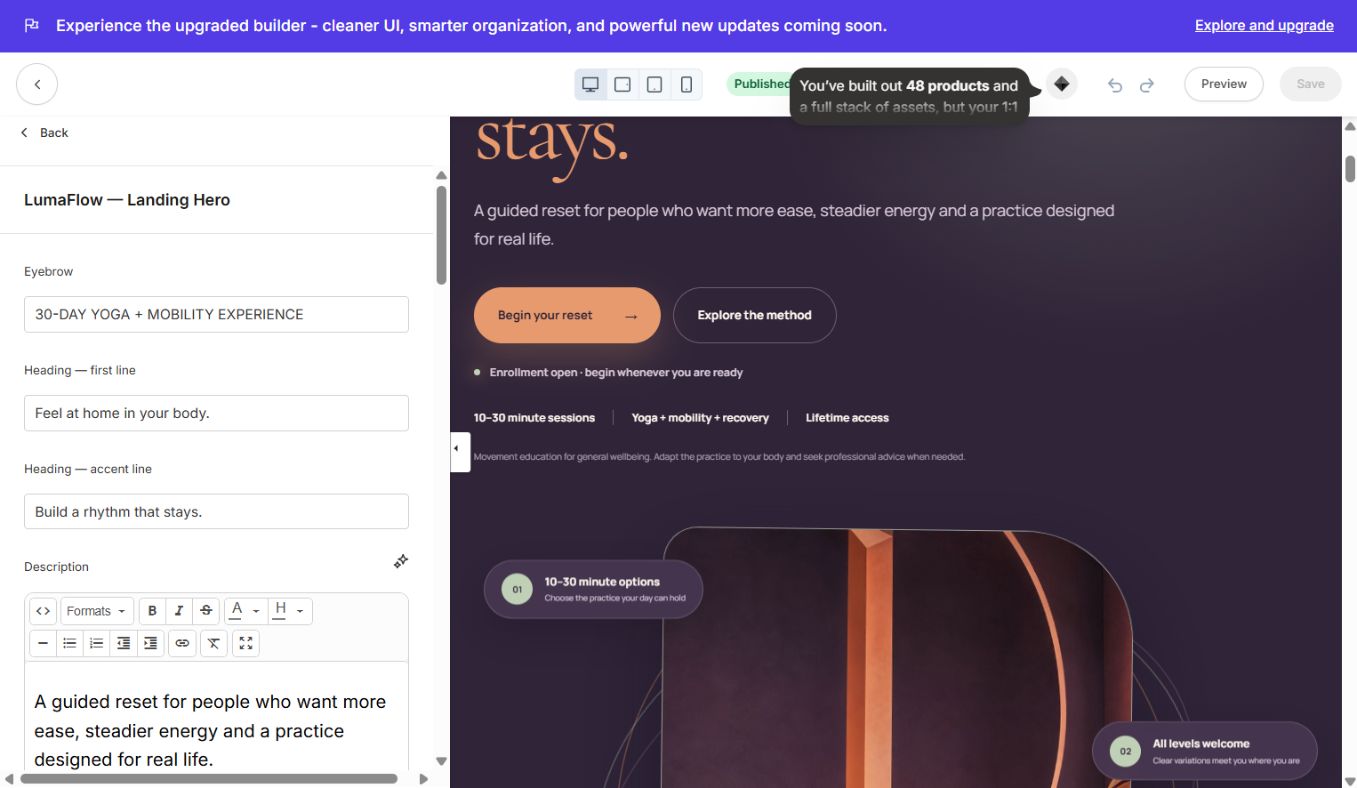
### 1. LumaFlow — Landing Hero
Animated, reference-inspired hero with two CTAs, campaign image, floating rating/member/practice proof cards, eyebrow, headline, availability note and responsive animation controls. Motion respects reduced-motion preferences.
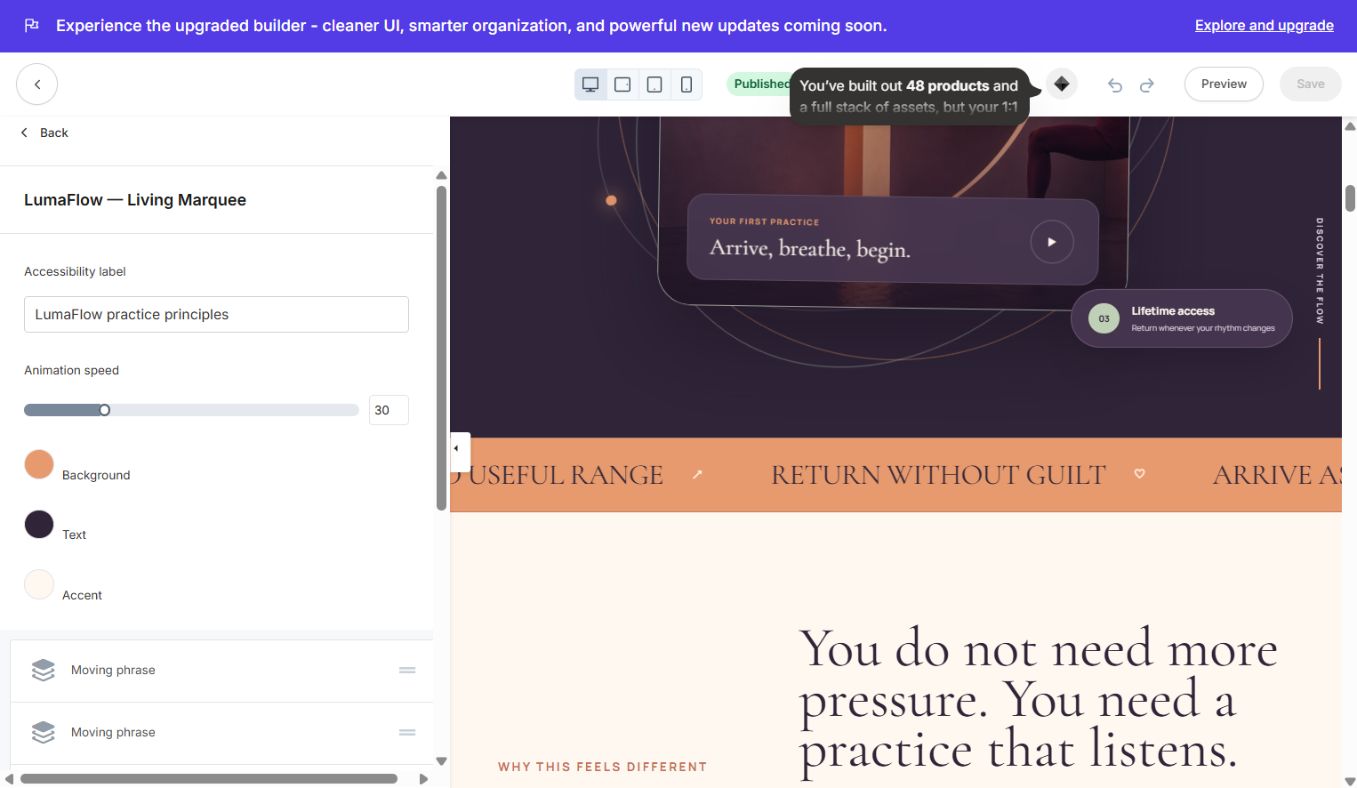
### 2. LumaFlow — Living Marquee
Continuous brand-message strip. Edit phrases, symbols, colors and animation speed.
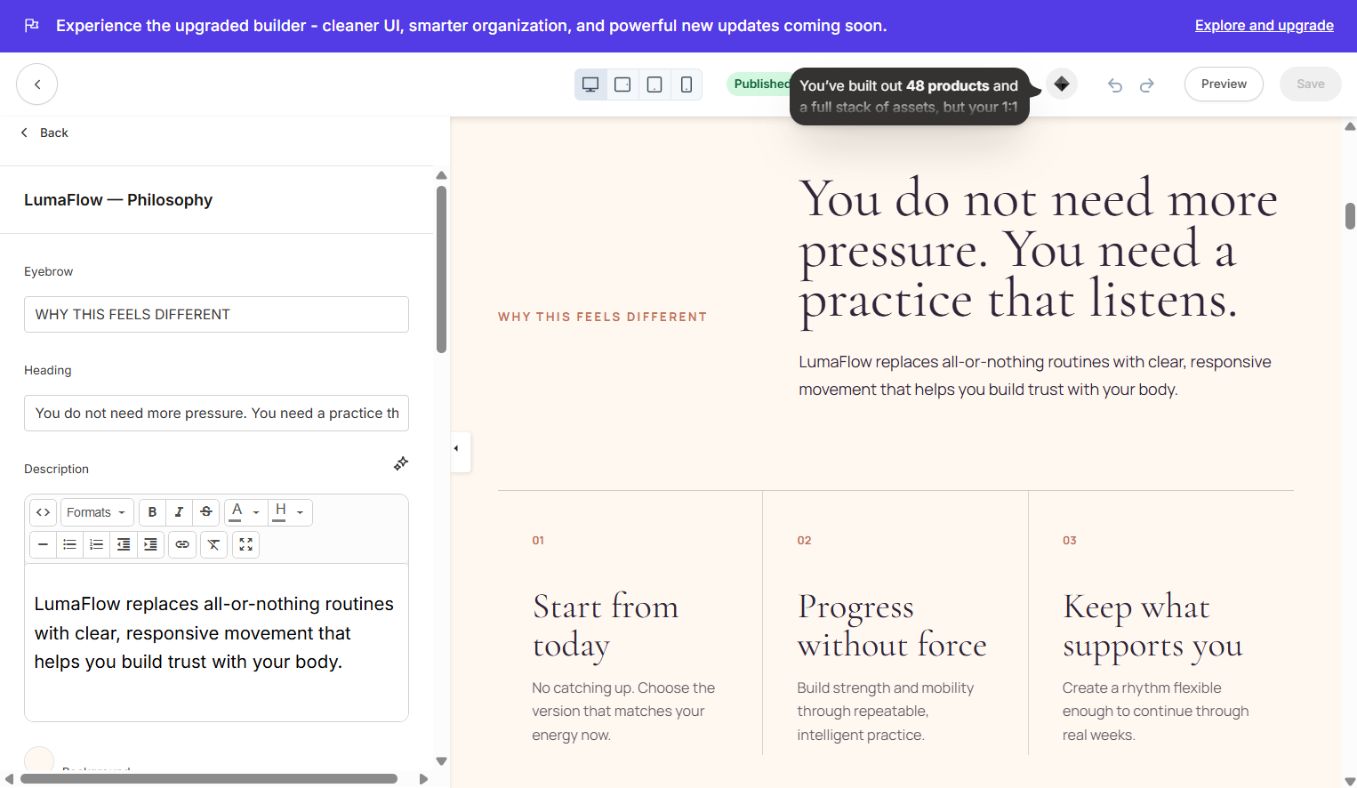
### 3. LumaFlow — Philosophy
Editorial explanation of the campaign method with headline, copy and three numbered principles.
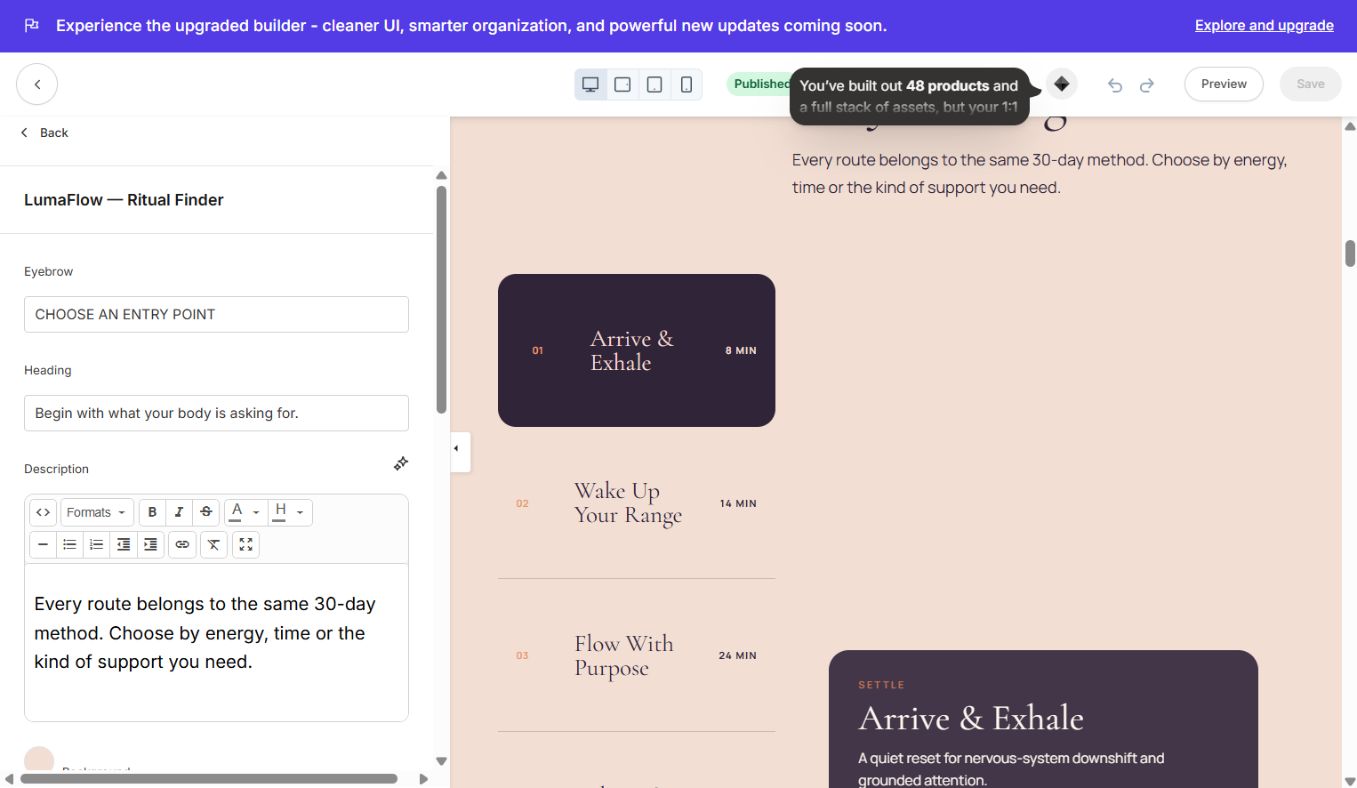
### 4. LumaFlow — Ritual Finder
Interactive tabs help visitors choose a practice by need, time or energy. Each tab has its own label, image, description and CTA.
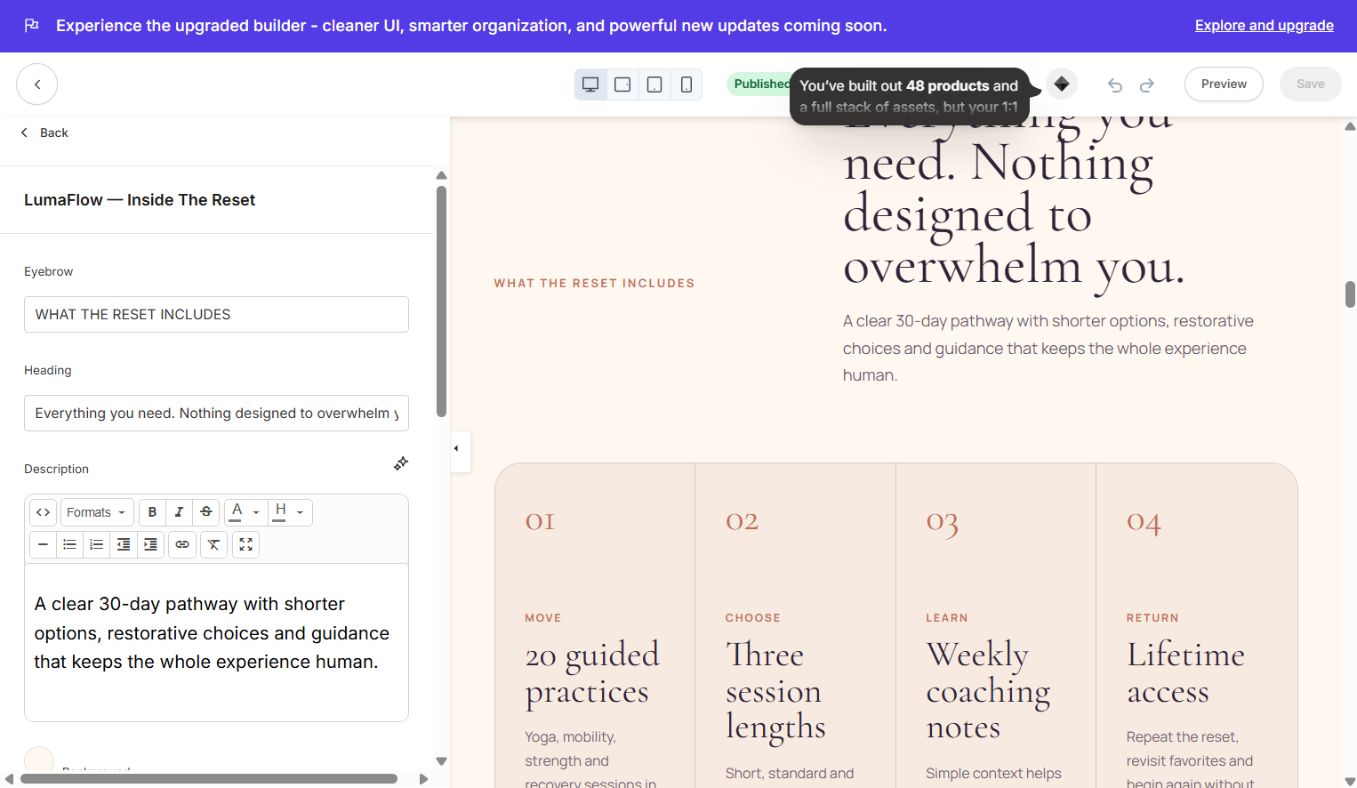
### 5. LumaFlow — Inside The Reset
Campaign deliverables/curriculum breakdown. Use blocks for modules, weeks, lessons, bonuses or outcomes.
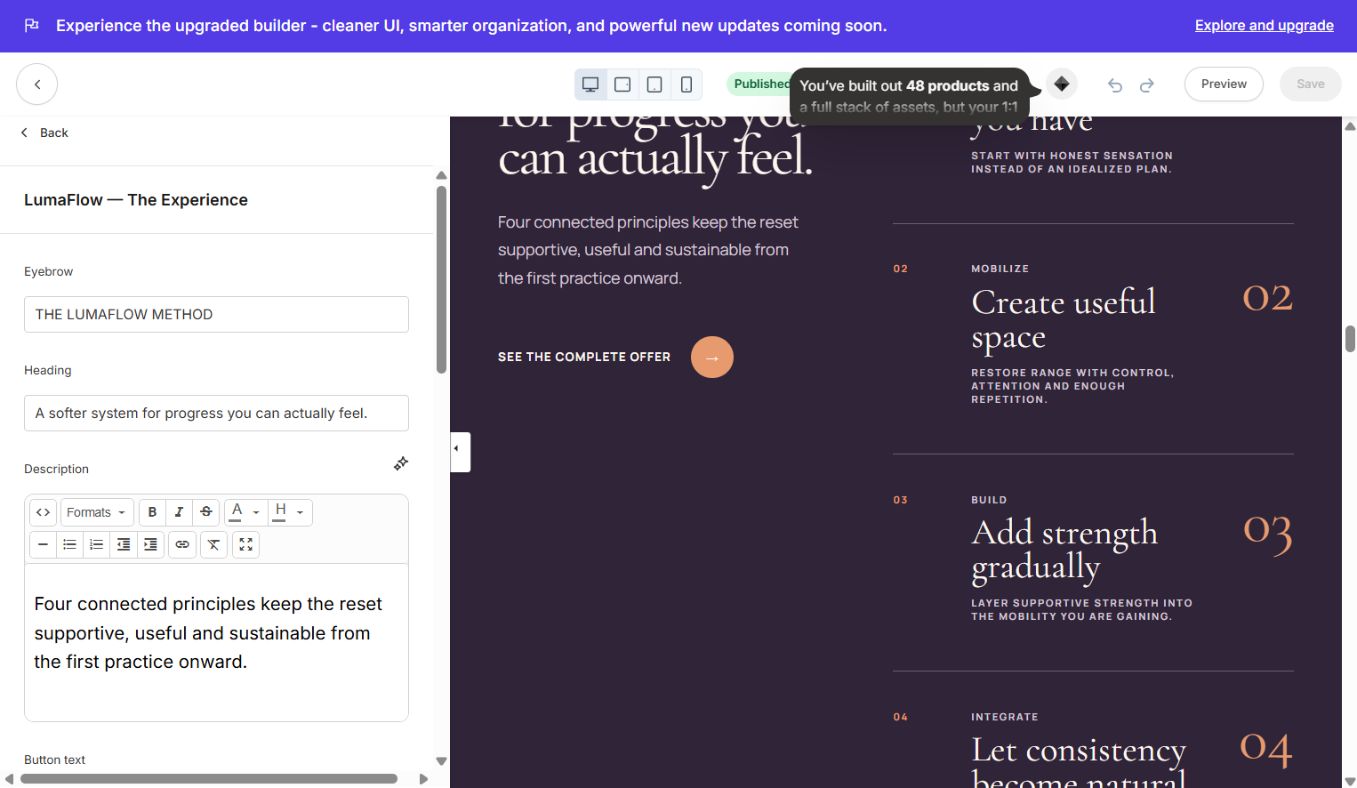
### 6. LumaFlow — The Experience
Split editorial method section with steps, image, supporting copy and CTA.
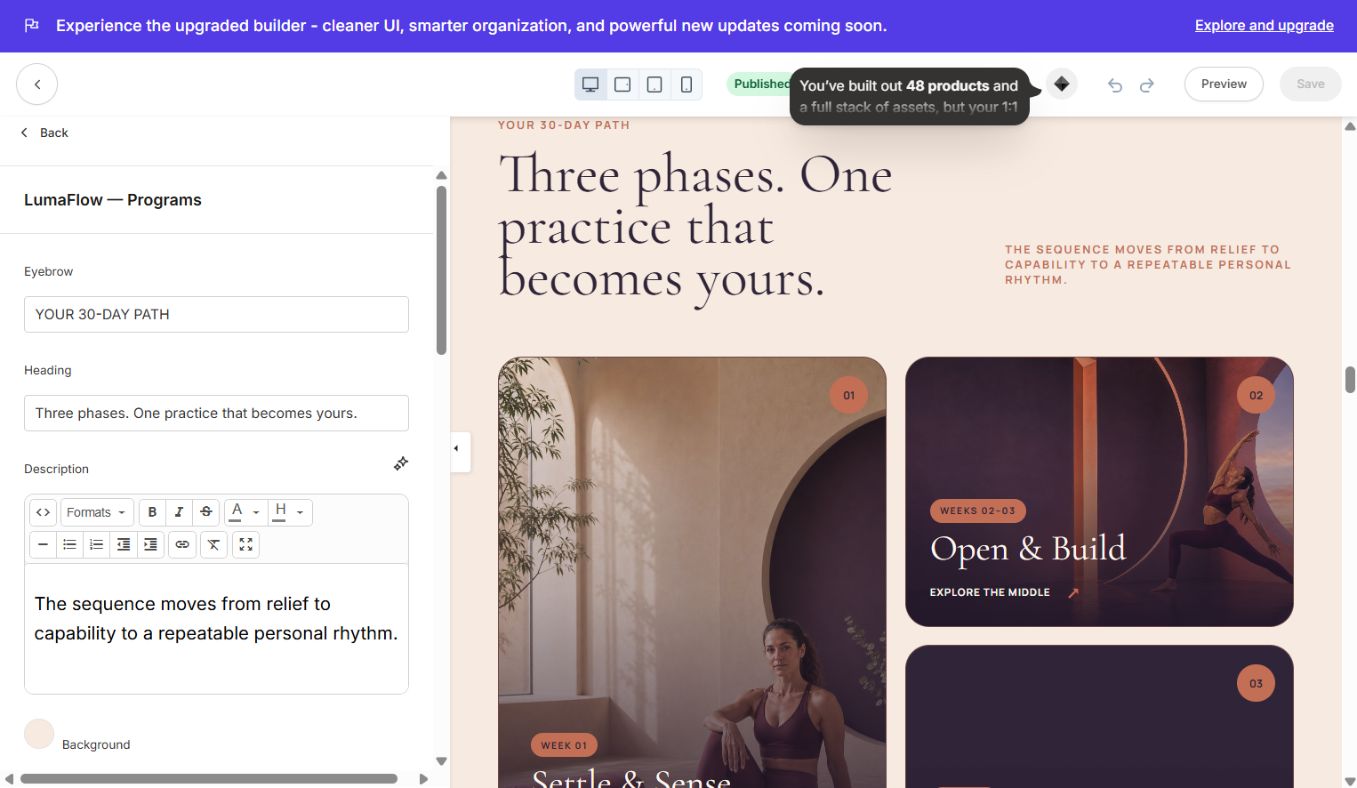
### 7. LumaFlow — Programs
Asymmetric image-card grid for paths, bonuses or related programs. Each block has image, category, heading, summary and link.
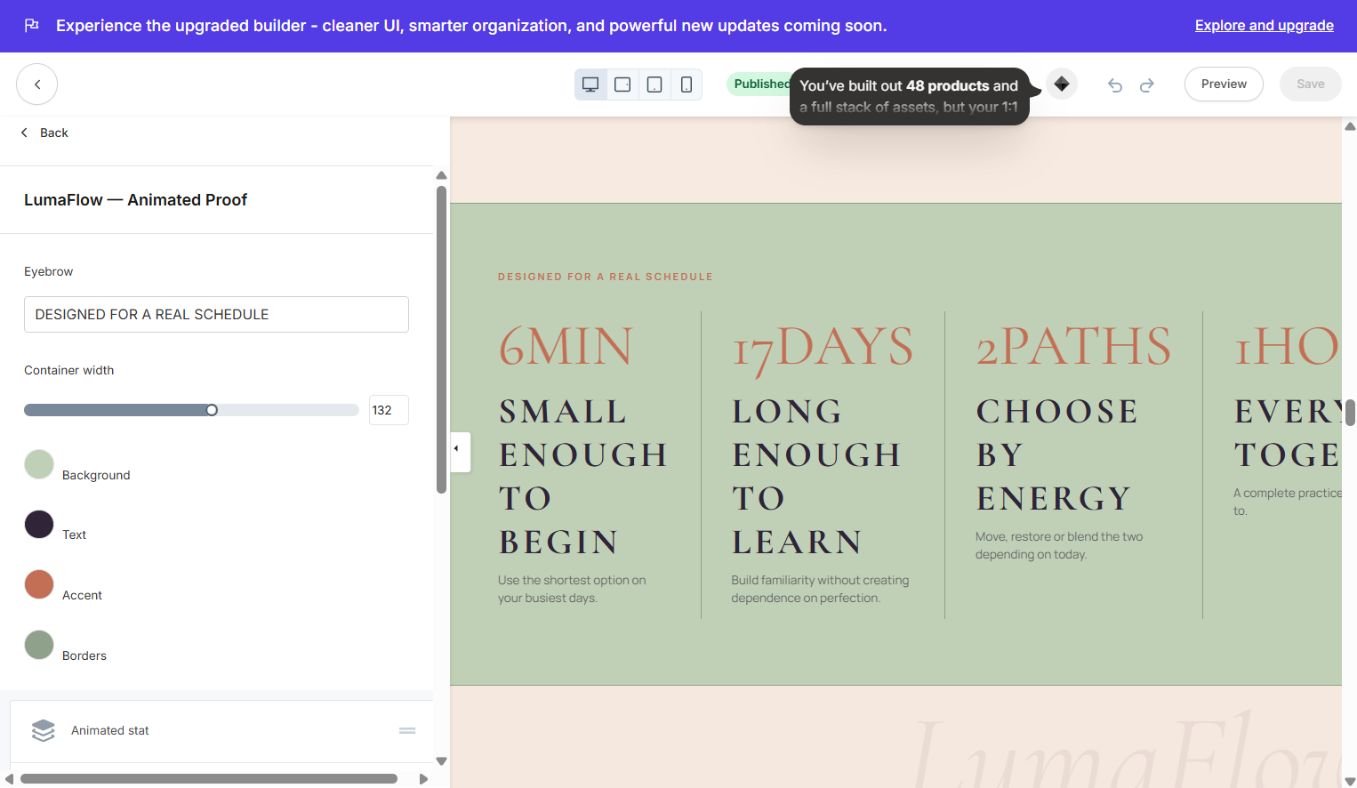
### 8. LumaFlow — Animated Proof
Animated numeric proof/statistics. Set number, prefix/suffix, label and supporting message per block.
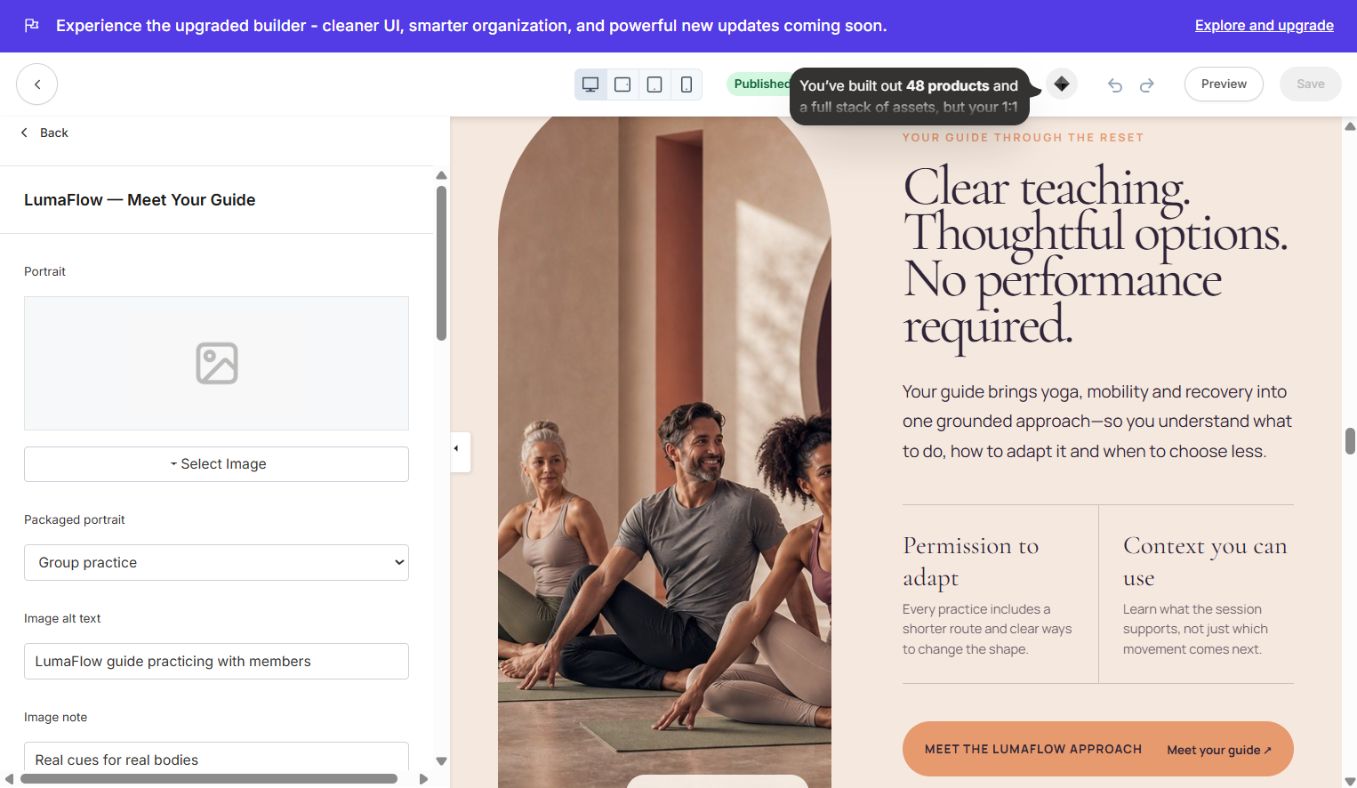
### 9. LumaFlow — Meet Your Guide
Instructor biography with image, credentials, trust points and CTA.
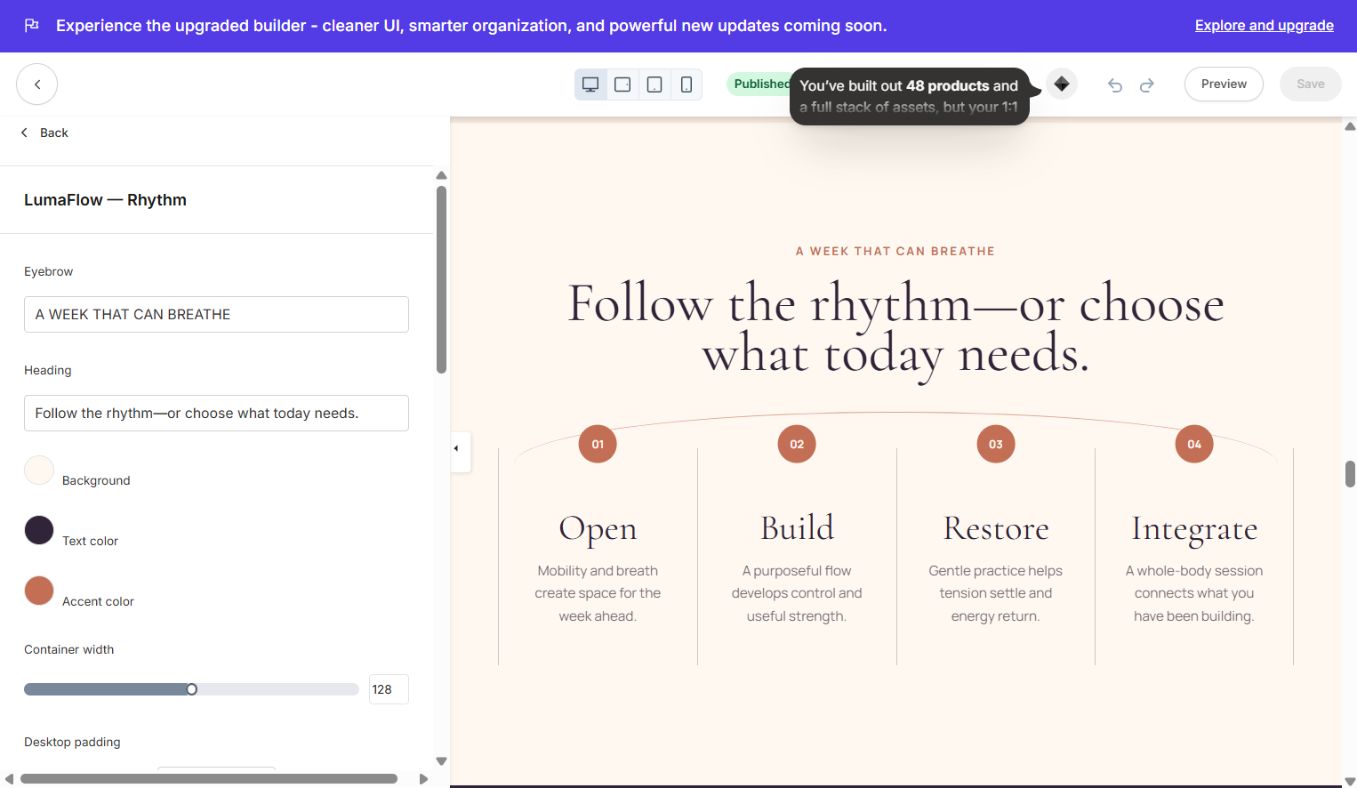
### 10. LumaFlow — Rhythm
Four-step journey/process for showing how the program fits into the buyer's life.
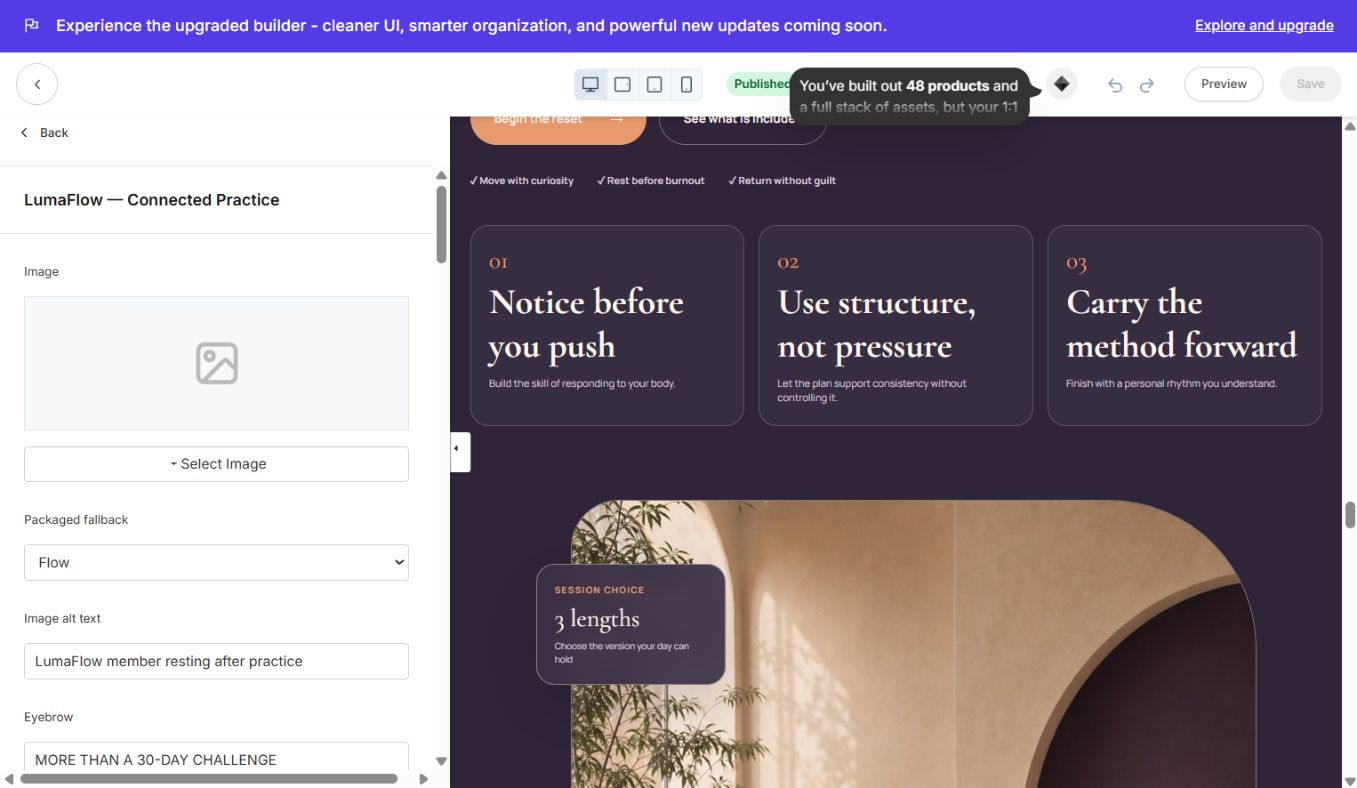
### 11. LumaFlow — Connected Practice
Image-led method overview with dual CTAs, feature ticks and compact benefit cards.
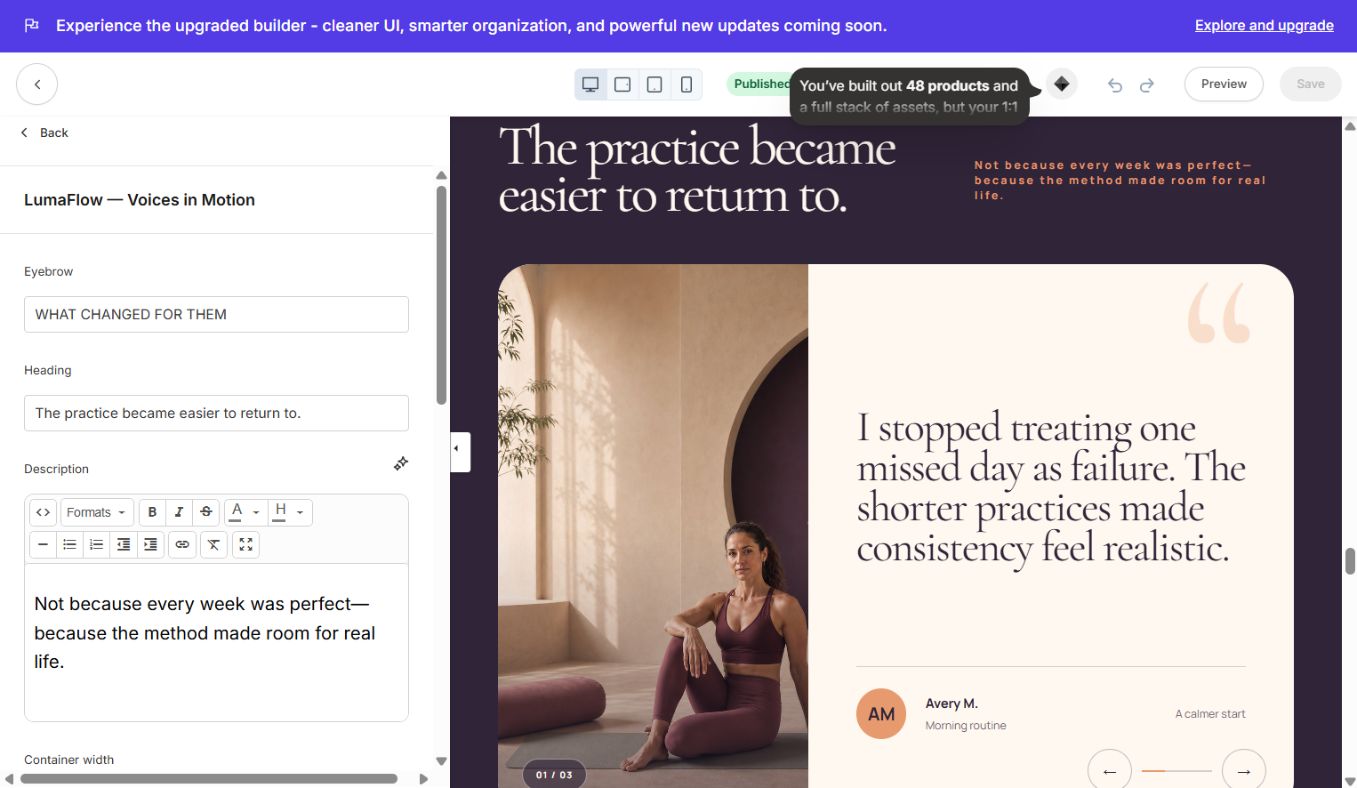
### 12. LumaFlow — Voices in Motion
Image testimonial slider. Each testimonial includes image, quote, name, context, result and navigation labels.
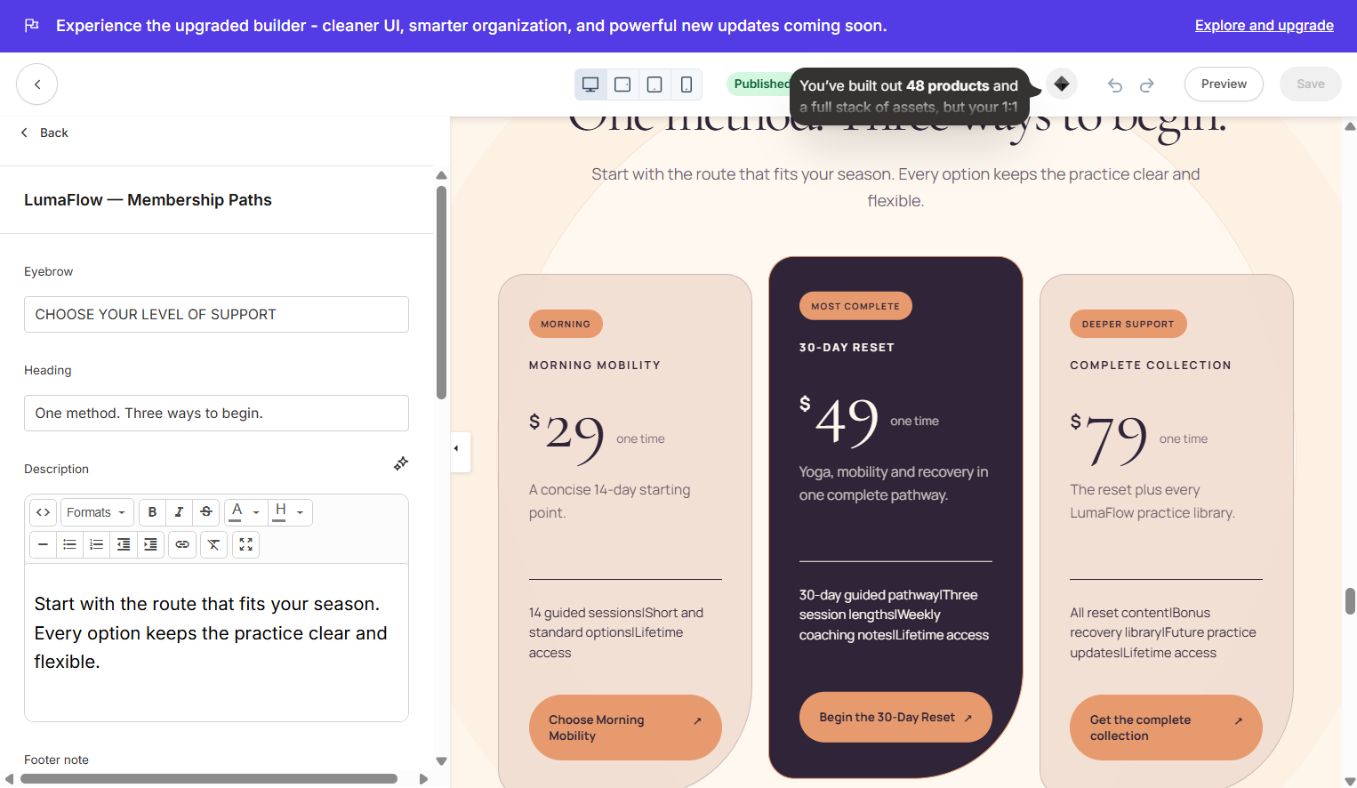
### 13. LumaFlow — Membership Paths
Three price/offer cards. Edit badge, product name, currency, price, interval, summary, feature list, featured state, CTA and checkout link.
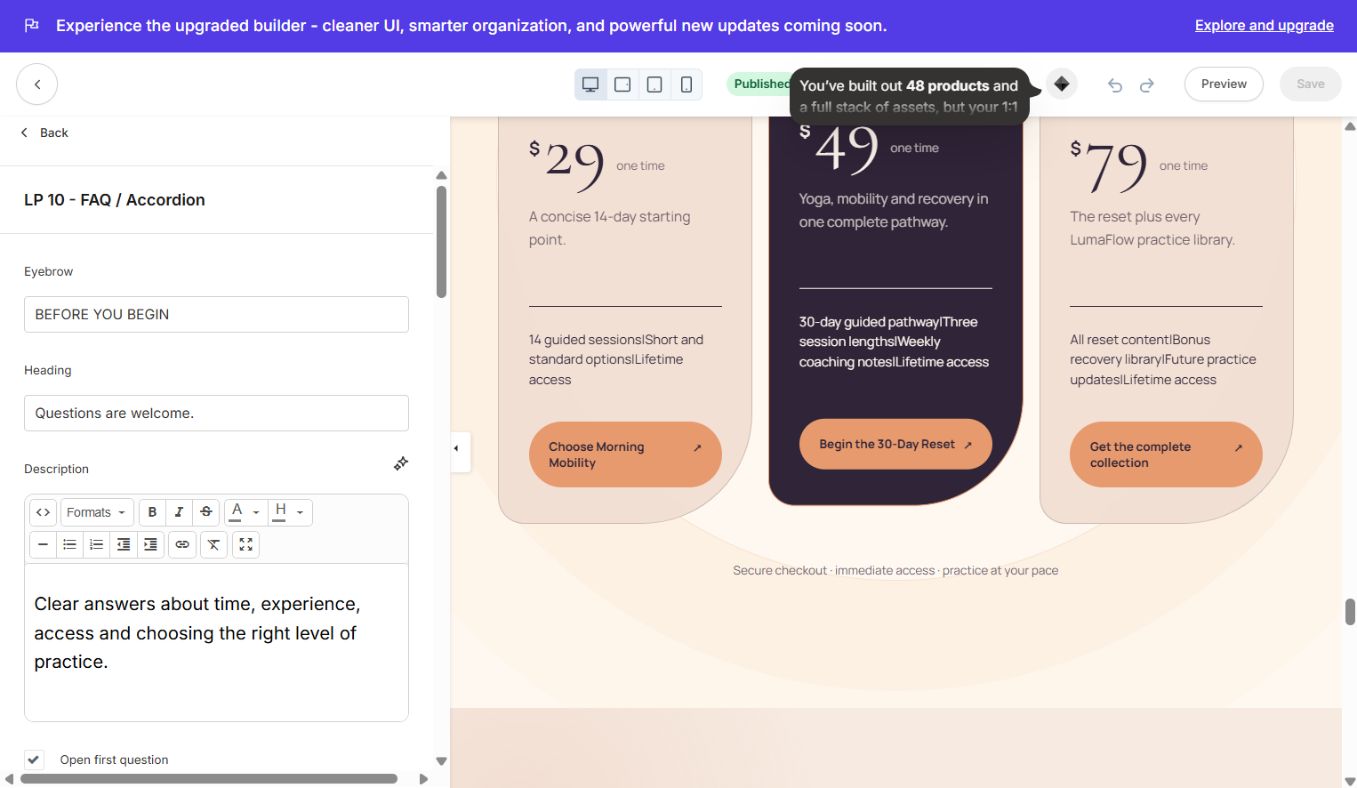
### 14. LP 10 — FAQ / Accordion
Accessible accordion for objections, delivery, access, cancellation, level and equipment questions.
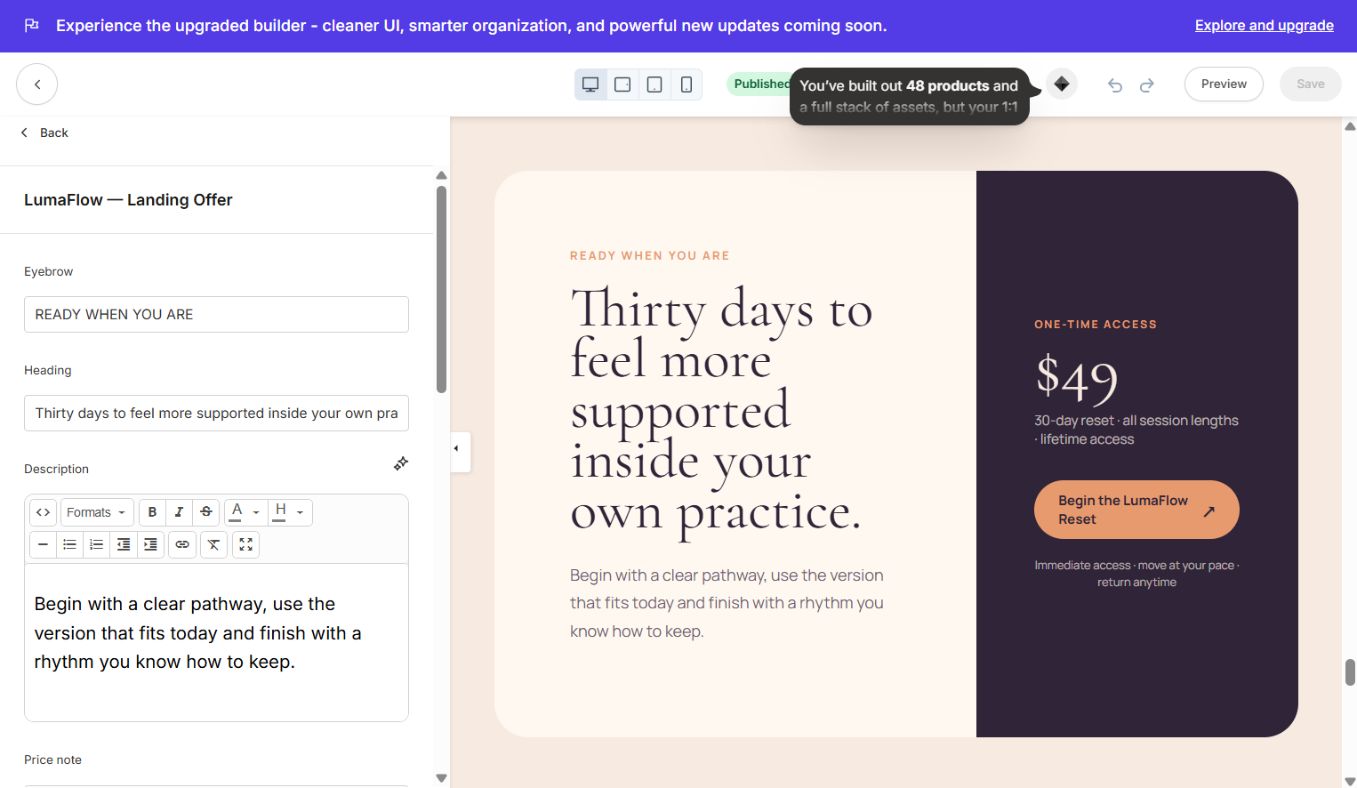
### 15. LumaFlow — Landing Offer
Dedicated final offer/conversion block with offer summary, reassurance and primary CTA.
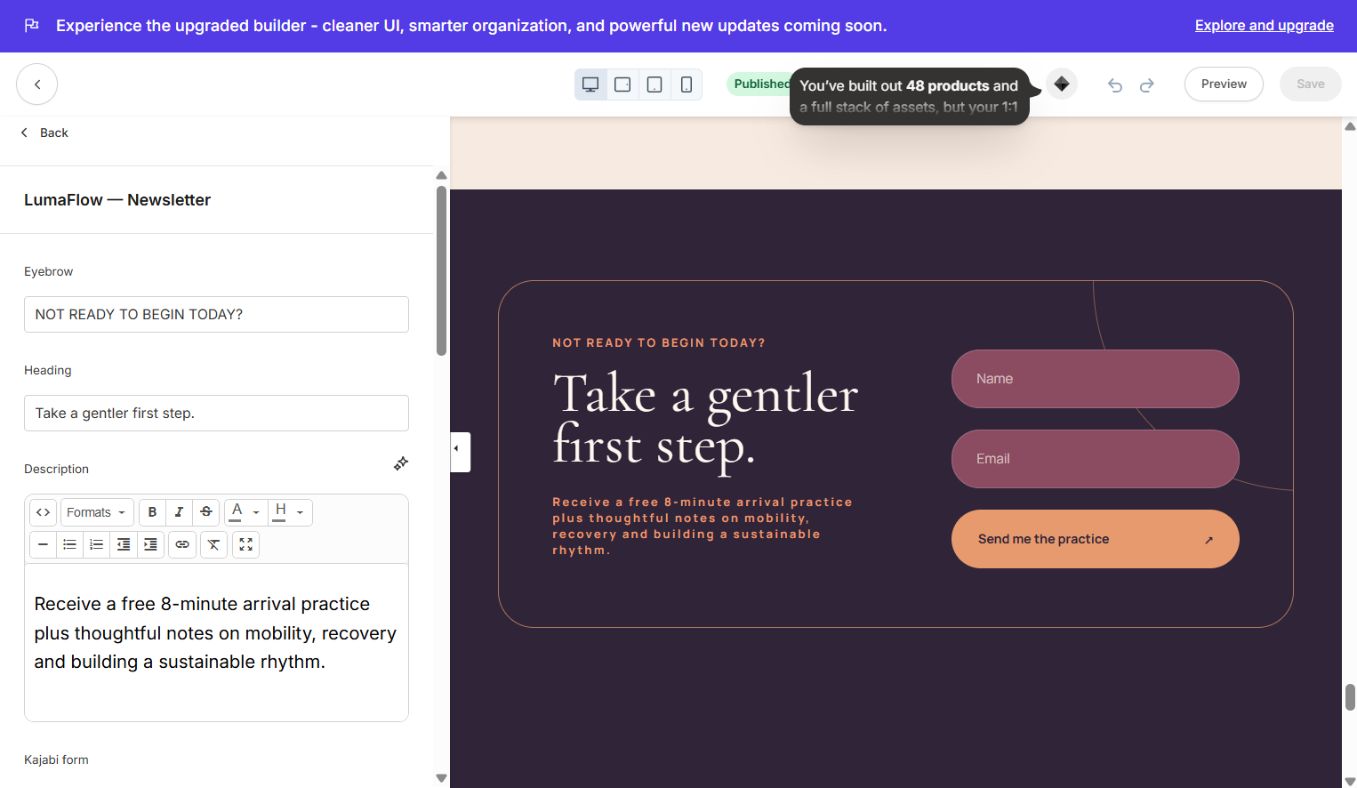
### 16. LumaFlow — Newsletter
Native Kajabi form for visitors who are not ready to buy. Select a real form, set the button text and optional thank-you destination.
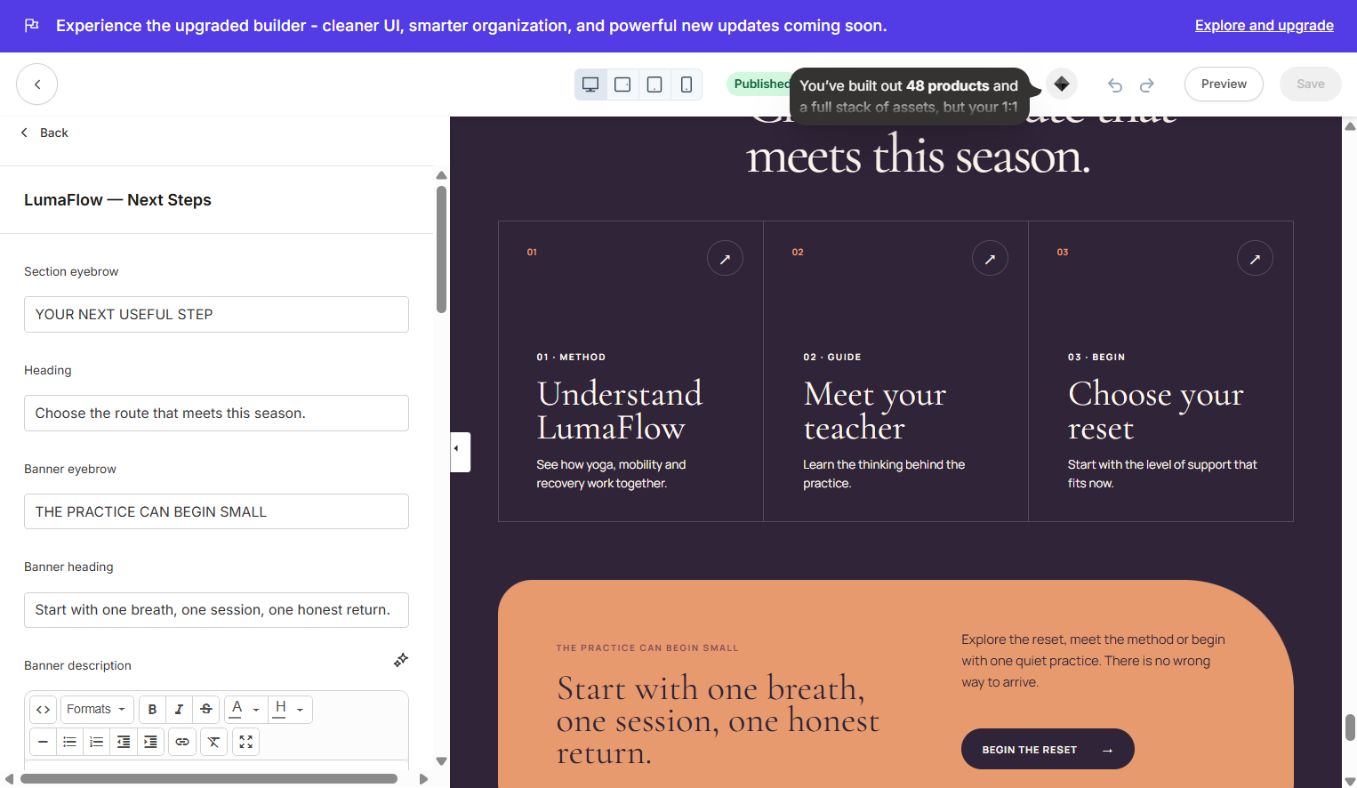
### 17. LumaFlow — Next Steps
Three-route link grid and highlighted CTA panel for secondary journeys.
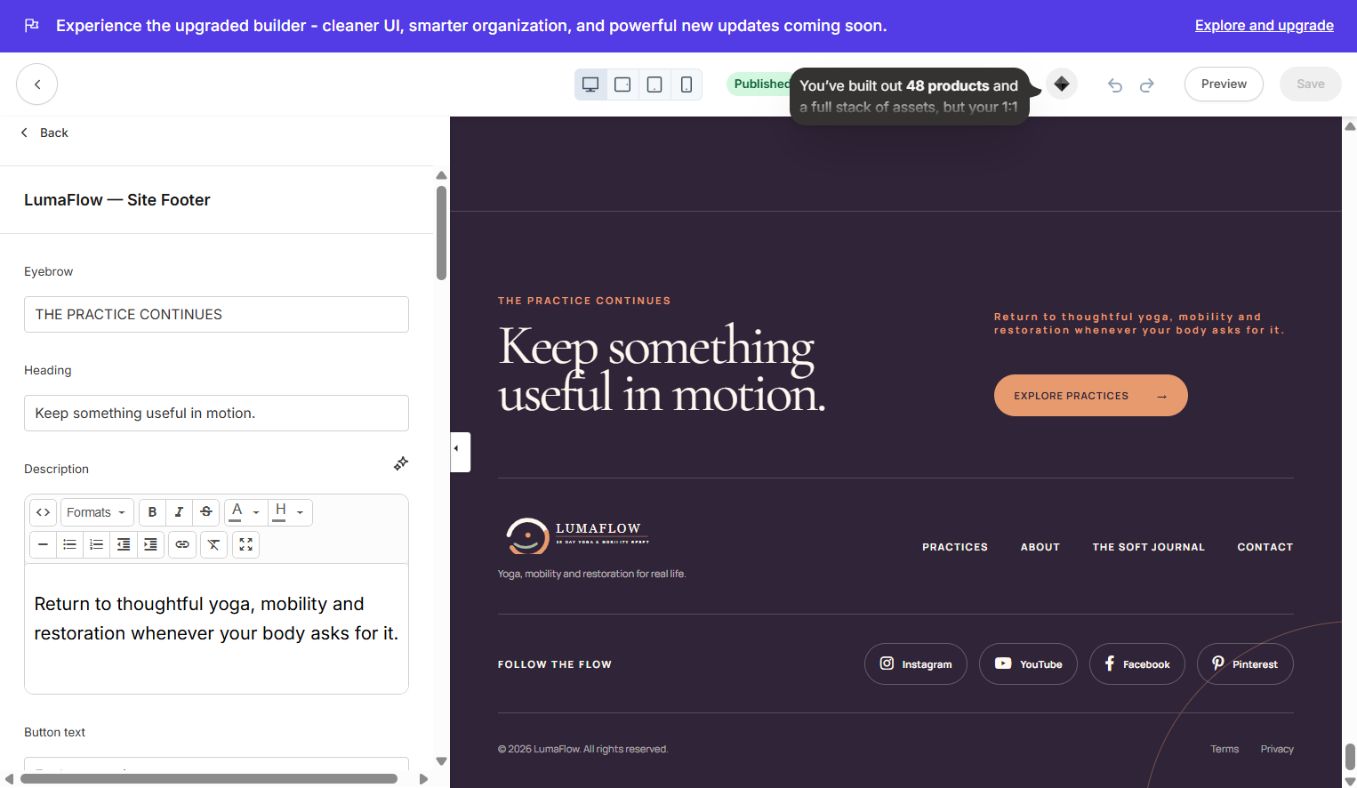
### 18. LumaFlow — Site Footer
Campaign footer with CTA, link list, Instagram, YouTube, Facebook, Pinterest, copyright, Terms and Privacy.
Connect buttons to Kajabi Offers
The demo page uses sample page/hash links. For every purchase CTA:
- 1Open Sales → Offers/Pricing and copy the checkout URL for the correct Offer.
- 2Open the relevant hero, pricing or offer section.
- 3Replace the demo link with the checkout URL.
- 4Enable “open in new tab” only when that matches the campaign flow.
- 5Test the checkout in an incognito/logged-out window.
Connect the newsletter form
- 1Create or choose a form under Marketing → Forms.
- 2Open LumaFlow — Newsletter.
- 3Choose the form in the section's Form setting.
- 4Update the button and thank-you destination.
- 5Submit a test entry and verify the contact/automation.
If the editor says “Select a Kajabi form in this section's settings,” the visual design is working but no form has been connected yet.
Change images safely
- Upload optimized WebP/JPG images through each section's image setting.
- Keep alt text meaningful.
- Use consistent color temperature and subject direction across the page.
- Hero images should normally be 1800 px wide or larger; compress them before upload.
- Avoid placing essential text inside an image.
Animation and mobile behavior
- Hero proof cards and selected proof sections animate on capable browsers.
- Visitors using “Reduce Motion” receive a stable, non-animated layout.
- Desktop and mobile padding are separately editable in most custom sections.
- Review button widths, heading wraps and image crops in Kajabi's mobile preview.
SEO and campaign tracking
- Set a unique page title and meta description.
- Upload a social sharing image.
- Use only one primary H1 (the Landing Hero already provides it).
- Add analytics/pixels through Kajabi's site settings or the template's Custom Code area.
- Use descriptive campaign parameters when linking from ads/emails.
- Confirm cookie/privacy requirements for the buyer's region.
Troubleshooting
- Uploaded under Website Design: delete that failed copy and upload from Website → Landing Pages.
- Page has no styling: verify that the complete ZIP was uploaded and not unzipped/re-zipped incorrectly.
- Form does not work: select a real Kajabi form.
- CTA scrolls nowhere: replace
#offeronly if the offer section ID was changed/removed; otherwise use a checkout URL. - Offer button does not purchase: connect the real Kajabi Offer checkout URL.
- Social links open generic sites: replace the sample profile URLs in Site Footer.
- Animations do not run: reduced-motion may be enabled; the page remains fully usable.
- Image crop is wrong: adjust image focal position/section height and test both breakpoints.
- Changes are not visible: save, wait briefly and refresh the public/preview URL.
Pre-publish QA
- All 18 sections are reviewed and intentionally visible/hidden.
- Logo, campaign copy and images are final.
- Every CTA reaches the intended section, page or checkout.
- Prices and offer features match Kajabi checkout data.
- Newsletter form and automations are tested.
- Testimonials are approved for use.
- Social/legal links are correct.
- Desktop and mobile previews pass.
- SEO and tracking are configured.
- A complete logged-out conversion test succeeds.
Continue learning
Ready to build your CineFlow site?
Keep this guide open while you customize, and contact support if you get stuck.