
KineticRise Kajabi Site Theme
Version 1.0.0 — installation, customization, page, feature, and troubleshooting guide.
KineticRise is a complete Kajabi site theme, not a single landing page. It combines a performance-training visual system with Kajabi's native content, commerce, blog, forms, member, and library features. The included content and images create a finished first-load experience, while Kajabi's visual editor controls the customer-facing text, links, colors, spacing, images, sections, and blocks.

1. Package contents
The upload ZIP contains only Kajabi runtime files:
assets/— compiled styles, scripts, fonts, icons, and packaged fallback images.config/— global theme settings and saved default values.layouts/— Kajabi page shells.sections/— 55 native and KineticRise sections.snippets/— reusable Liquid components and editor bindings.templates/— 21 Kajabi page templates.
Upload this file:
dist/KineticRise-Kajabi-Site-Theme.zip
Do not unzip the package before uploading it to Kajabi.
2. Requirements
- A Kajabi account with Website Design access.
- Permission to upload and customize website templates.
- A current desktop browser.
- Your own logo, favicon, navigation destinations, contact information, legal copy, product offers, forms, and verified customer testimonials before public launch.
The theme includes packaged images and demo content so it does not appear blank after installation. Replace demo material with licensed brand assets and accurate business content.
3. Install the theme
- 1Sign in to Kajabi.
- 2Open Website → Design.
- 3Under Saved Templates, click Upload Template.
- 4Select
KineticRise-Kajabi-Site-Theme.zip. - 5Wait for Kajabi to finish processing the ZIP.
- 6Find Kinetic Rise Kajabi Site Theme / KineticRise Site 1.0.0 in Saved Templates.
- 7Click Preview and review the pages before activation.
- 8Click Customize to configure the theme.
- 9When the preview is approved, return to Website Design and choose Set to live template.
Recommended safety workflow:
- 1Keep the currently live design available until KineticRise has been reviewed.
- 2Customize KineticRise while it remains a saved, non-live template.
- 3Verify desktop and mobile previews.
- 4Test navigation, forms, offers, blog links, login, library, and legal pages.
- 5Activate KineticRise only after final approval.
Activating the site theme does not delete Kajabi products, offers, contacts, blog posts, forms, or member progress. It changes the website presentation and template assignments.
4. Recommended first-time setup
Complete these items in order:
- 1Settings → Favicon — upload a 32 × 32 PNG.
- 2Settings → Style Guide — set brand colors, button styling, fonts, and heading/body sizes.
- 3Header — upload the desktop/mobile logo, configure the training CTA, account controls, and navigation.
- 4Footer — set the logo, navigation, social destinations, copyright, and the optional Powered by Kajabi display.
- 5Home — replace hero text/images and review every section.
- 6Store / Programs — connect buttons to real Kajabi offers or product pages.
- 7Blog — publish at least one real post and replace demo categories/content.
- 8About and Contact — replace biography, support details, form, and links.
- 9Login and Forgot Password — review account support text and imagery.
- 10Library — verify product thumbnails, member progress, search, and empty/first-login states.
- 11Legal pages — publish approved privacy, terms, refund, and license content.
5. Global design settings
Open Customize → Settings to manage the site-wide design system.
### Branding and surfaces
- Page background color and optional background image.
- Primary/accent color.
- Heading, body, secondary, and form-placeholder colors.
- Button background, text color, style, size, width, and border radius.
- Reusable surface, border, and contrast settings where supported.
### Typography
- Google font selection for body and headings.
- Body and heading weights and line heights.
- Desktop heading scale (
h1through smaller headings). - Mobile heading scale.
- Body and supporting text sizes.
Global heading settings apply to normal semantic headings. A section-level size control intentionally overrides the global value for that section.
### Layout
- Shared content/container width.
- Desktop and mobile spacing behavior.
- Section top/bottom padding.
- Block spacing, alignment, width, and responsive stacking where supplied.
KineticRise uses a consistent shared container system across the homepage and custom pages. Individual sections can still use full-width backgrounds while their content remains aligned to the site grid.
6. Header and footer
### Header
- Desktop and mobile logo.
- Primary training CTA text, destination, colors, size, and visibility.
- Kajabi account/avatar menu.
- Configurable dropdown surface, text, hover, and border colors.
- Desktop and mobile navigation behavior.
- Library search icon where the page supports product search.
### Footer
- Logo and copyright.
- Navigation and social links.
- Configurable background, text, link, and accent colors.
- Optional Show Powered by Kajabi switch; it is off by default in KineticRise.
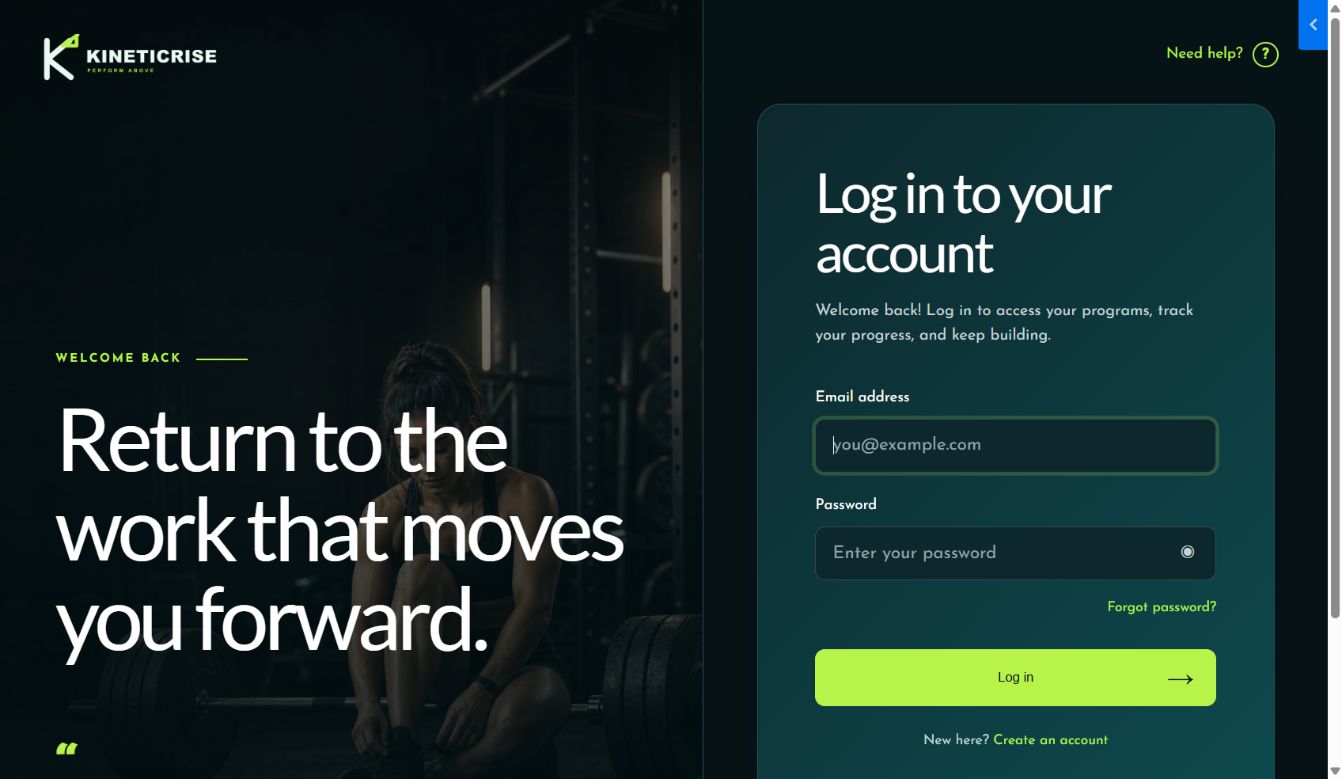
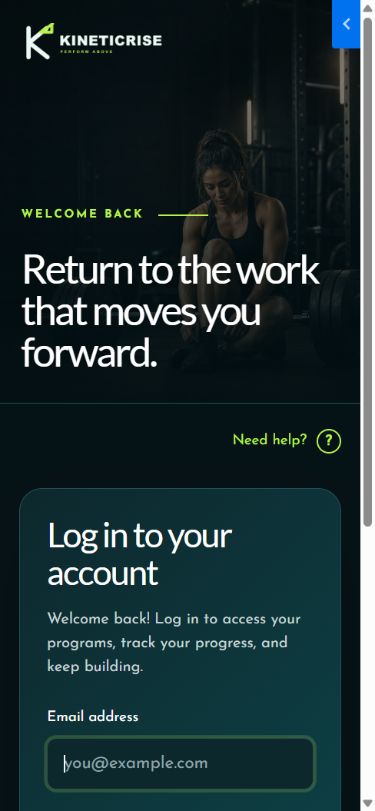
Header/footer settings are shared across normal site pages. Login and password-recovery templates use a focused account layout and intentionally omit the standard site header/footer.
7. Included page templates
| Template | Purpose | Main behavior |
| Home | Primary site homepage | Slider hero, training paths, method, testimonials, newsletter, pricing, FAQ, and CTAs. |
| Library | Logged-in product library | Dynamic Kajabi products, progress states, product search, progressive loading, recommendations, and first-login handling. |
| Member Directory | Community directory | Dynamic Kajabi member data with KineticRise hero and directory styling. |
| Announcements | Member announcements | Dynamic Kajabi announcements with branded hierarchy. |
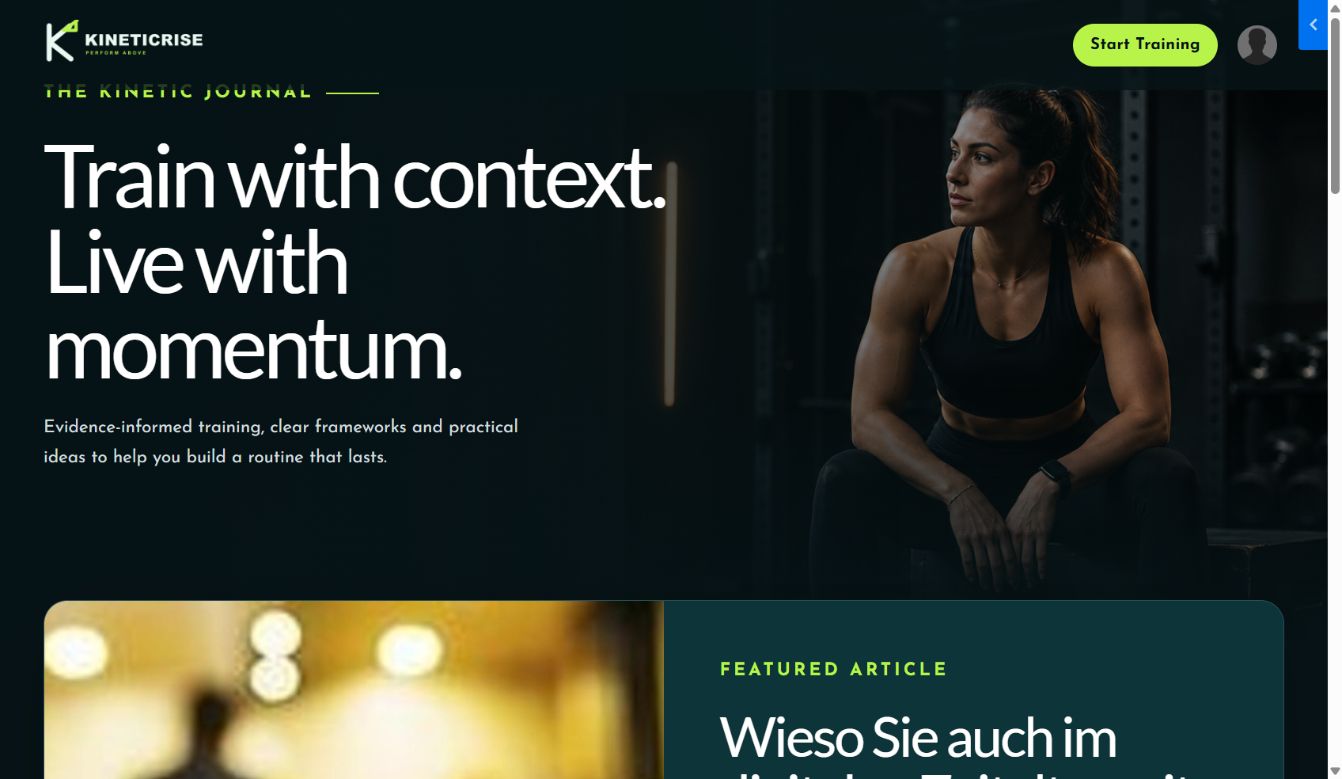
| Blog | Blog index | Latest post feature, dynamic article cards, categories/search, editorial section, and newsletter. |
| Blog Post | Single article | Dynamic post title/body/author/date/image, related content, takeaways, author panel, and newsletter. |
| Blog Search | Search results | Native Kajabi blog search results with branded search/empty states. |
| Thank You | Form/checkout confirmation | Dynamic confirmation area and next-step guidance. |
| Login | Customer login | Image-led account screen with native Kajabi login and forgot-password flow. |
| Forgot Password | Password recovery | Uses the Login design system and editable account-page settings. |
| 404 | Missing route | Branded recovery message and useful navigation. |
| Page | Standard content page | Flexible Kajabi content-page shell. |
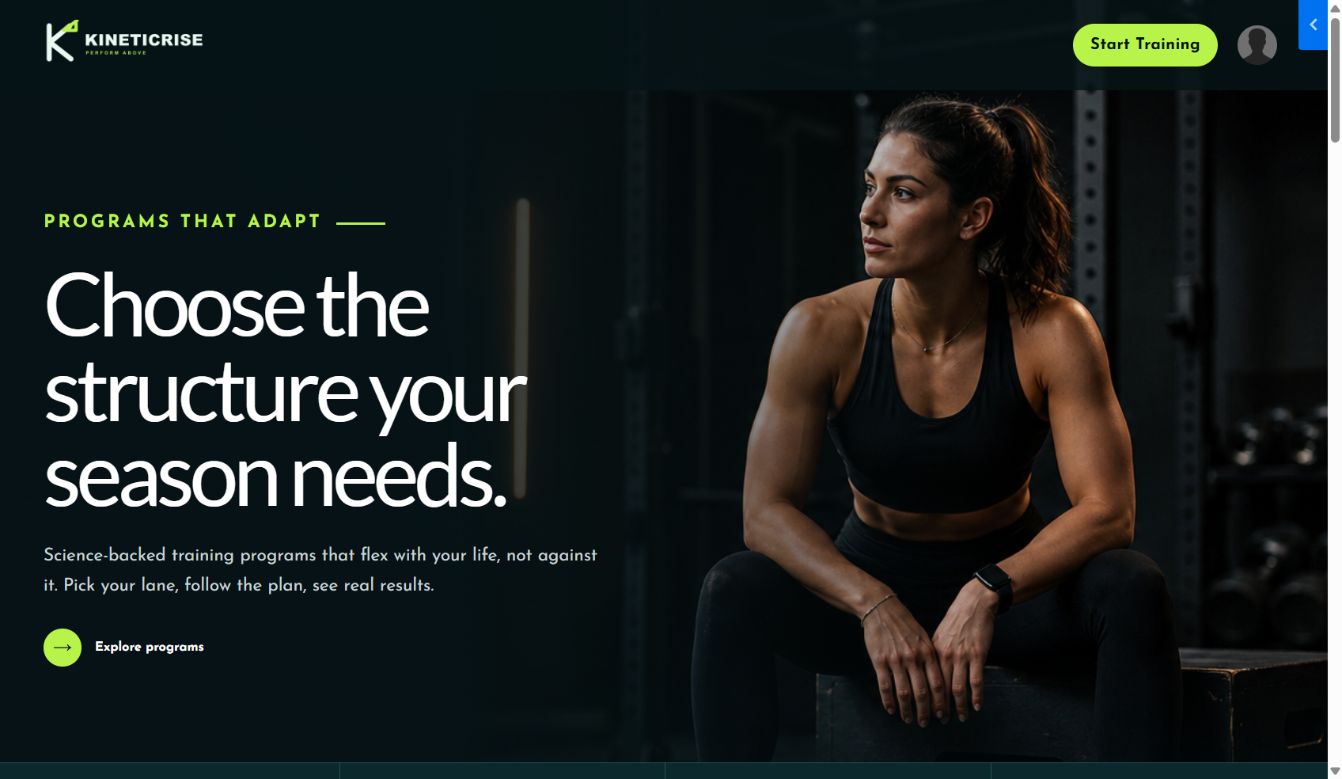
| Store | Programs page | Dynamic Kajabi offers/products with program hero, benefits, cards, method, testimonials, and CTA. |
| Sales Page | Kajabi sales content | Branded dynamic sales-page body/sidebar support. |
| About | Brand/about page | Page hero, story, standards, method, image-led sections, and CTAs. |
| Contact | Contact page | Hero, native Kajabi form, contact routes, FAQ, and program CTA. |
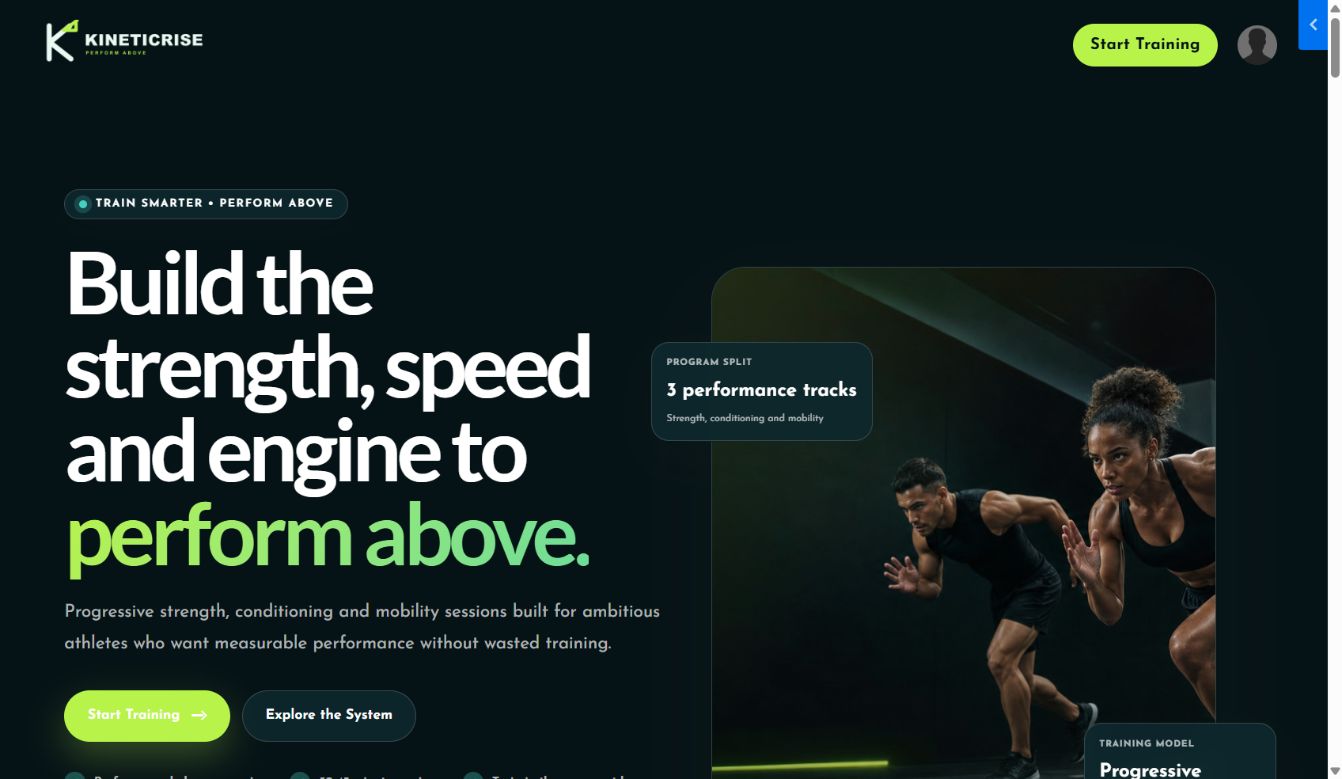
| Landing | Long-form conversion page | Performance offer story, problems, system, tracks, pricing, testimonials, FAQ, and closing offer. |
| Newsletter templates | Kajabi internal newsletter pages | Subscribe, index, and post layouts. |
### Page previews
#### Library
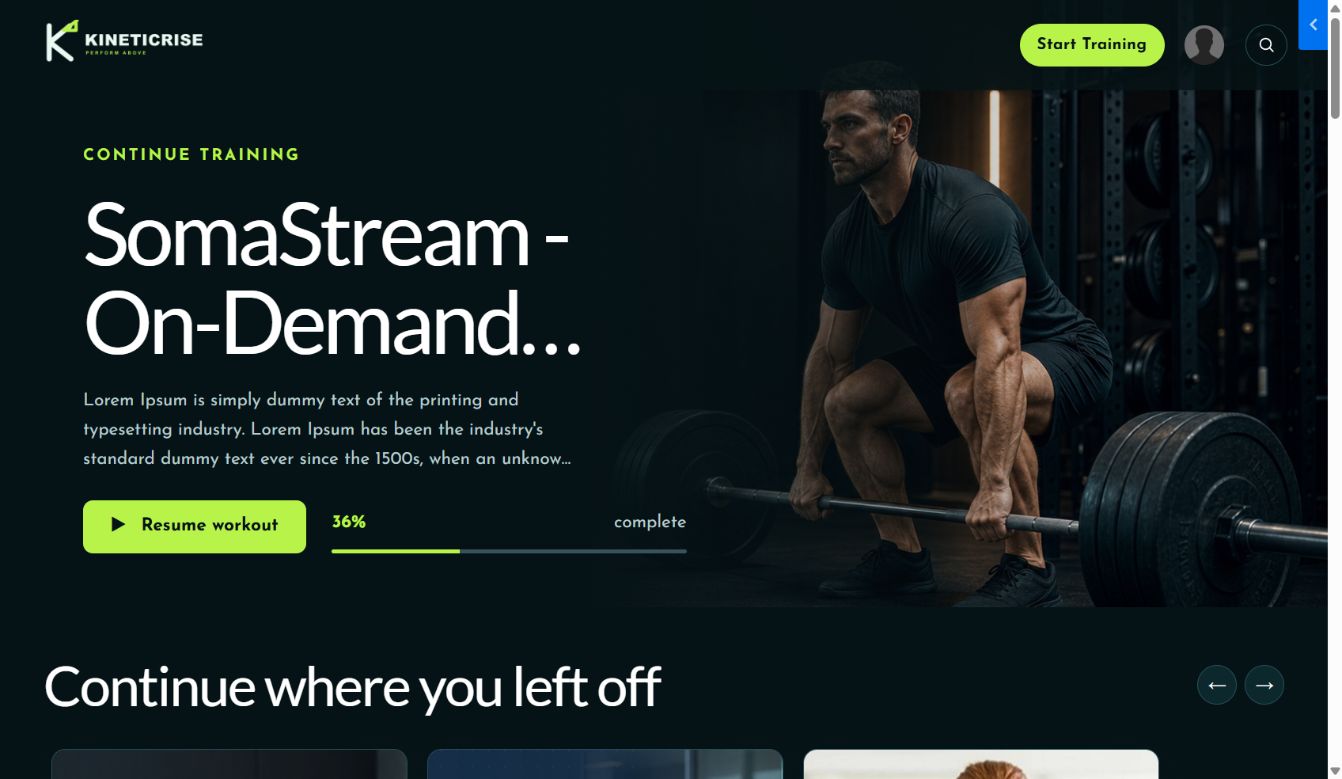
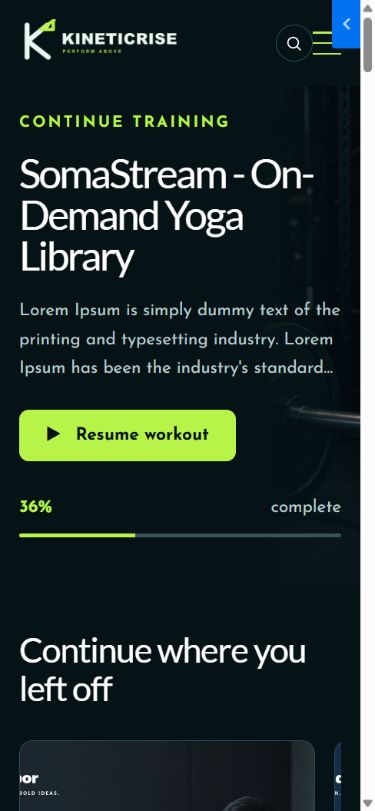
The library reads real Kajabi products rather than static cards. Products load in larger batches as the visitor scrolls. Continue-training content appears only when the member has progress; it is hidden for a true first-time learner. Search opens from the header icon and filters the available products.
#### Blog

#### Store / Programs

#### Login
#### Landing page

Additional captured previews for Member Directory, Announcements, Blog Post, Blog Search, Thank You, 404, standard Page, Sales Page, About, and Contact are stored in documentation/screenshots/.
8. Section library
KineticRise includes both custom brand sections and the native Kajabi/Encore section foundation.
### Homepage and reusable KineticRise sections
- Accessible three-slide banner.
- Training pulse/stat strip.
- Image + copy story sections.
- Choose Your Path card grid.
- Product-system navigator/scene slider.
- Method/standards section.
- Coach/brand story.
- Multi-style testimonial and customer-story sliders.
- Weekly rhythm/process timeline.
- Problem/pain-point cards.
- Offer/program category cards.
- Explore/link portal.
- Native Kajabi newsletter form.
- Three-plan pricing.
- Benefits and conversion CTA.
- FAQ accordion.
- Closing invitation/final CTA.
### Programs, blog, account, and library sections
- Programs hero, dynamic grid, featured program, method, steps, and testimonials.
- Blog hero, insight strip, listings, search results, and article body.
- About story, Contact form/details, and reusable page hero.
- Library header, dynamic dashboard, and library footer.
- Login and account recovery.
- Member directory and announcements.
- Thank You, page content, embedded checkout, Store Builder, and sales-page body/sidebar.
### Native reusable sections
Carousel, Cinematic, Orbit, Amazing, Products, Testimonials, Teaching Assistant, Newsletter Hero/Listings/Post/Recent Posts, Exit Popup, Two-Step Opt-in, and flexible general-purpose sections remain available.
9. Editing sections and blocks
- 1Open Website → Design → KineticRise → Customize.
- 2Select a page from the page dropdown.
- 3Click a section in the left sidebar or click its highlighted area in the preview.
- 4Edit the section settings.
- 5Open an individual block to edit block-specific content and presentation.
- 6Save, then preview the page at desktop and mobile sizes.
KineticRise follows Kajabi editor binding rules:
- Sections use their Kajabi section ID.
- Blocks use their Kajabi block ID.
- Click-to-edit targets are scoped to the correct section/block.
- Custom cards, testimonials, links, images, buttons, form fields, and repeaters expose editor bindings where Kajabi permits them.
Common section controls include background/text/accent colors, container width, heading/body size, alignment, image, overlay, top/bottom padding, mobile spacing, border, radius, and CTA settings. Block controls vary by block type.
10. Images and media
- Packaged fallback images appear immediately after installation.
- Kajabi image-picker selections take priority over packaged defaults.
- Replace every demo image with an appropriately licensed brand image before sale or launch.
- Use landscape images for heroes/cards and square images for avatars when possible.
- Keep the subject away from edges so responsive cropping remains useful.
- Banner images are positioned from the top by default to avoid cutting off faces/heads; use the section position controls for different compositions.
If an image appears blank, first confirm that the complete ZIP was uploaded and that the image setting is not pointing to a deleted Kajabi asset.
11. Dynamic Kajabi behavior
The following content is intentionally not static:
- Store products/offers and destinations.
- Member Library product cards and progress.
- Continue-training visibility.
- Product search results.
- Member Directory records.
- Announcements.
- Blog posts, author, publish date, images, categories, search, and related reading.
- Login, forgot-password, and account form actions.
- Contact/newsletter forms.
- Thank You output.
Demo copy, prices, links, and testimonials are starting content only. Connect all conversion buttons to real Kajabi offers and replace sample claims with truthful, approved content.
12. Responsive behavior
The theme includes responsive header navigation, stacked content, scalable headings, image positioning, slider/card behavior, and touch-friendly actions. Before activating:
- Check 390 px mobile width and a normal desktop width.
- Confirm no horizontal scrolling.
- Test menu, sliders, accordion, search, account dropdown, and forms.
- Check long product titles and translated content.
- Verify image focal points on both breakpoints.
13. Troubleshooting
### Theme uploads but looks blank
- Upload the ZIP, not the extracted folder.
- Confirm the ZIP root contains
assets,config,layouts,sections,snippets, andtemplates. - Wait for Kajabi processing to finish, then hard refresh the preview.
### Global font size is not changing a heading
That section may have an explicit section-level font-size setting. Set the section control to its default/global option or adjust it directly.
### A section or block cannot be clicked in the editor
- Reload Customize once after a theme update.
- Select the item from the left sidebar.
- Confirm you are editing the correct page template.
- If a custom block was duplicated from old saved content, remove and add the current block version again.
### Buttons open the wrong page
Demo URLs are placeholders. Update every CTA, navigation item, social link, program destination, and offer destination.
### Library cards are missing
The Library uses products granted to the logged-in customer. Confirm the test account owns a published Kajabi product and the product has a thumbnail.
### Continue where you left off is missing
This is expected for a first-time learner or a customer without lesson progress.
### Login page has no normal header/footer
This is intentional. Login and password recovery use a focused, distraction-free account layout.
### Powered by Kajabi is visible
Open the Footer settings and turn off Show Powered by Kajabi. Kajabi plan/account rules can affect platform branding outside the theme's own footer output.
14. Updating the theme
- 1Keep a copy of the currently working ZIP.
- 2Upload the new KineticRise ZIP as a saved template.
- 3Preview and verify it before replacing the live design.
- 4Review page assignments and saved section content.
- 5Activate only after desktop/mobile QA.
Kajabi does not automatically merge every customization between separately uploaded theme copies. Record important brand settings and keep screenshots before a major update.
15. Pre-launch checklist
- [ ] Logo, favicon, colors, typography, and buttons are correct.
- [ ] Header, mobile menu, account dropdown, and footer work.
- [ ] Powered by Kajabi setting matches the intended presentation.
- [ ] All demo text, testimonials, prices, names, emails, and links are replaced.
- [ ] Home, Store, About, Contact, Blog, Blog Post, Search, Login, Forgot Password, Library, Announcements, Member Directory, Thank You, 404, Page, Sales Page, and Landing are reviewed.
- [ ] Kajabi forms and offers submit to the correct destinations.
- [ ] Product images, blog images, and library thumbnails are present.
- [ ] A first-time member and a returning member are both tested.
- [ ] Desktop and mobile layout, sliders, FAQ, search, and navigation pass.
- [ ] Privacy, terms, refund, licensing, and claims are approved.
- [ ] A backup/current live design remains available until launch verification is complete.
16. Support information to include with the product
Provide customers with:
- Product name and version.
- Download ZIP and checksum/version notes.
- This installation guide.
- Supported Kajabi environment and browser expectations.
- A support email and response-time policy.
- Clear limits: Kajabi account configuration, third-party scripts, custom code, content migration, legal review, and offer/payment setup are separate from the visual theme unless explicitly included.
Continue learning
Ready to build your CineFlow site?
Keep this guide open while you customize, and contact support if you get stuck.